- 1. Overview
- 2. Configuring Email Processing Rules
- 3. Sending a Test Email
- 4. Merging Multiple Files into a Single Spreadsheet
- 5. Performing Advanced Data Processing
- 6. Technical Support
1. Overview
MailAttachmentBot is a plugin for SQLMessenger that helps you automatically import email attachment spreadsheets into a database or save them to a directory you specify.
For example, you can configure the plugin so that when emails from certain senders contain an Excel file named "Sales Report," the data in the file is imported into your database and the file is saved to a designated folder for archival purposes.
- Note: Before getting started with MailAttachmentBot, ensure you have completed the following:
- 1. Install the MailAttachmentBot plugin in SQLMessenger. Details
- 2. Configure an email account in SQLMessenger for sending emails (if you haven't already). Details
2. Configuring Email Processing Rules
Some of my colleagues send me daily sales reports via email. My responsibility is to import this data into our database for aggregation and analysis.
Here is an example of an email I receive:
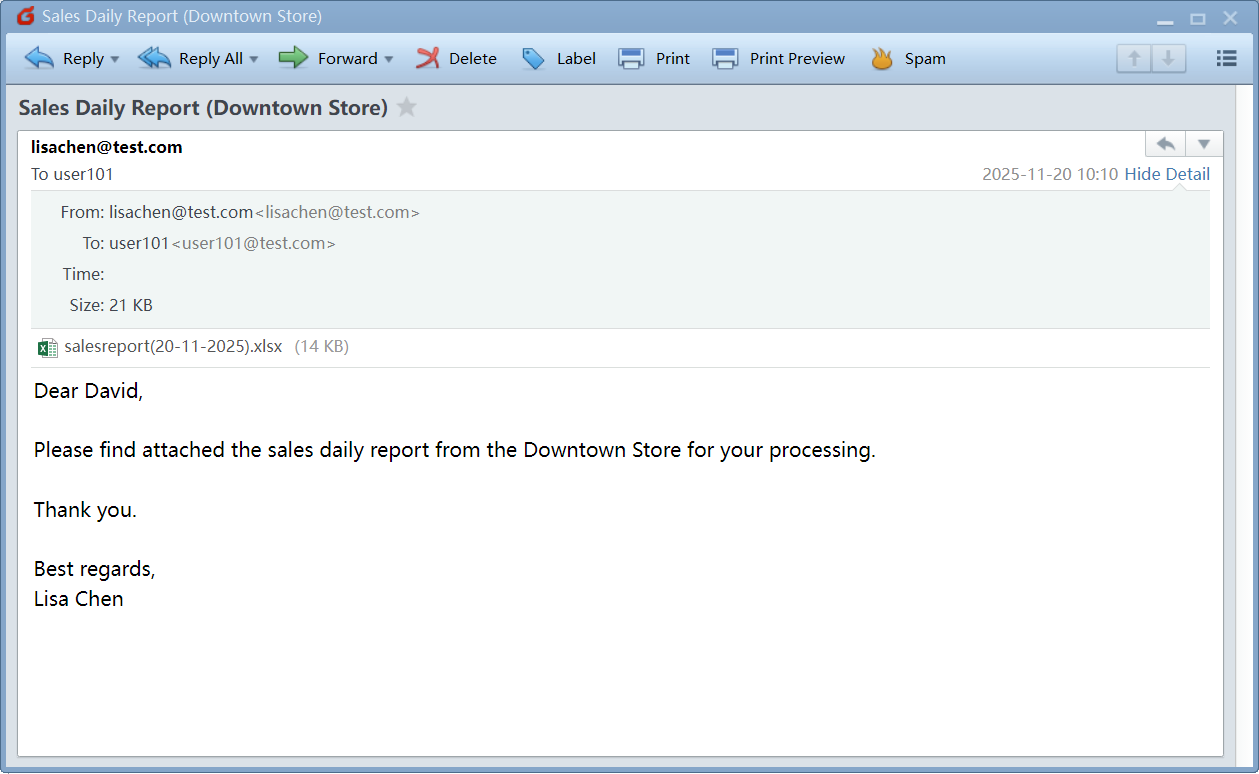
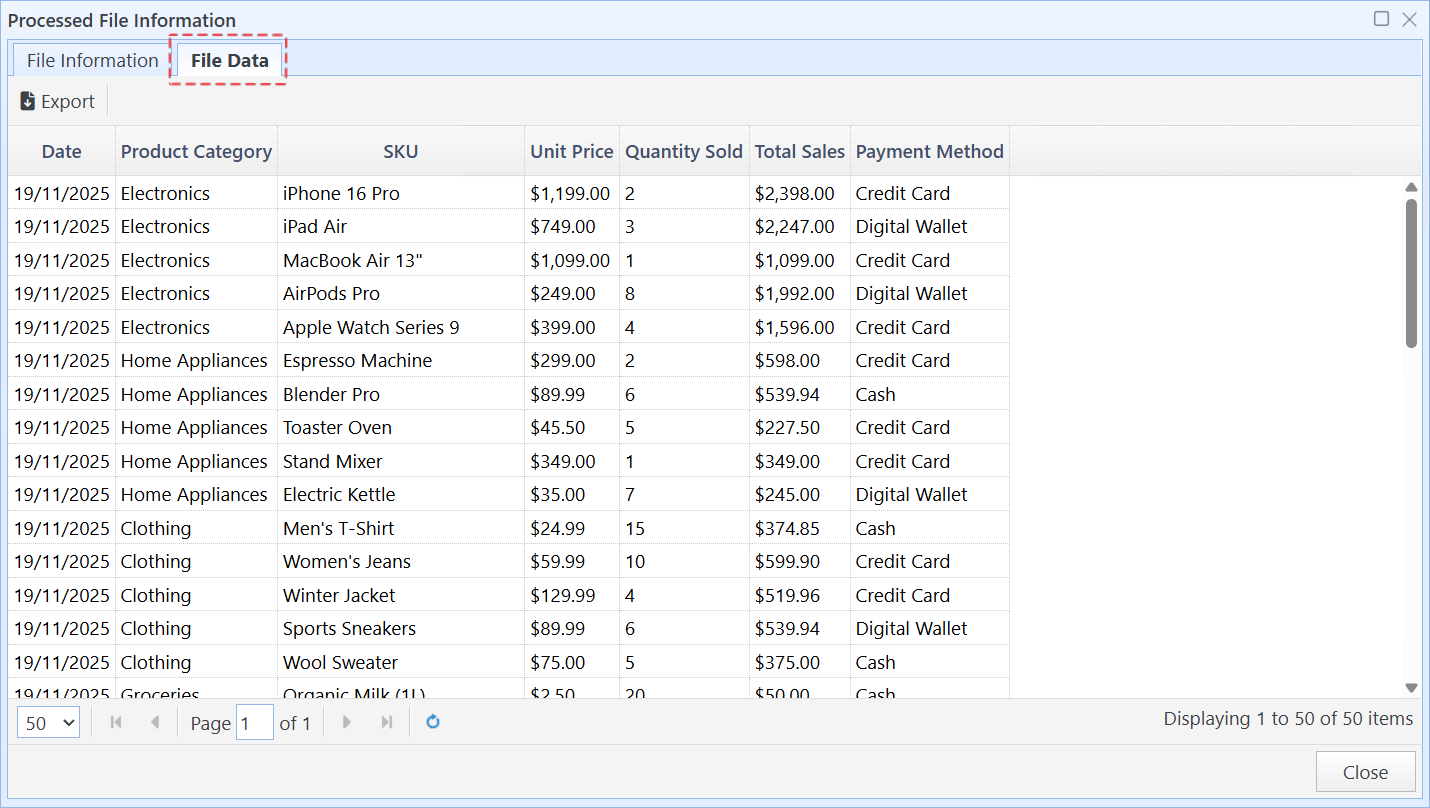
The email includes an Excel file named "Sales Report (Date).xlsx," e.g., "Sales Report (20/11/2025).xlsx." Below is the content of the file.
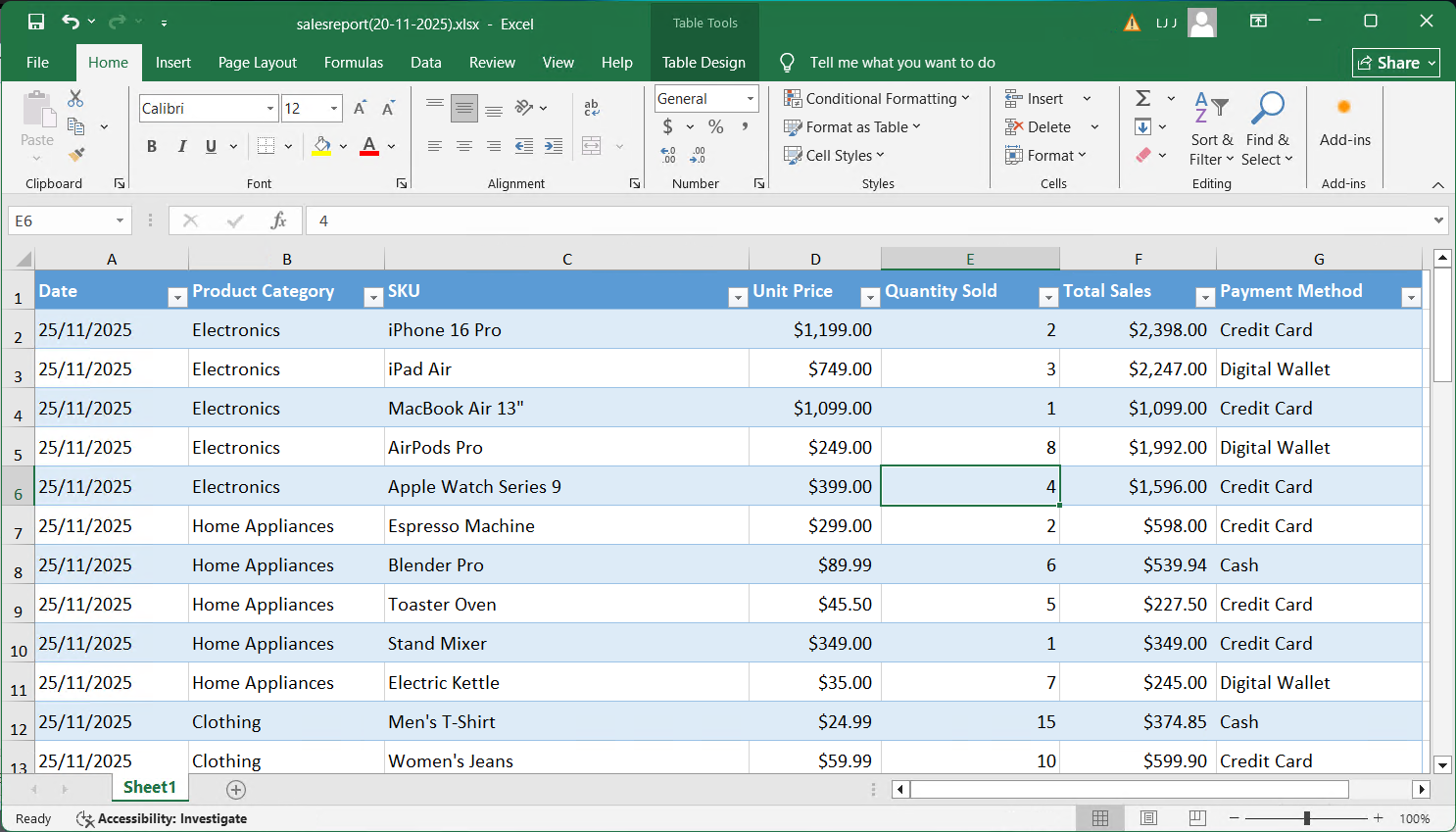
After configuration and testing, I automated this process using MailAttachmentBot. The steps are as follows:
Step 1: Configure a file type in MailAttachmentBot.
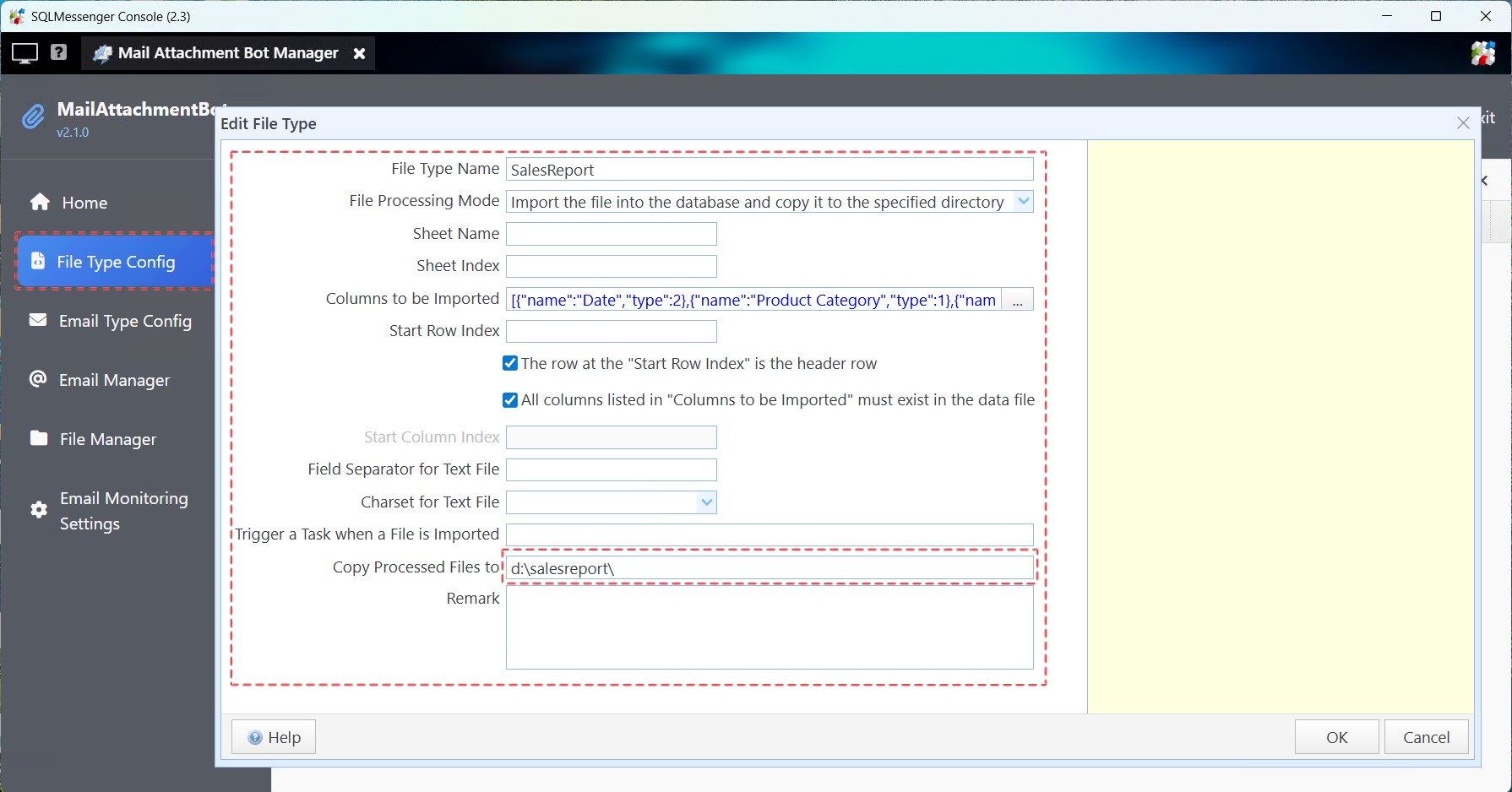
Step 2: Configure an email type in MailAttachmentBot.
To ensure that only emails from specified senders are processed, disable the "Allow anyone to send this type of email" option and add the sender email addresses to be processed.
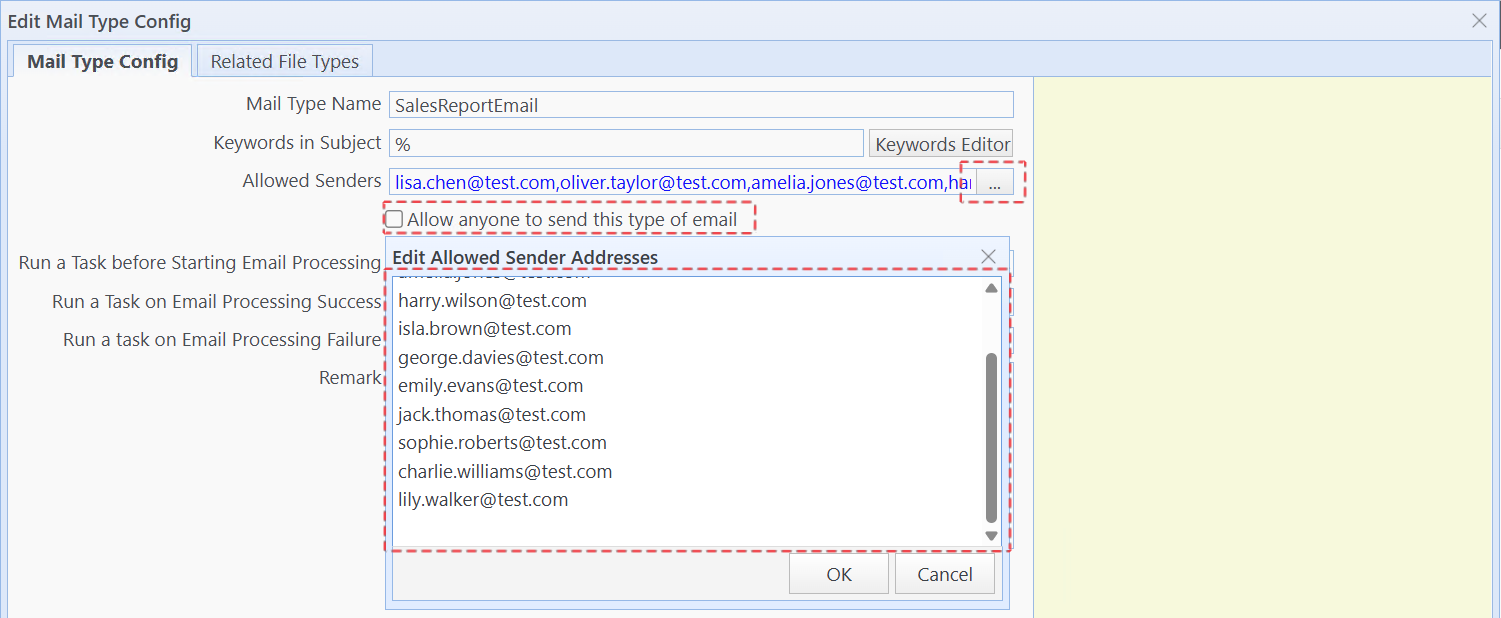
With this configuration, only emails from the configured addresses will be processed under this email type.
Step 3: Add an attachment type to the email type.
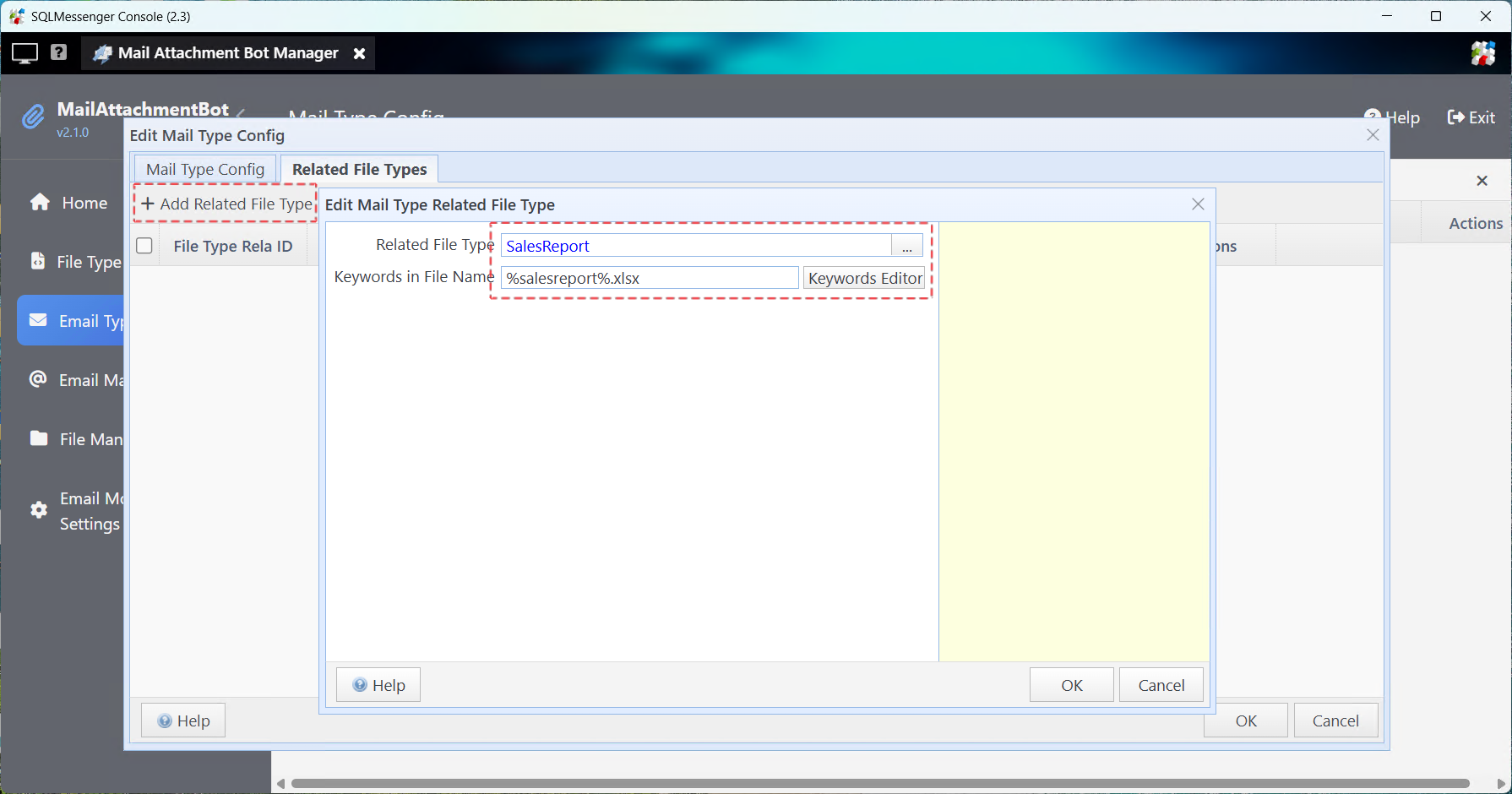
The system will process an attachment under this rule only when the attachment’s file name contains the keyword "salesreport" and its file extension is ".xlsx".
Step 4: Add the email account that I use to receive these emails to the monitoring list in MailAttachmentBot.
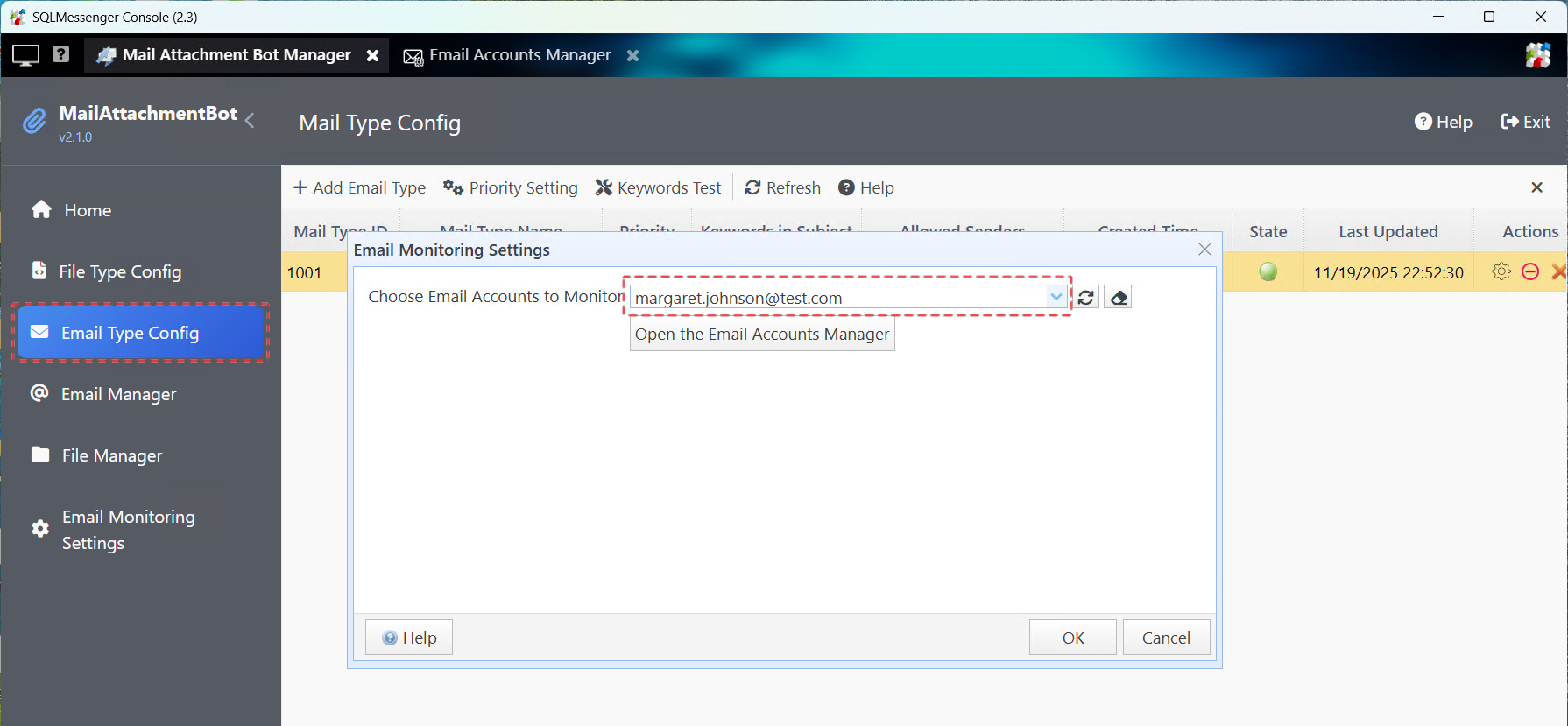
Once configured, when margaret.johnson@test.com receives a new email, MailAttachmentBot checks whether the sender is in the allowed list and whether the attachment is an Excel file containing the keyword "salesreport." If both conditions are met, the attachment data is imported into the database, and the file is saved to D:\salesreport.
3. Sending a Test Email
To verify that the configuration is correct, I sent a test email.
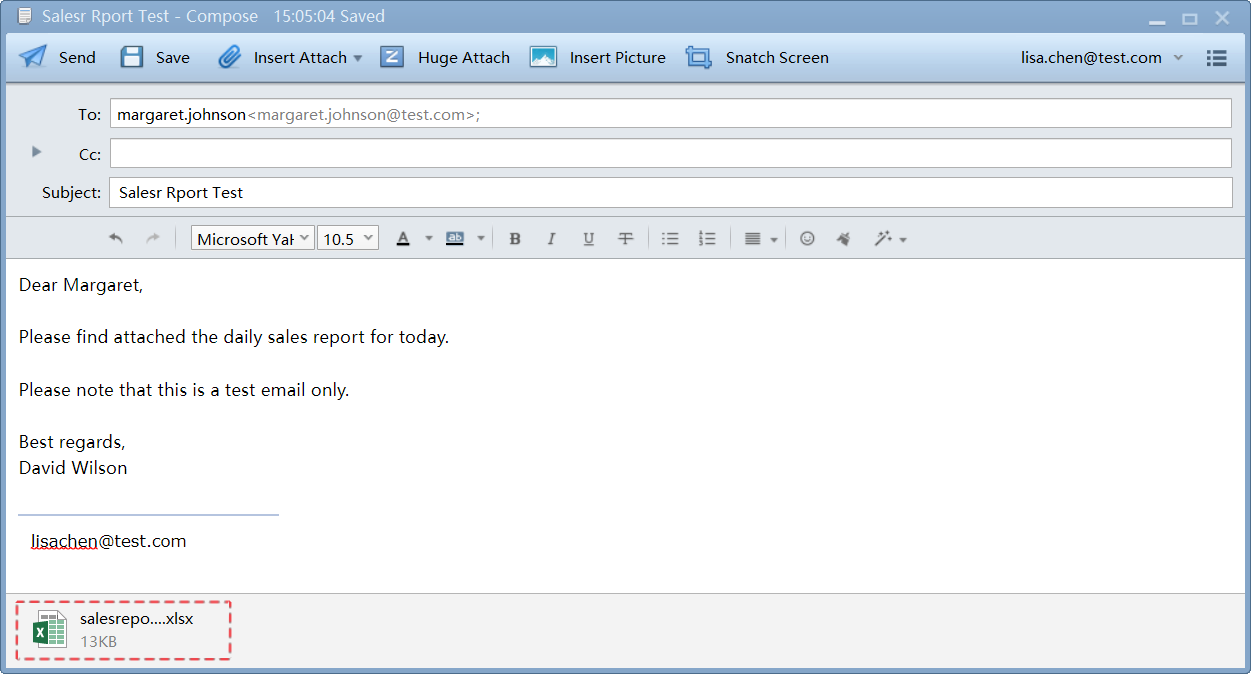
SQLMessenger received the email and processed it automatically.
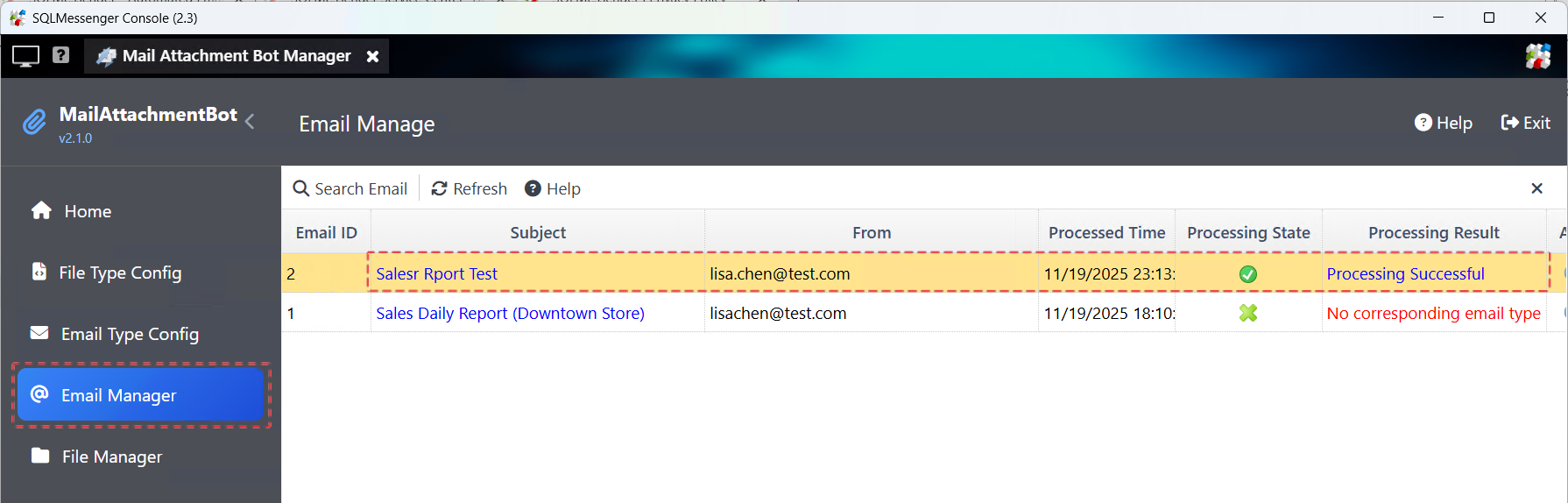
Processed emails are displayed in the Email Manager
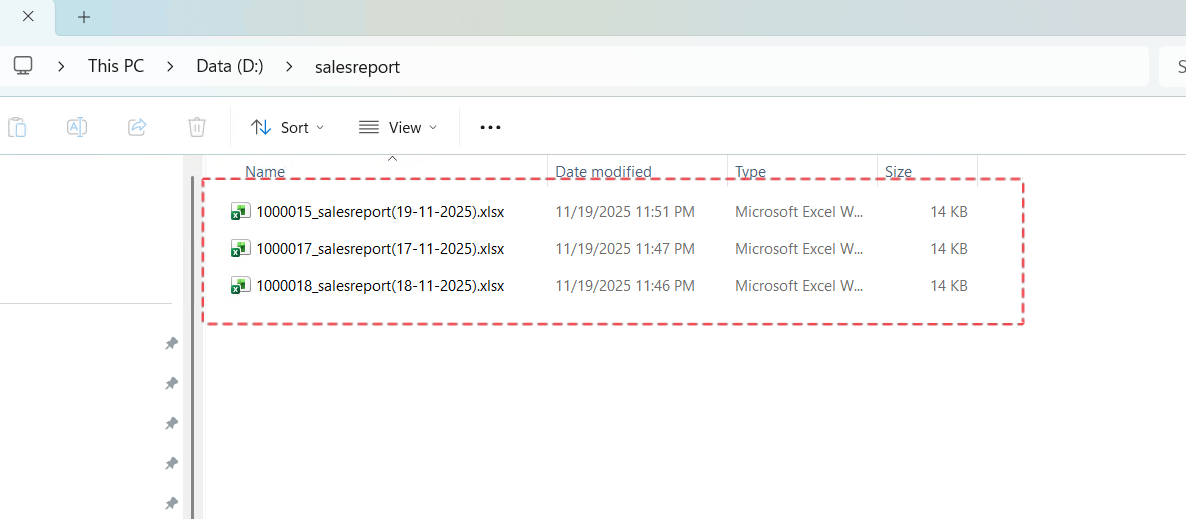
The attachment files have been copied to the specified folder
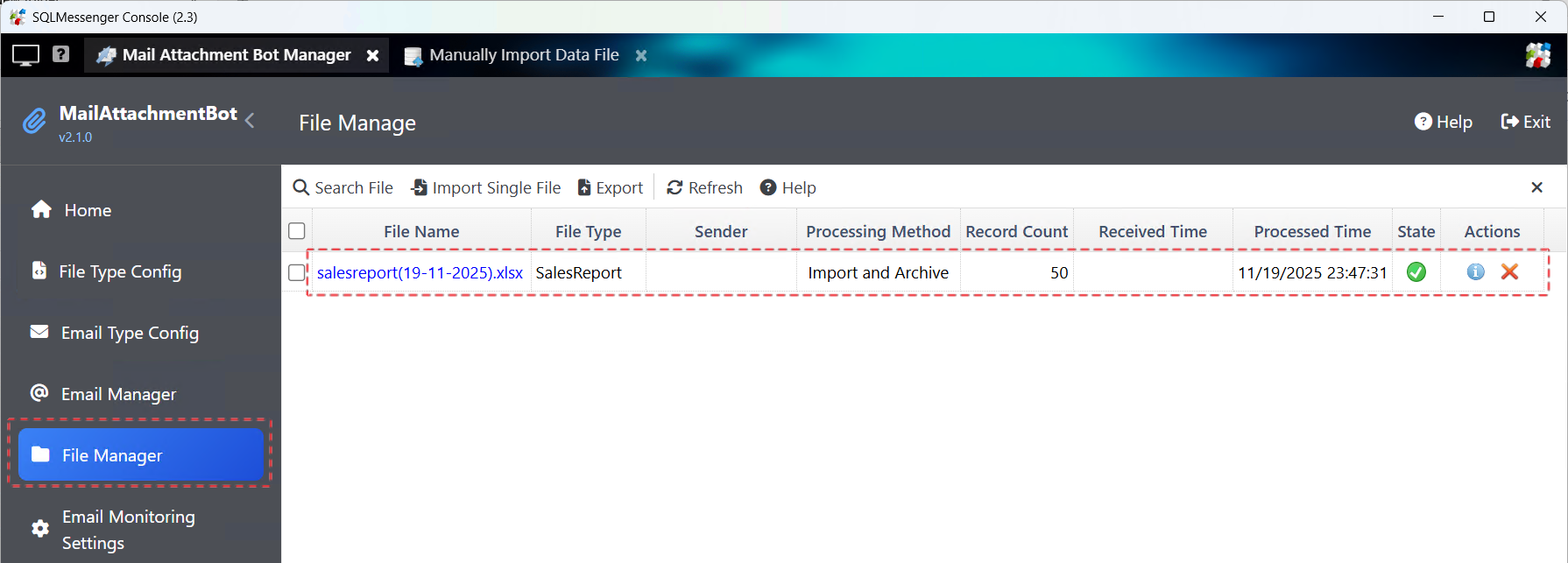
Processed files are displayed in the File Manager
Click the View File Info button to check the file's data.
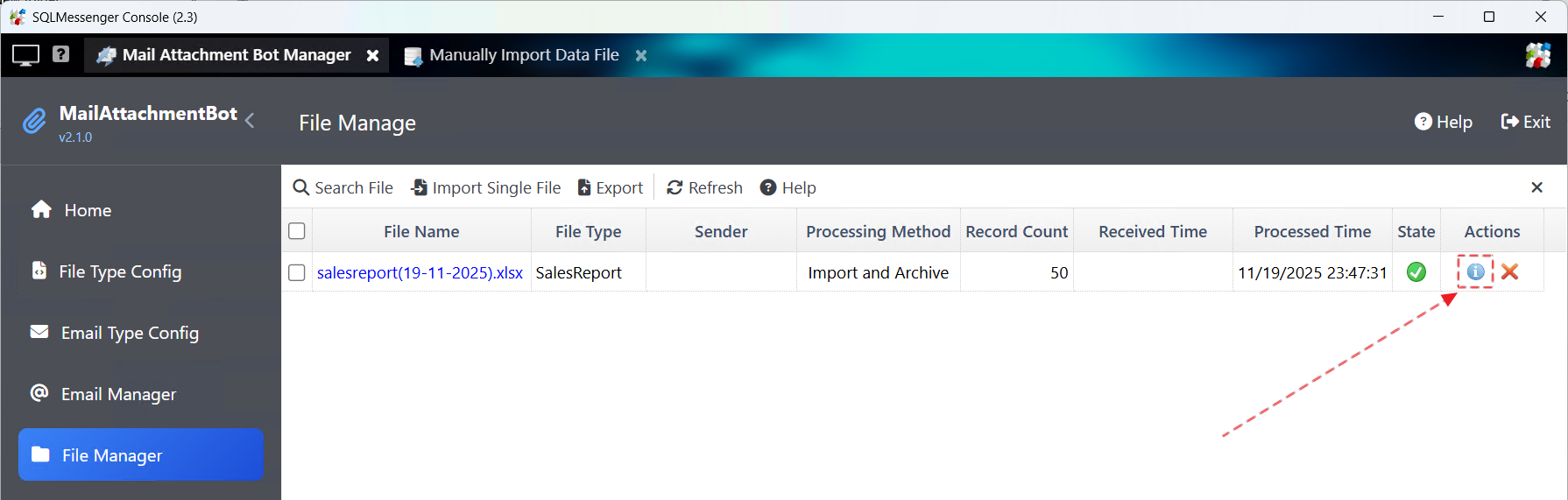
Clicking the View File Info button displays the file’s data
Query the data of the imported file
The system also sends a notification email to the sender confirming that their report has been processed.
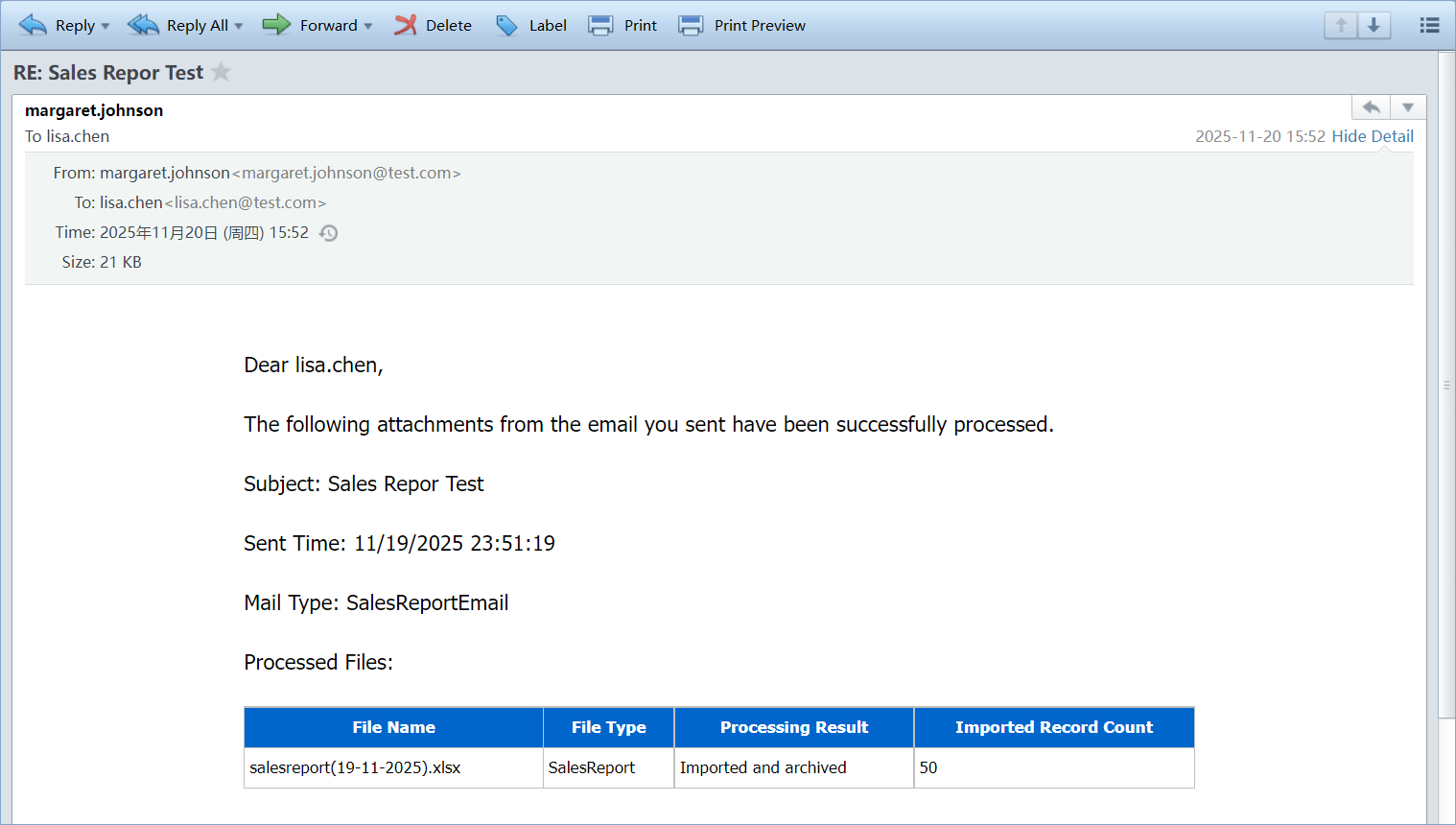
The notification email sent by the system to the sender
If errors occur during processing (e.g., missing columns), the system will notify the sender via email with the relevant error information.
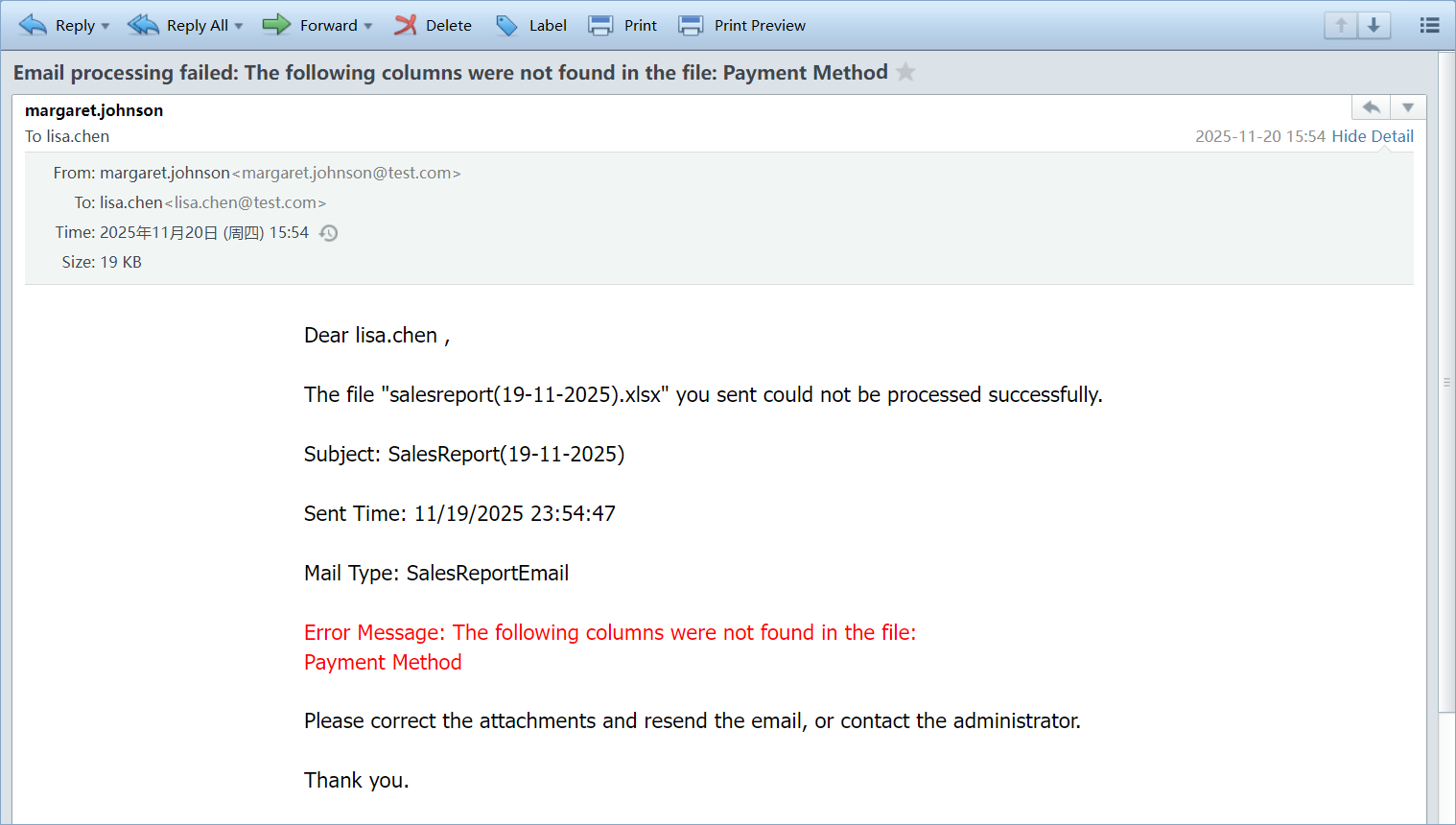
The email containing error information sent by the system to the sender
4. Merging Multiple Files into a Single Spreadsheet
To merge multiple files into a single Excel file (e.g., consolidating reports from the 17th to the 19th), follow these steps:
Step 1: Select the files to merge in the file list, then click the Export button.
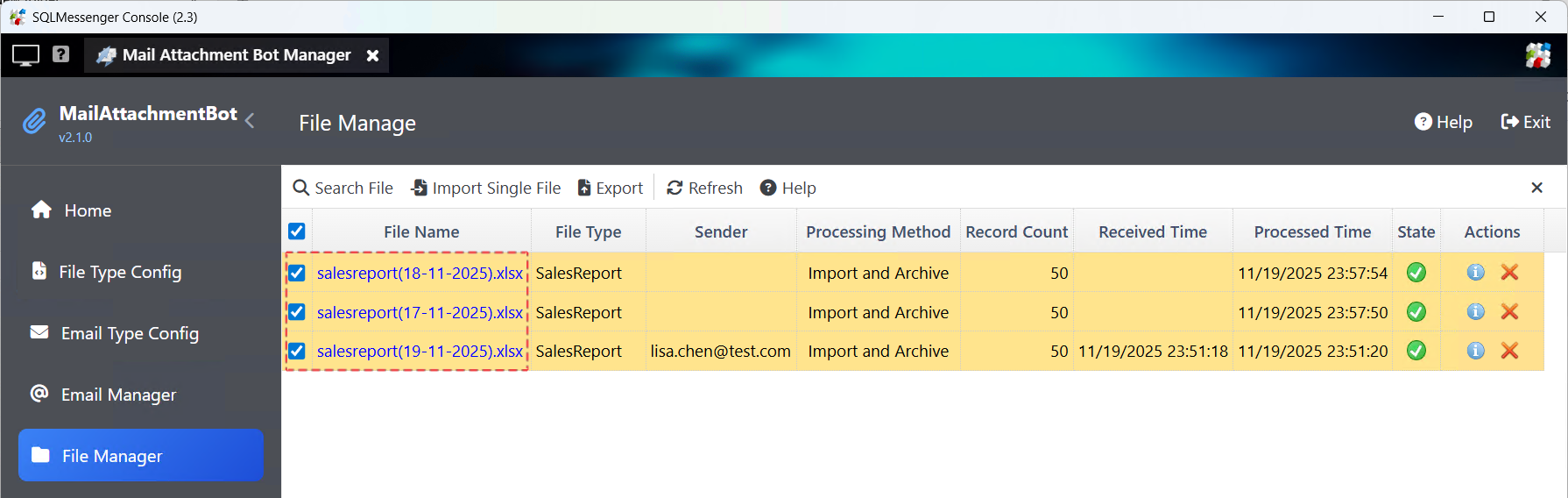
Step 2: Enter a target file name, select export options, and click OK.
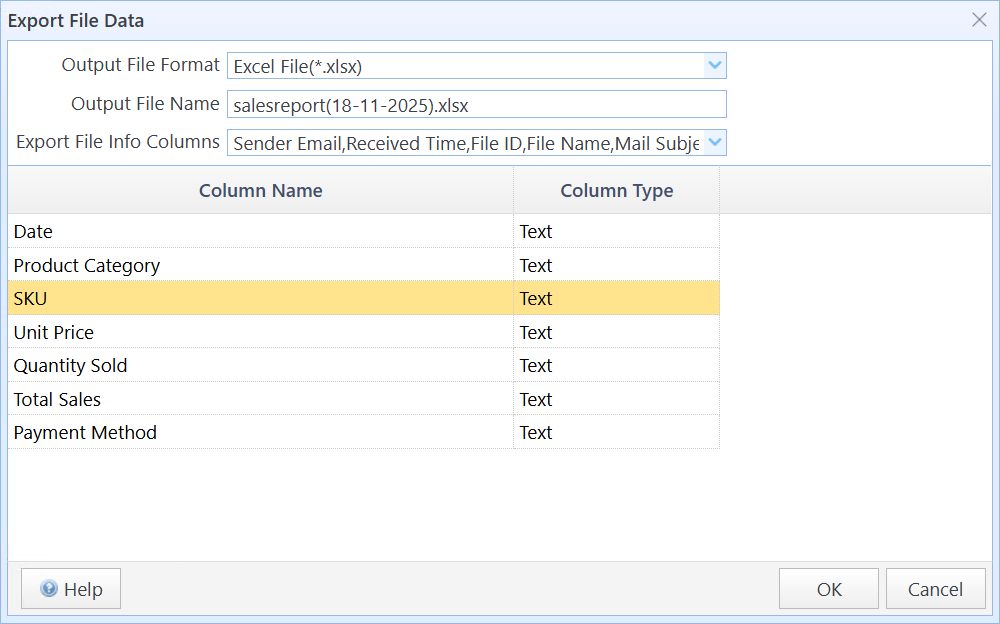
The system will combine the selected files into a single Excel file.
Note: All selected files must have identical field formats; otherwise, the export will fail.
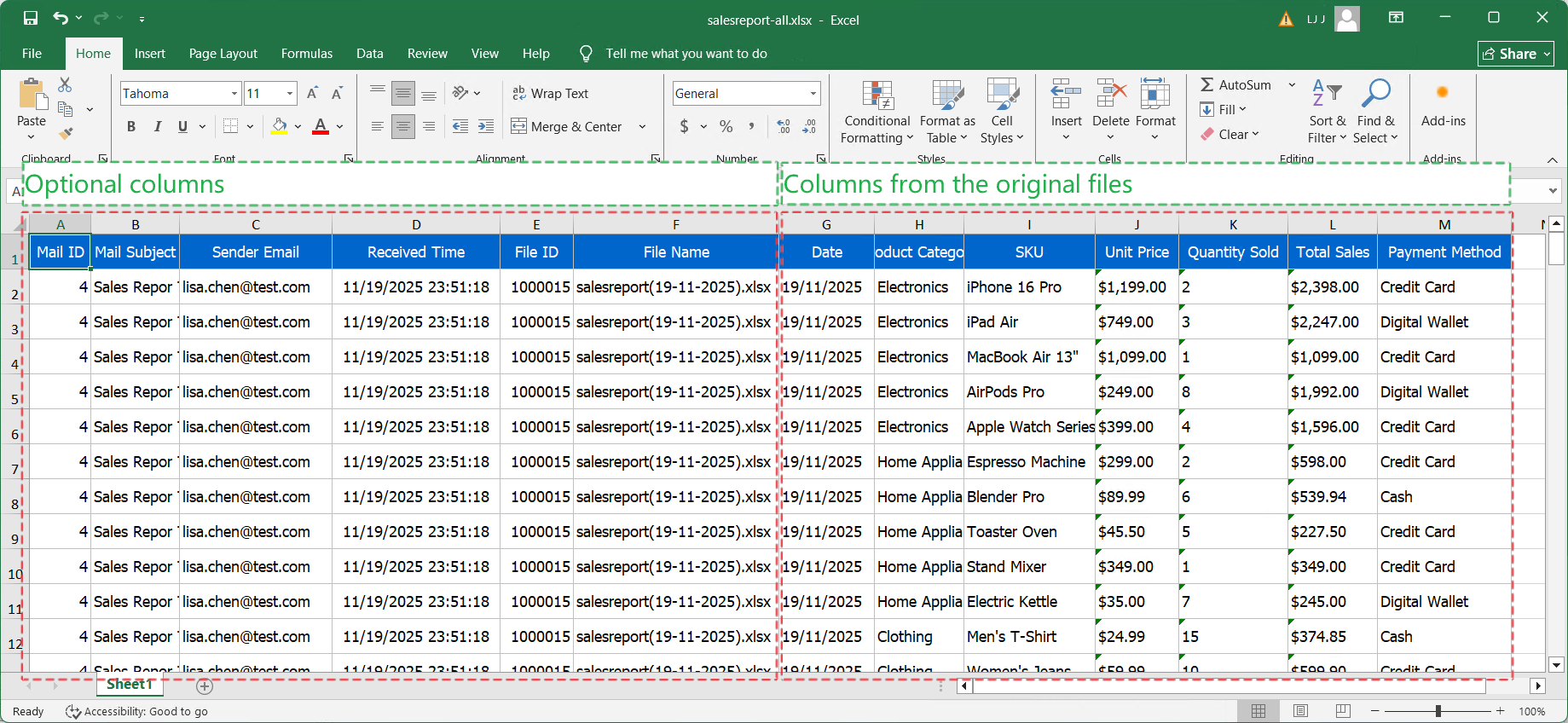
The exported Excel file
For detailed instructions, refer to MailAttachmentBot User Manual - Exporting File Data.
5. Performing Advanced Data Processing
You can perform more advanced data processing according to your needs. Examples include validating data formats, checking sender permissions, or importing data into other databases.
You can configure a SQLMessenger task to check and process the data using SQL statements. (If you are unsure how to configure tasks, you can submit your requirements to the SQLMessenger team, and their experts will assist you. See: https://www.sqlmessenger.com/docreader.html?id=597#overview)
Once the task is configured, set its name in the Run a Task on Email Processing Success field within the email type configuration. The system will execute the task after processing the email to perform further data operations.
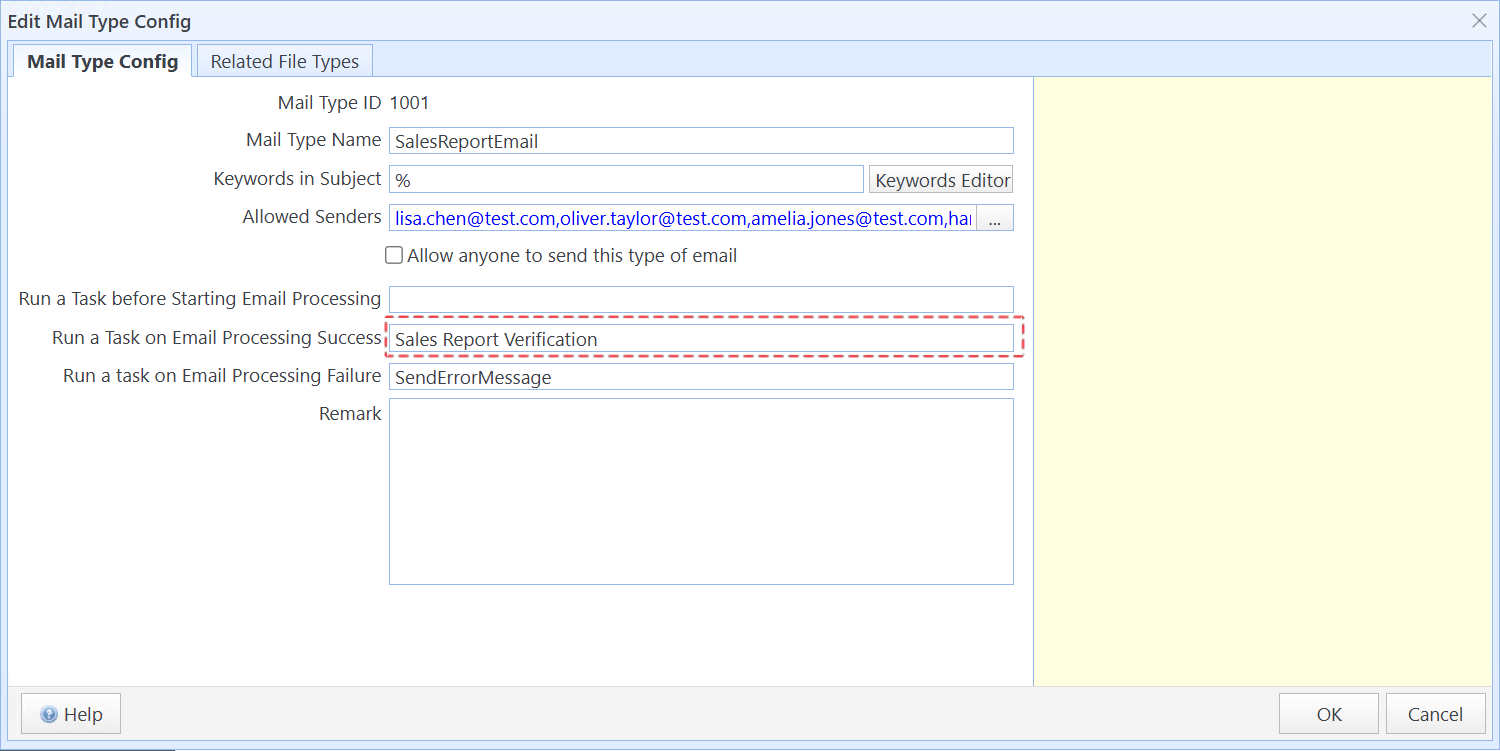
Set up a personalized email data processing task
6. Technical Support
If you run into any issues while using MailAttachmentBot, feel free to contact us for technical support.