Overview
This document details how to automatically populate the results of SQL queries into a custom Excel spreadsheet through simple configurations. It supports MySQL, PostgreSQL, Oracle, and SQL Server databases.
We have a statistical table and need to execute two SQL queries, then populate the results into the table.
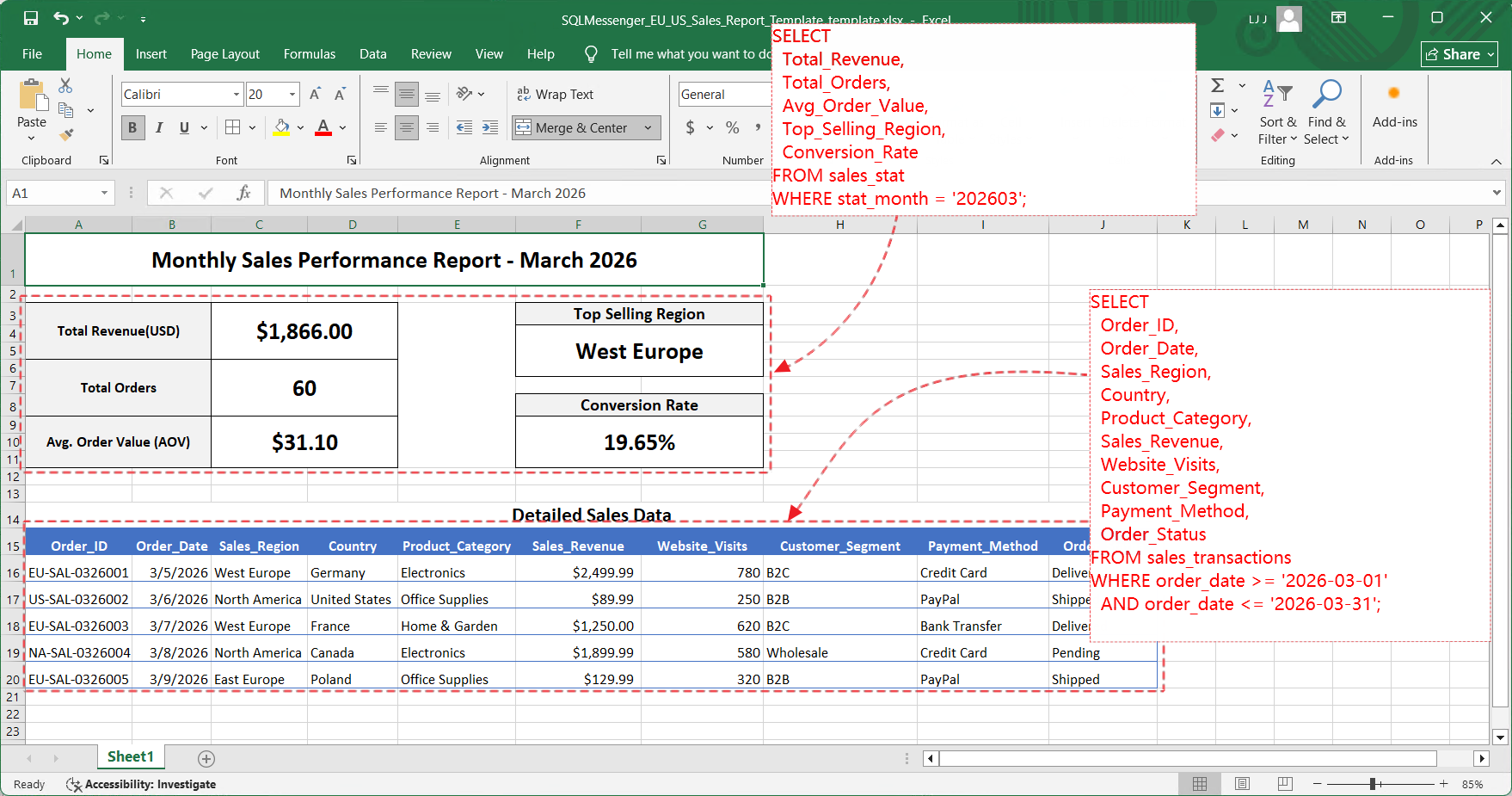
The Excel spreadsheet we want to populate
1. Design Template Spreadsheet
Remove the existing data in the Excel spreadsheet and add data cell markers in the positions where data needs to be populated.
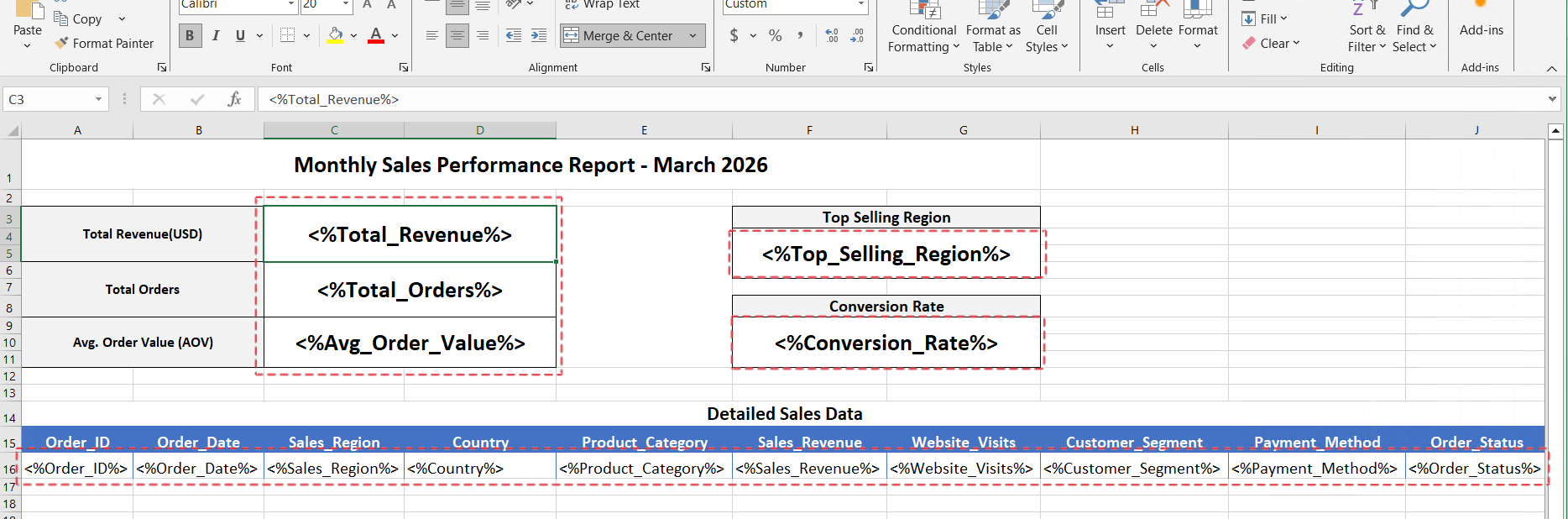
Add data cell markers in the template
Tips:
(1) The format of a data cell is "<%Data Cell Name%>", for example, "<%Total_Revenue%>".
(2) For ease of subsequent configuration, it is recommended that the data cell names be consistent with the SQL field names.
(3) You can use Excel formulas to quickly generate data cell markers, such as ="<%"&B15&"%>".
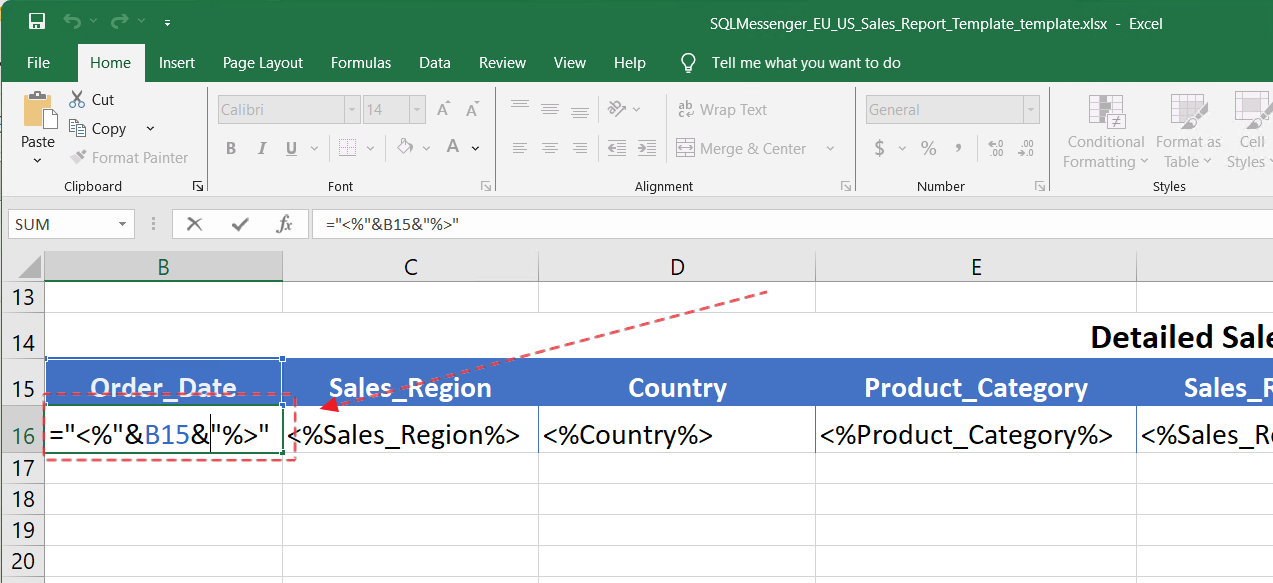
Quickly generate data cell markers using Excel formulas
For detailed design methods of custom templates, please refer to Designing Custom Excel Templates, Using Data Cells.
2. Configure Attachment Template
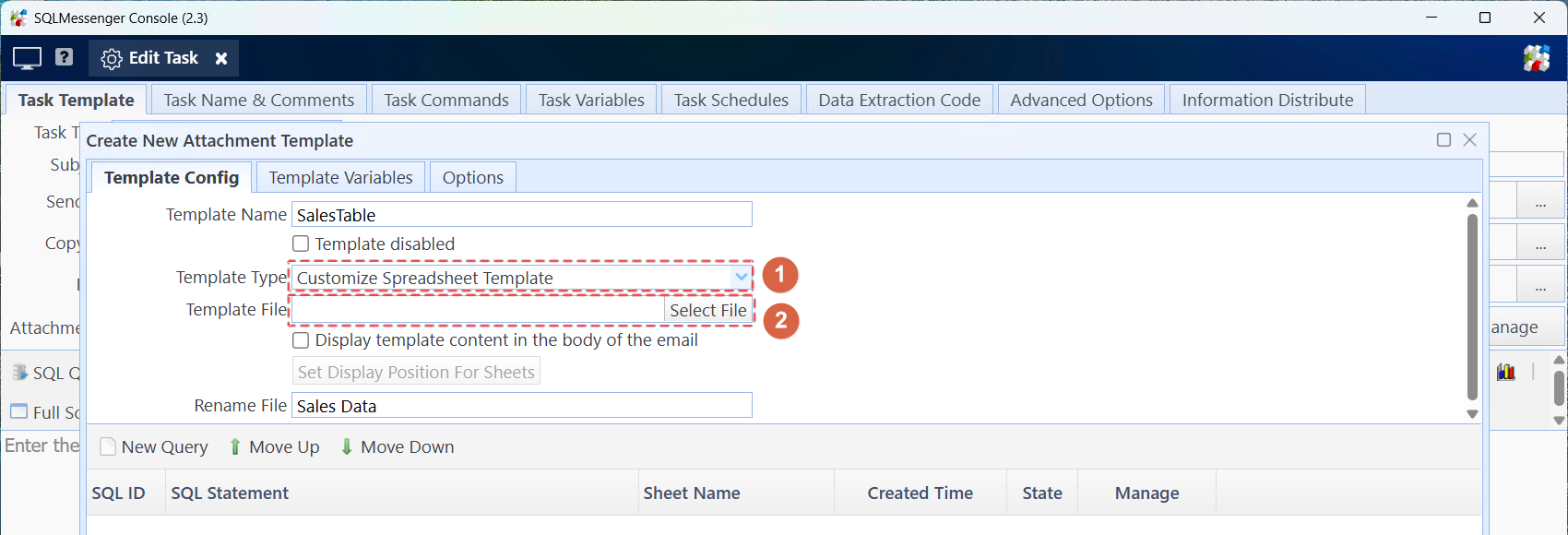
Step 1: Add an attachment template in the task configuration dialog of SQLMessenger.
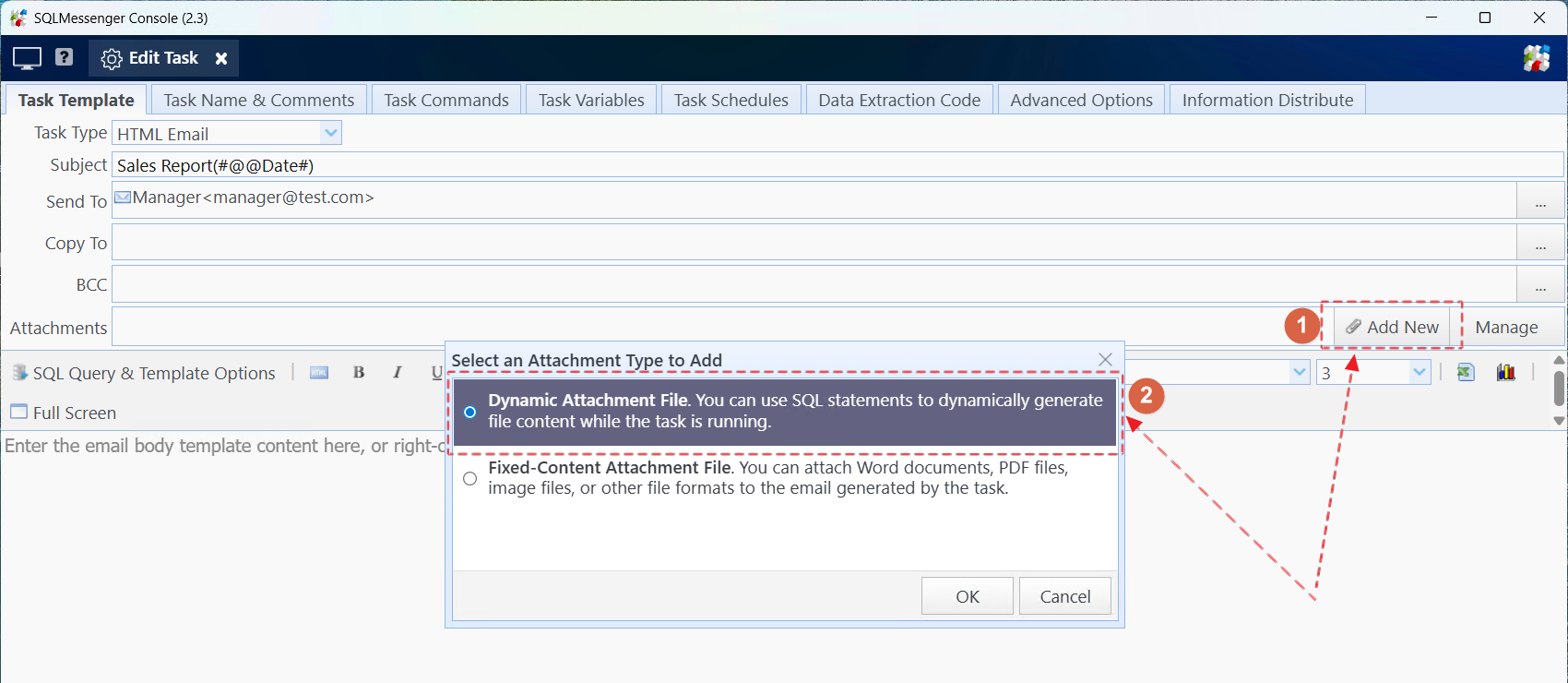
Step 2: Select "Customize Spreadsheet Template" as the template type, then click the "Select File" button to import the template spreadsheet designed in the previous step into the system.
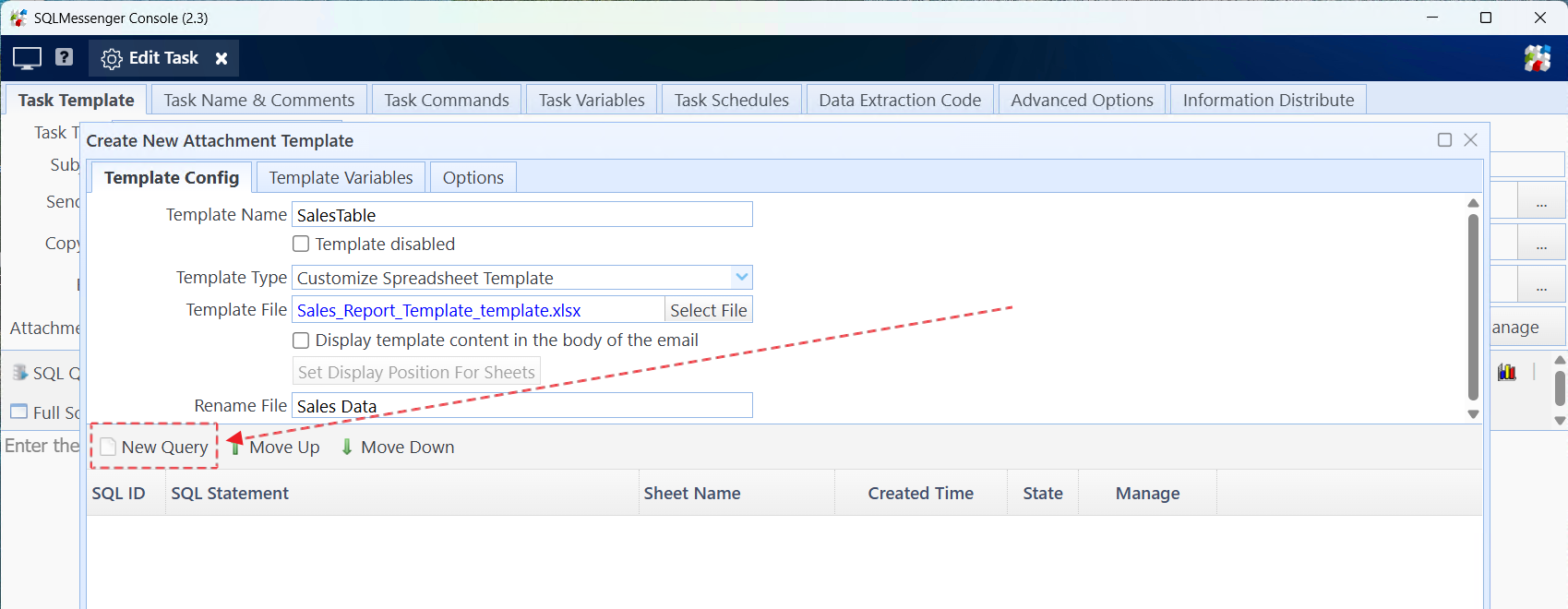
Step 3: Click the "New Query" button to add the first query statement to the template.
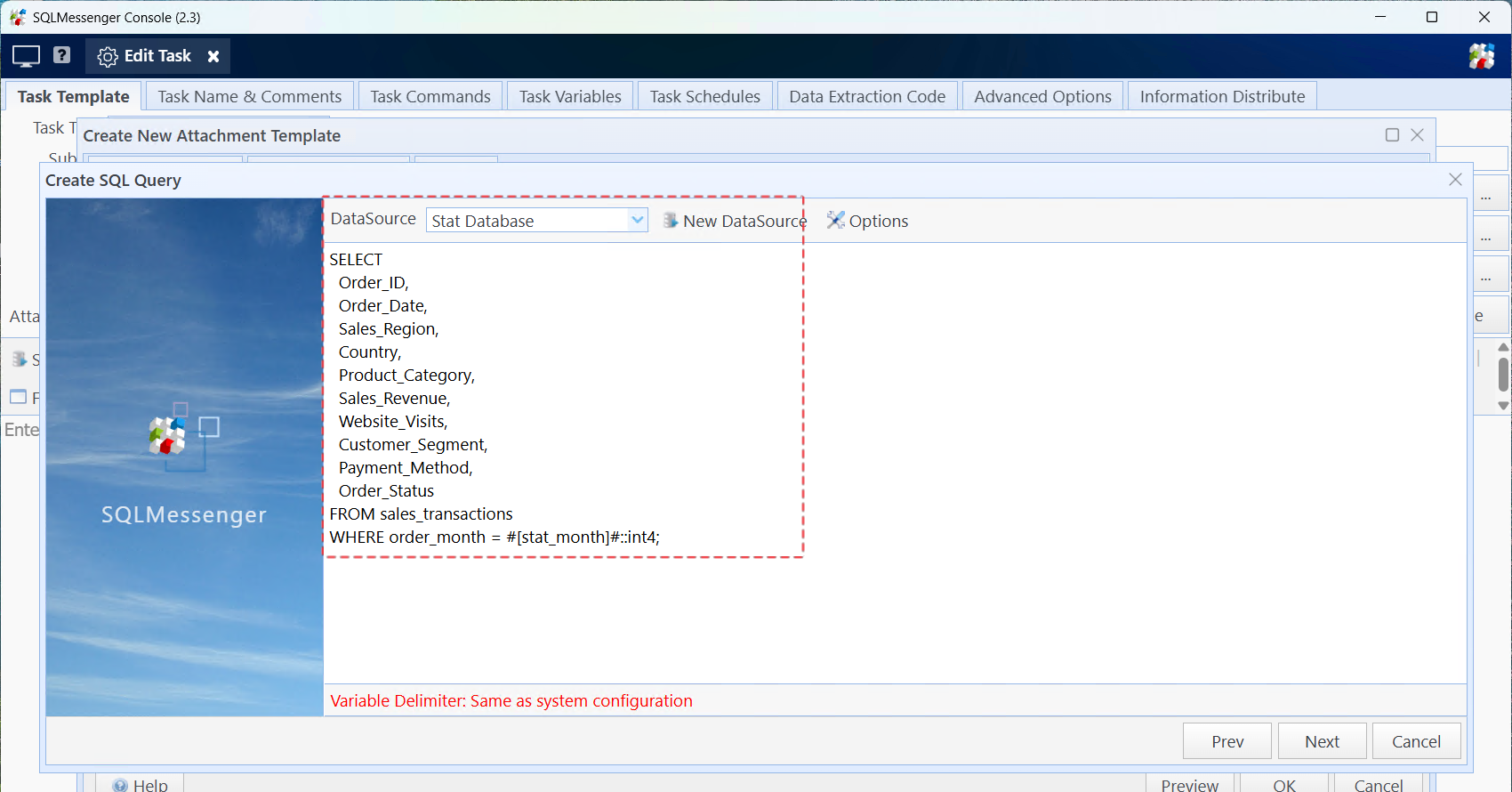
Step 4: Select the data source, enter the query statement, then click "Next". The system will execute the SQL statement you entered to retrieve information about the SQL fields.
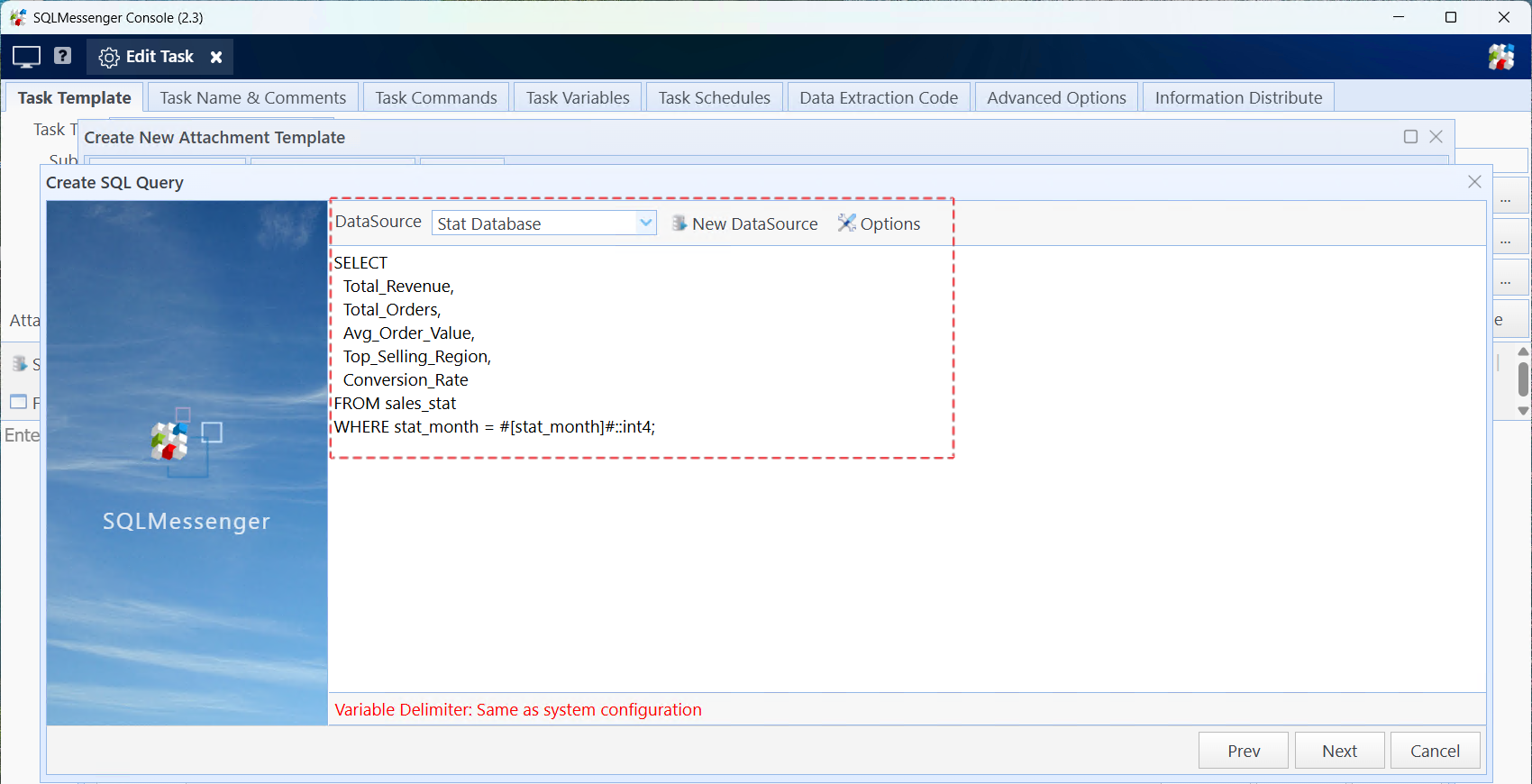
Tip: You can use variables in the SQL statement to dynamically determine query conditions. For detailed information, please refer to Using Variables in SQL Statements, Using Variables in Tasks.
Step 5: Set the mapping relationship between SQL fields and data cells. You can select all SQL fields, then click the "Auto Relate Fields and Cells" button to quickly set the mapping relationship between SQL fields and data cells.
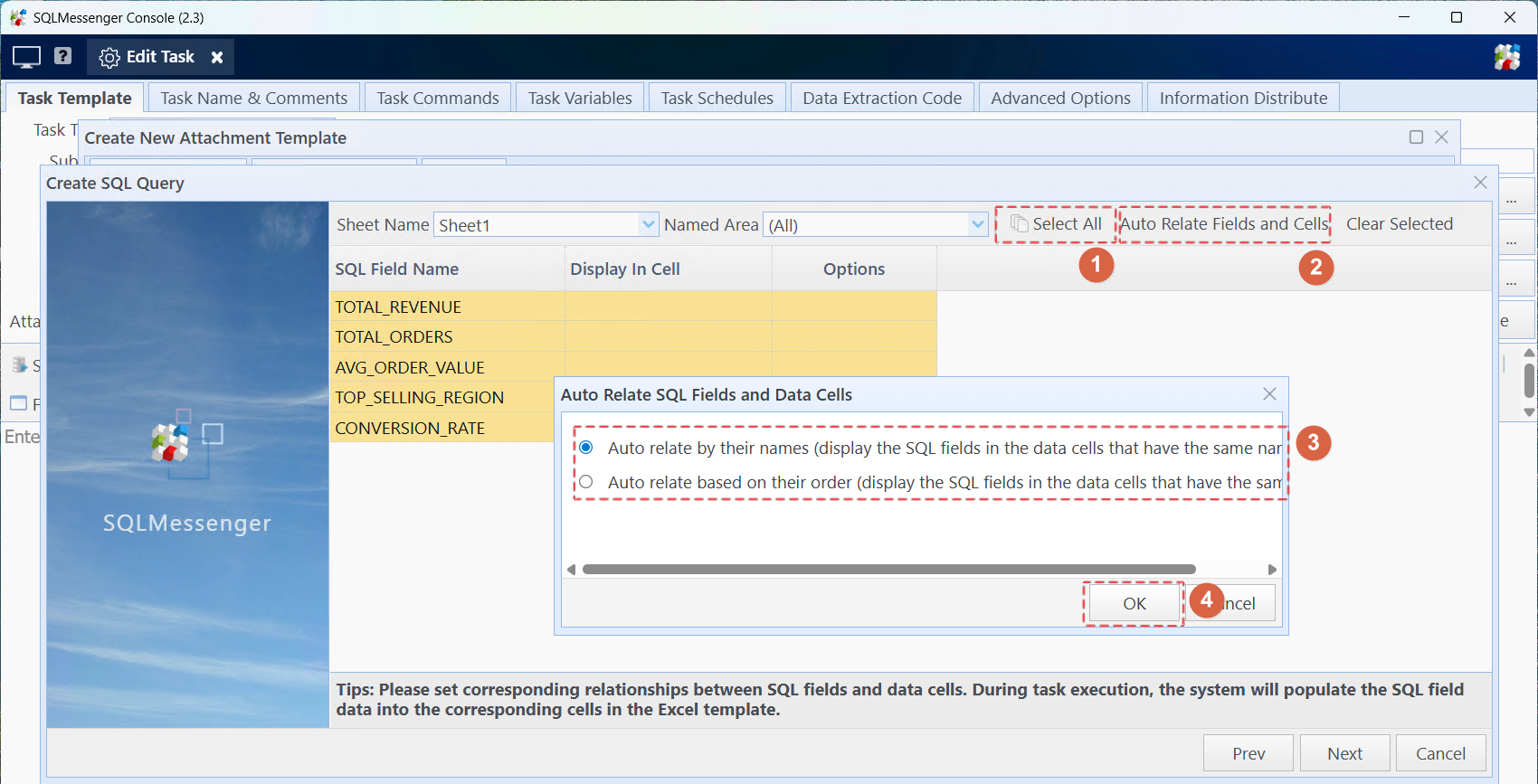
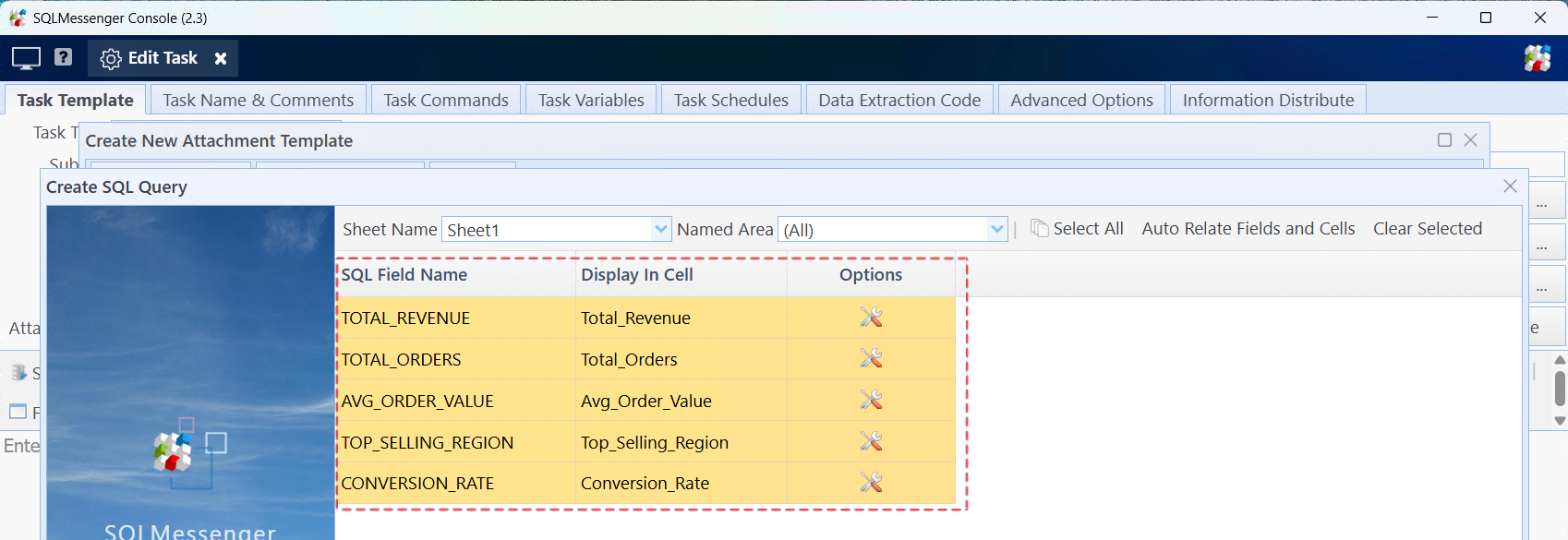
Step 6: Click "Next Step", then click "Finish" to close this wizard.
Step 7: Repeat the above steps to add the second query statement.
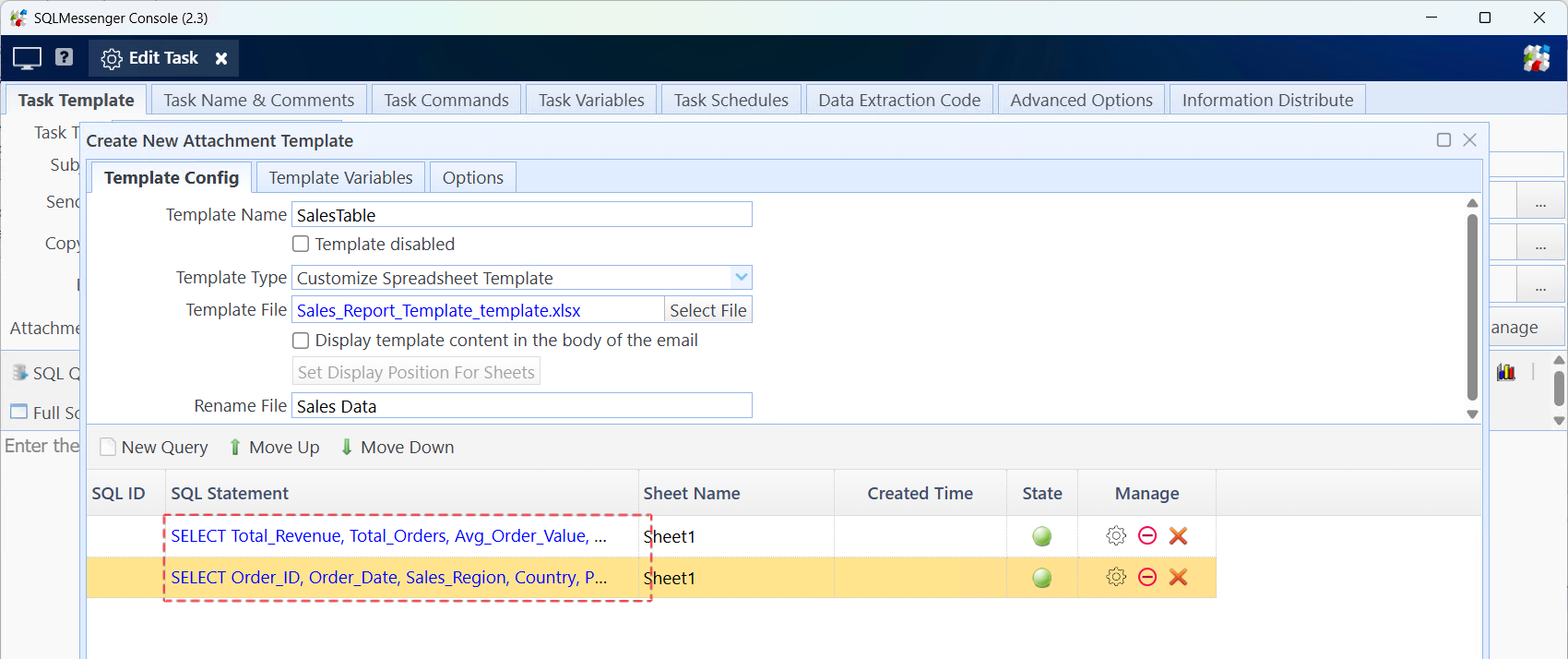
List of configured SQL statements
Next, we can click the "Preview" button to view the running effect of the template.
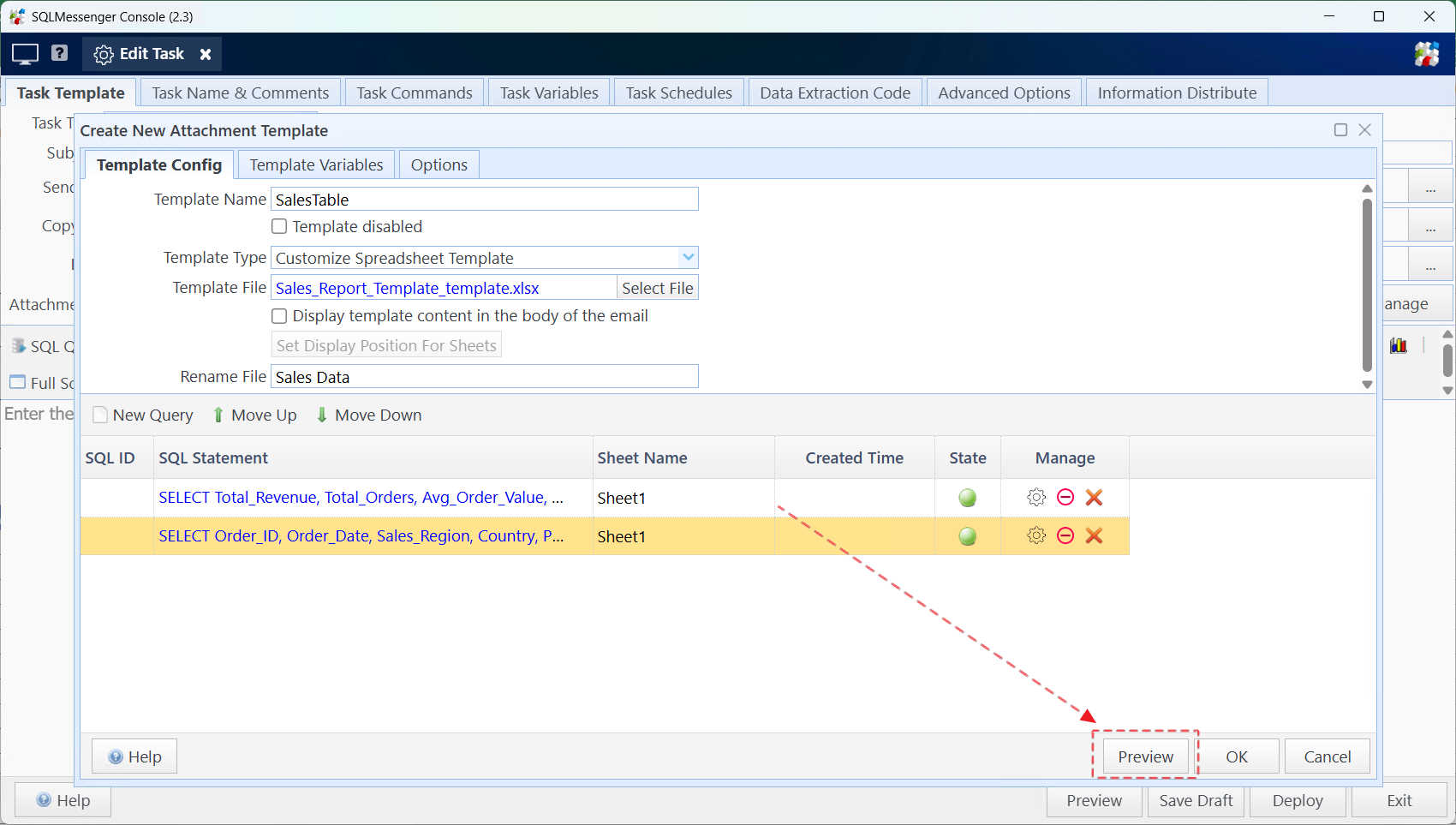
Click "Preview" to view the running effect of the template
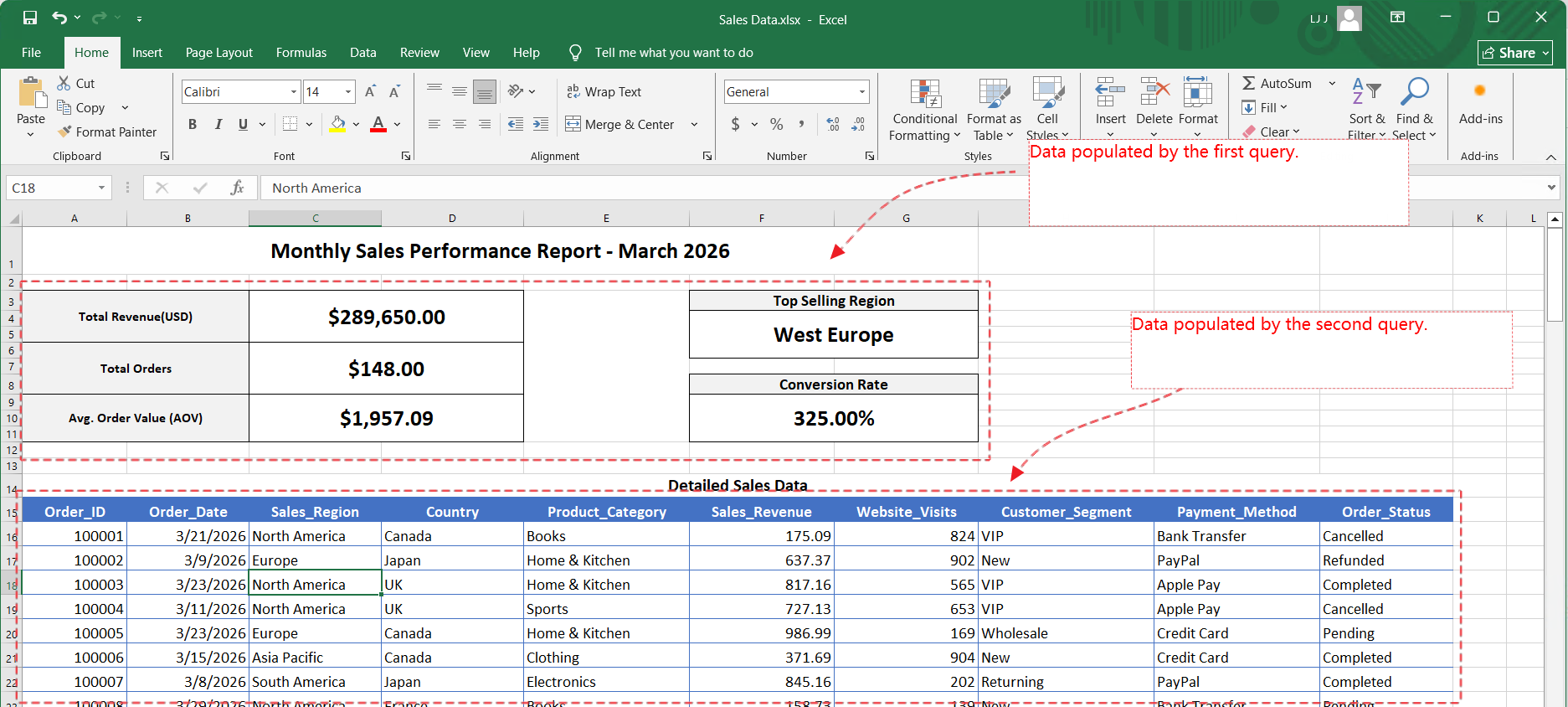
Spreadsheet generated after task execution
FAQ
Can I use Excel formulas in custom Excel templates?
Yes. Note that when using formulas such as SUM, you need to modify the formula parameters to use Named Range as the formula parameters. For detailed information, please refer to Using "Named Range" in Formulas.
Can I use charts in custom Excel templates?
Yes. Note that you need to modify the series values of the chart to use Named Range as the source of the series values. For detailed information, please refer to Using "Named Range" for the Data Source in Charts.
Why are the formula columns in the generated spreadsheet blank after task execution?
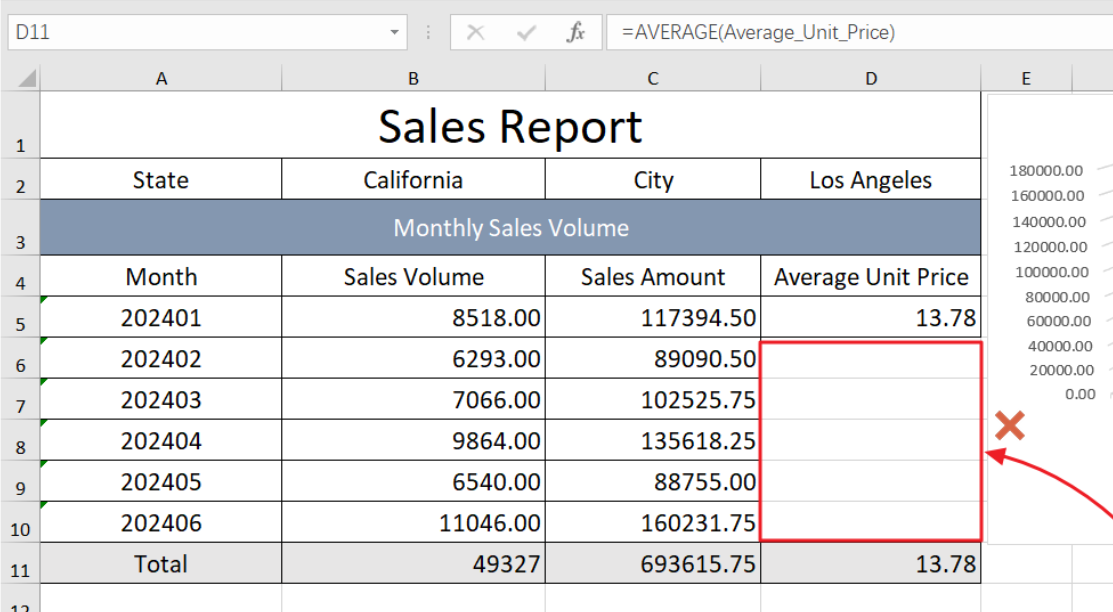
When processing such spreadsheets, you need to use Named Range to expand the entire area as a whole to avoid blank formula columns. For detailed information, please refer to Use "Named Range" to Expand Cell Blocks.
If you run into any issues while using SQLMessenger, feel free to contact us for technical support.