Hi All, I have an excel report that is made form data using 2 different excel reports that I receive in my emails, rigth now i have to download those spreadsheets I receive regularly in my emails, paste the data into another spreadsheet and that gives me all calculated data I need, I'm looking to do all this automatically, like I get reports in my email, "some app" takes all those reports and do calculations and returns a excel spreadsheet with all the data I need, what app/technologies can I use to do so?
The spreadsheets I receive look like this. I receive many such spreadsheets every day.
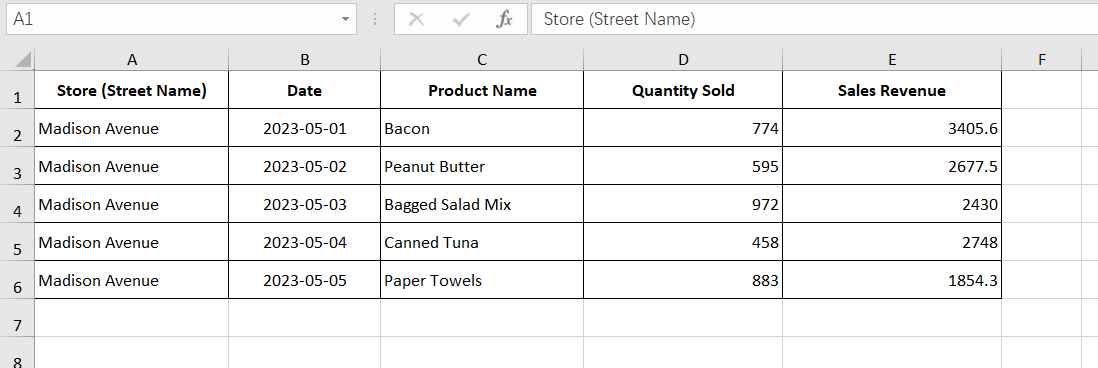
I need to consolidate these spreadsheets and generate a new report.

We configured a task for you to achieve this function. Please follow these steps to use this task:
Step 1: Download and import the task configuration. Click here to download the task file. After downloading, import the file into your SQLMessenger system. Click here to view the method for importing task configurations.
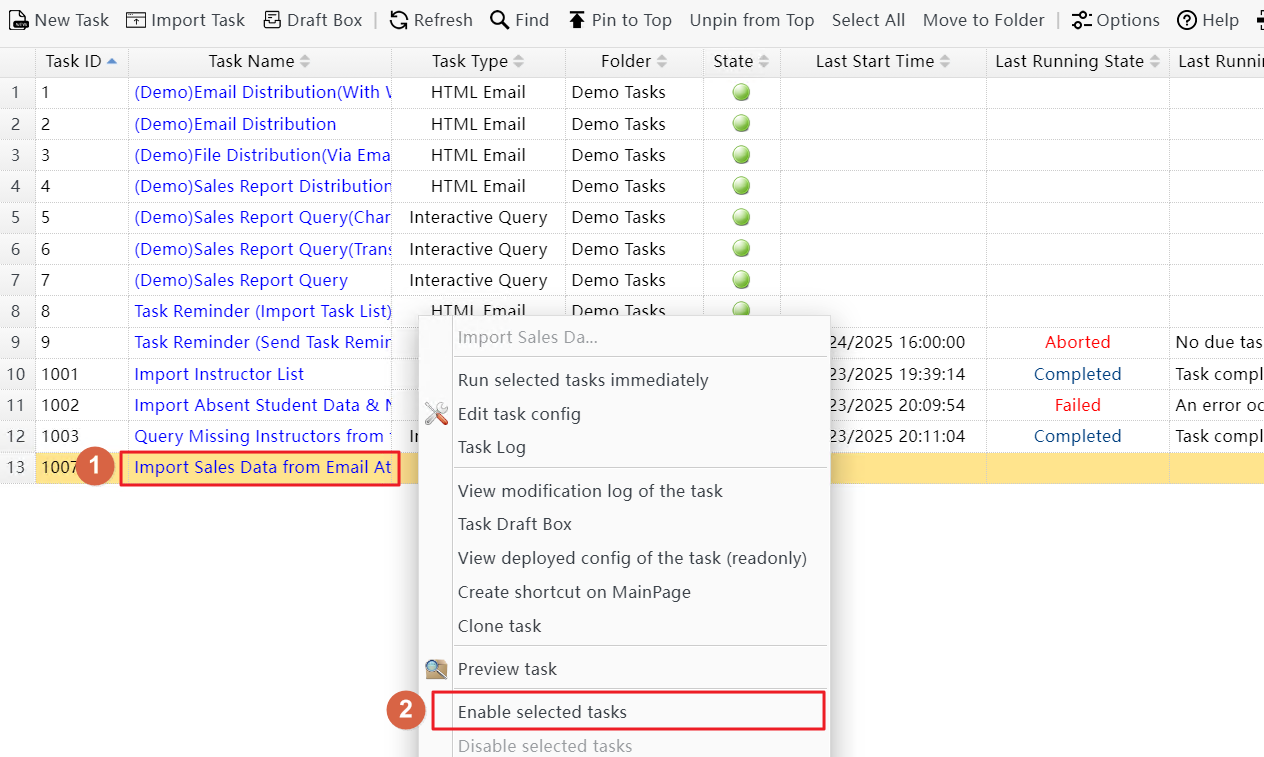
After importing the task, "enable" it in the task list.
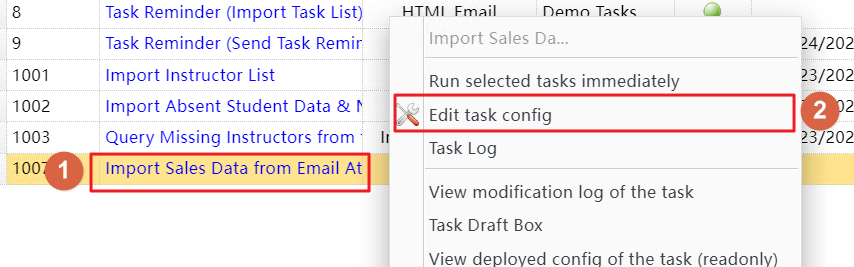
Step 2: Set the task variables. In the task's variable table, enter your email address in the "AdminEmail" variable. When the system receives new data, it will send a notification email to the email address you entered.
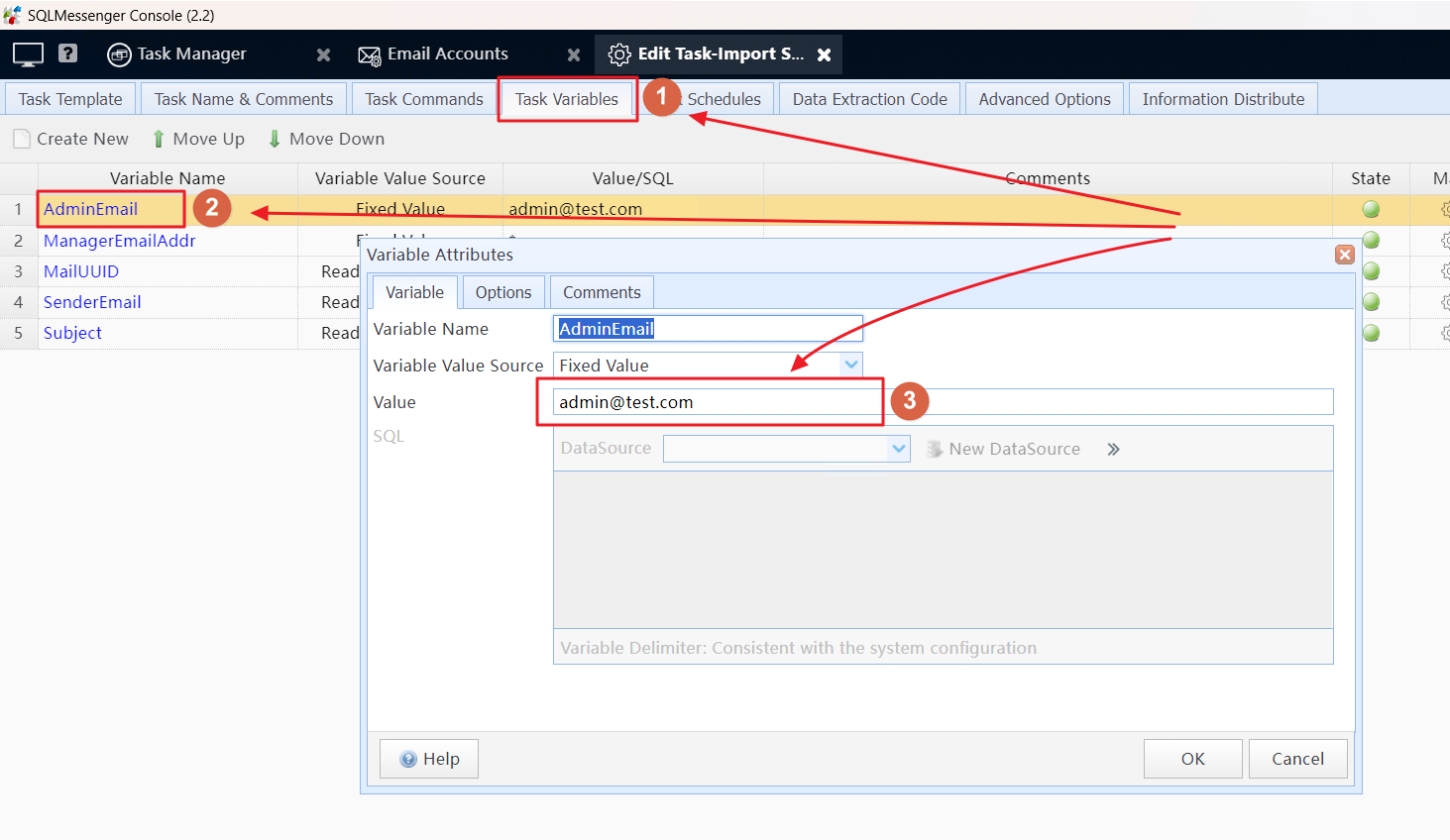
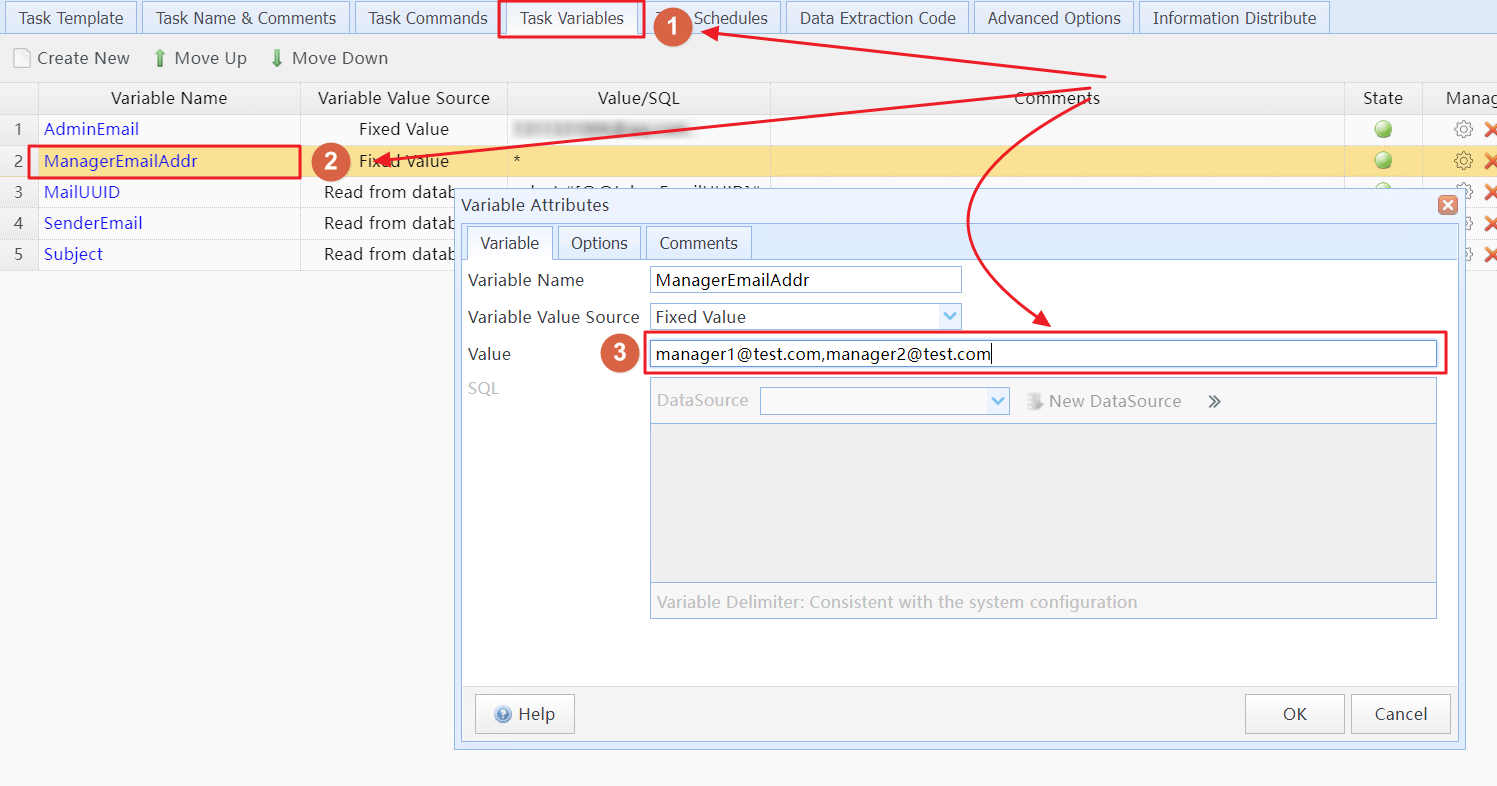
You can also modify the "ManagerEmailAddr" variable to allow the task to process sales report emails sent only from a specific email address. The "*" symbol indicates that the task is allowed to process sales report emails sent from any email address. If you want to set multiple email addresses, please separate them with commas (",").
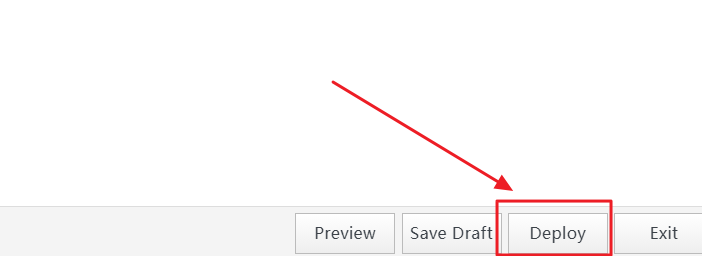
After making the modifications, click the "Deploy" button in the lower-right corner to make the new configuration effective.
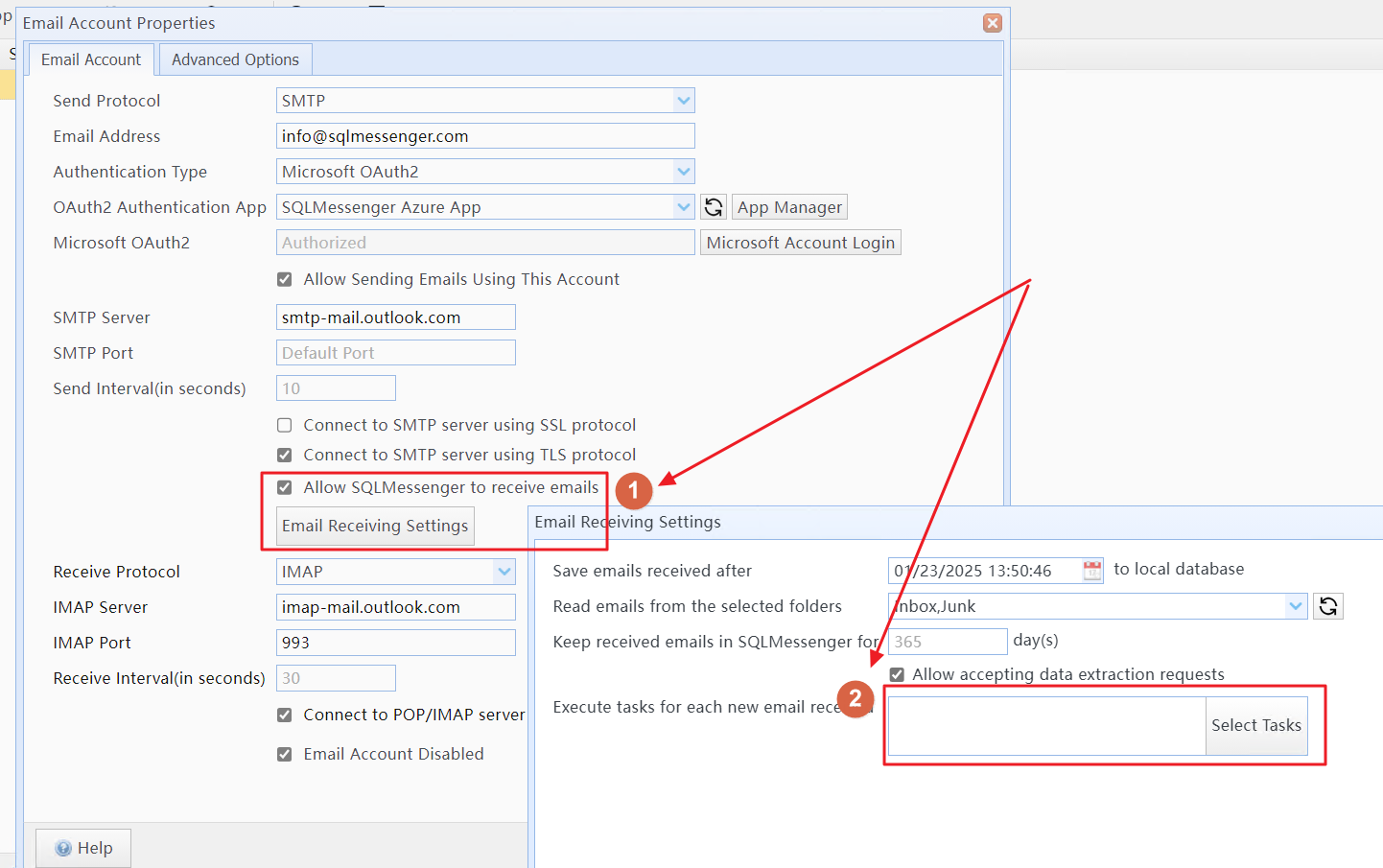
Step 3: Set up the email account for receiving emails. In the email account manager, select the "Allow SQLMessenger to receive emails" option. Click "Email Receiving Settings," and in "Execute tasks for each new email received," select the task imported in Step 1.
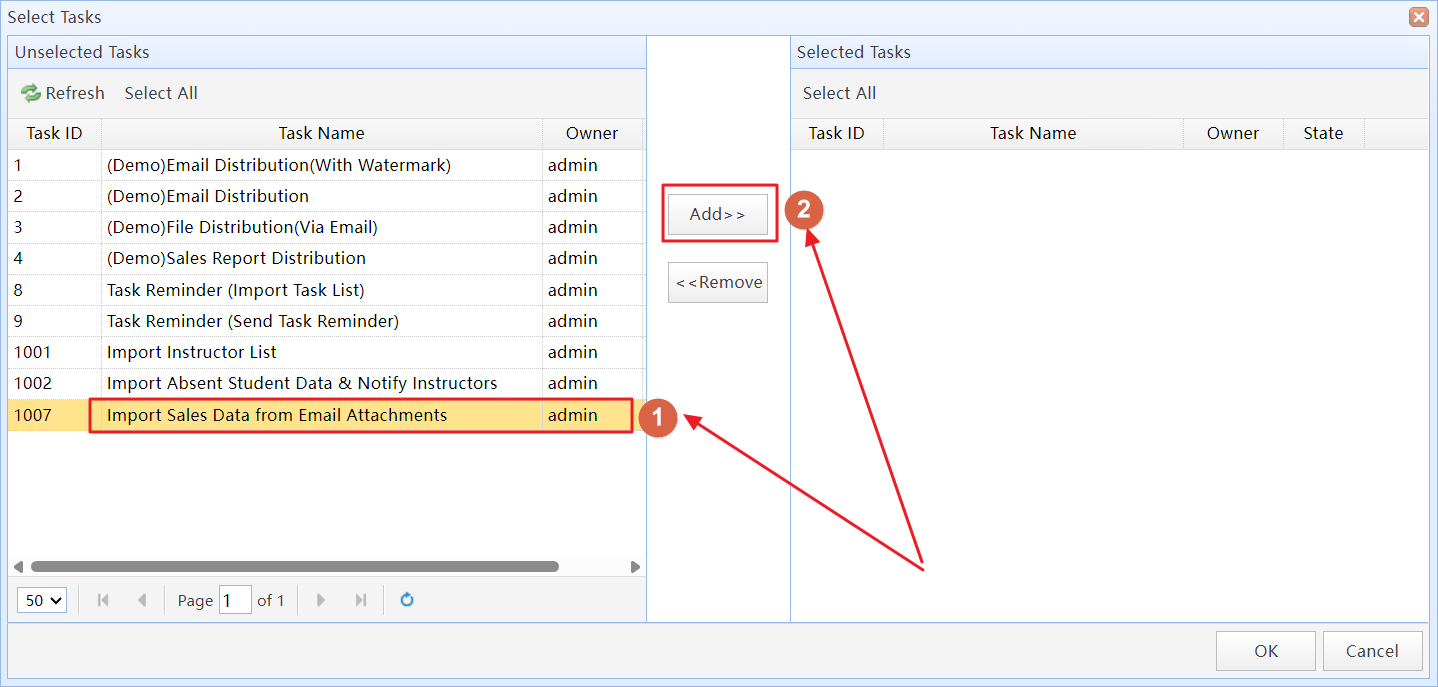
Step 4: Test the task. After completing the above steps, please use any email account to send an email with the demonstration file in the downloaded file from Step 1 as an attachment to the email address configured for SQLMessenger.
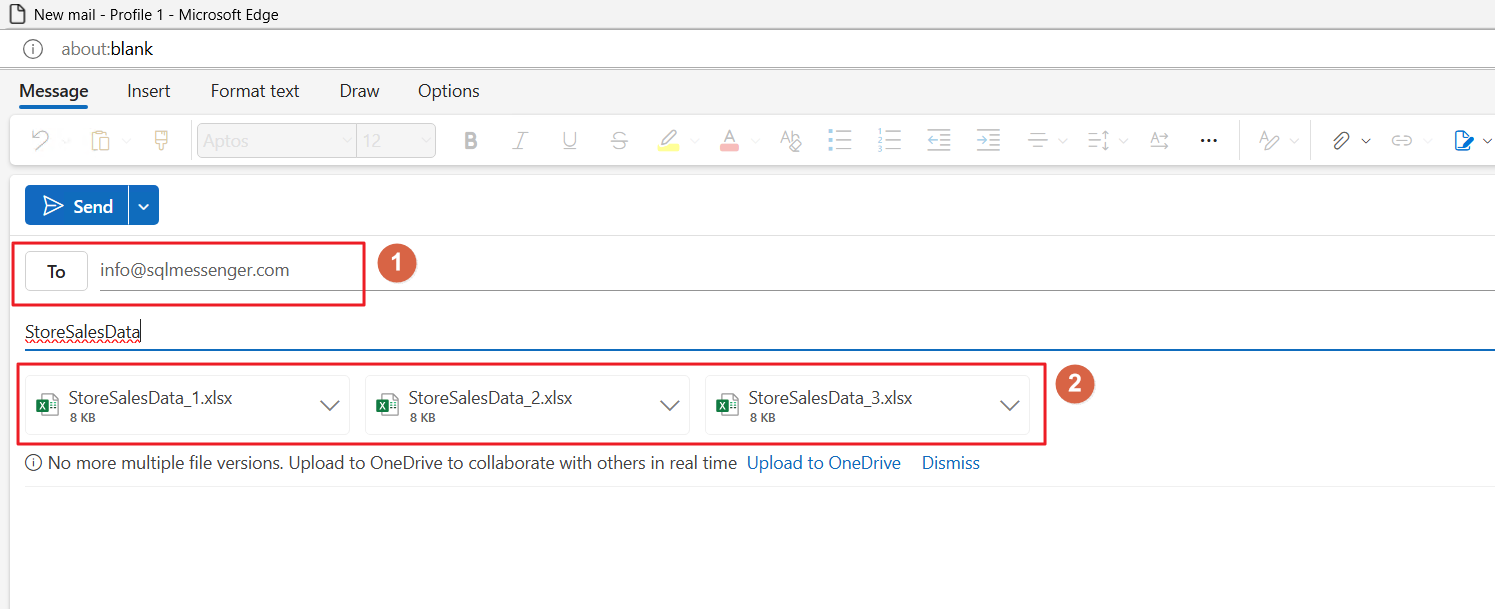
Upon receiving the email you sent, SQLMessenger will read all data from attachments with filenames like "StoreSalesData*.xlsx" ("*" represents any characters) and import this data into the database.
After the import is completed, the system will reply to the sender with an email informing them that the data has been received.
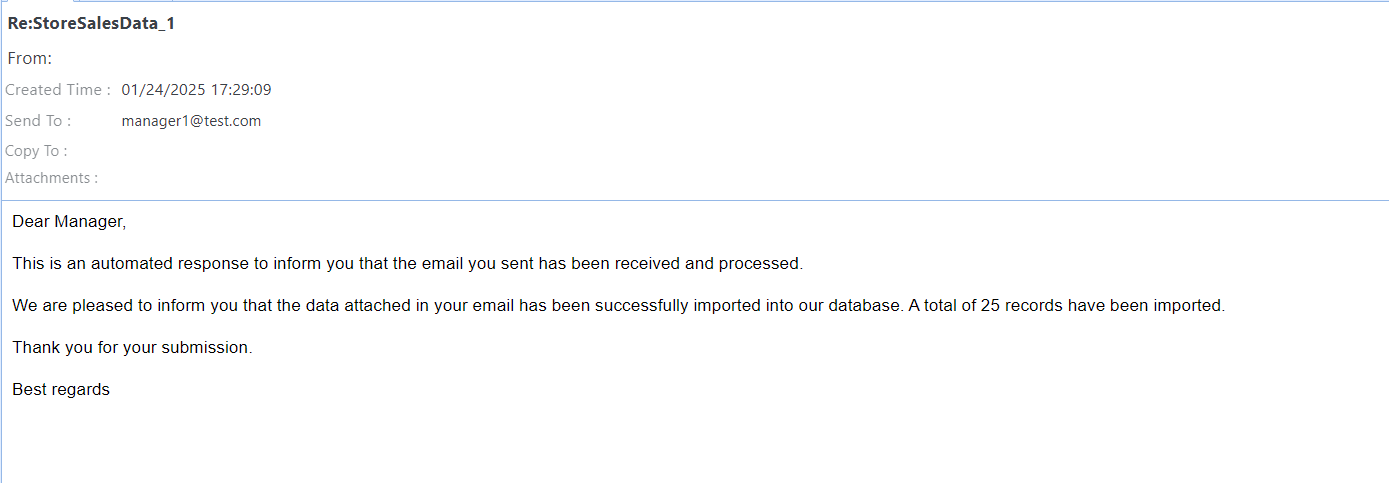
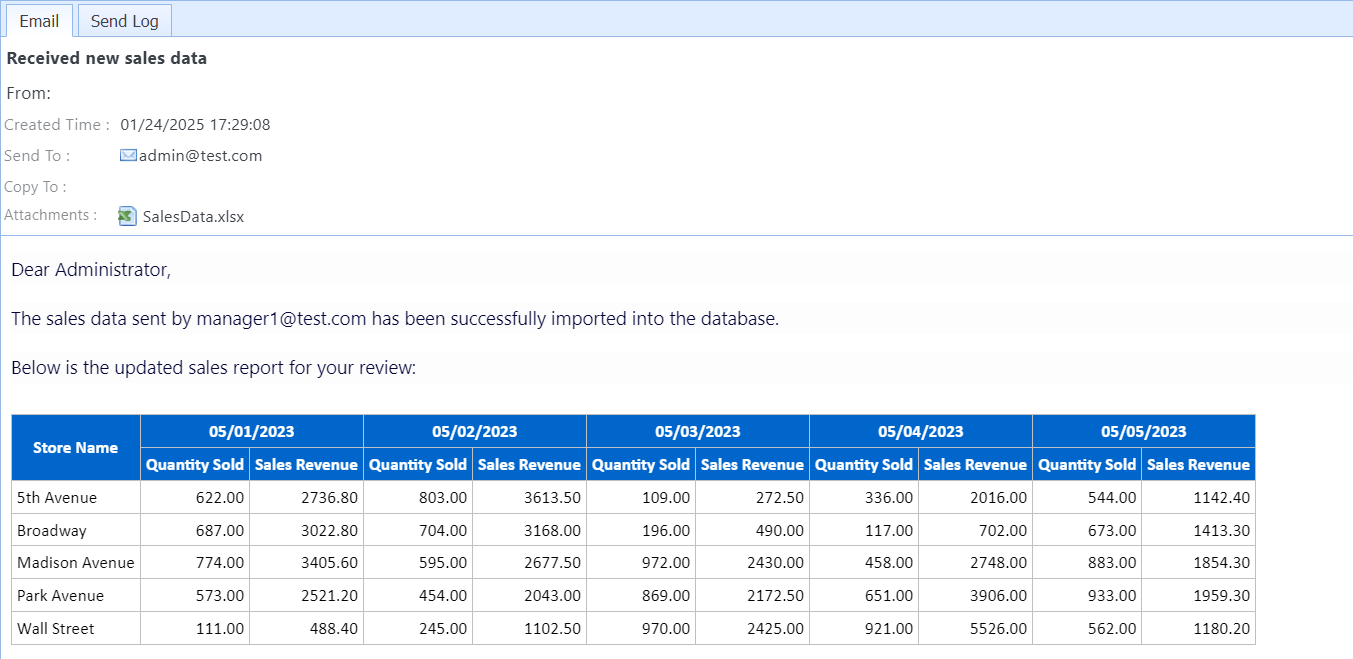
At the same time, the system will send an email to the email address set in the "AdminEmail" variable, notifying you that new data has been received and imported into the database. It will also display the latest report in the email.