- 1. What is Format String
- 2. Design Format String in Excel
- 3. Configure Format String in SQLmessenger
1. What is Format String
A Format String is a type of format code in Excel. Excel uses Format Strings to determine how data in individual cells is displayed. For example, if a cell’s Format String is "[$€-x-euro2] #,##0.00;[$€-x-euro2] -#,##0.00" and the cell value is 12345.67891, Excel will render the value as "€ -12,345.68".
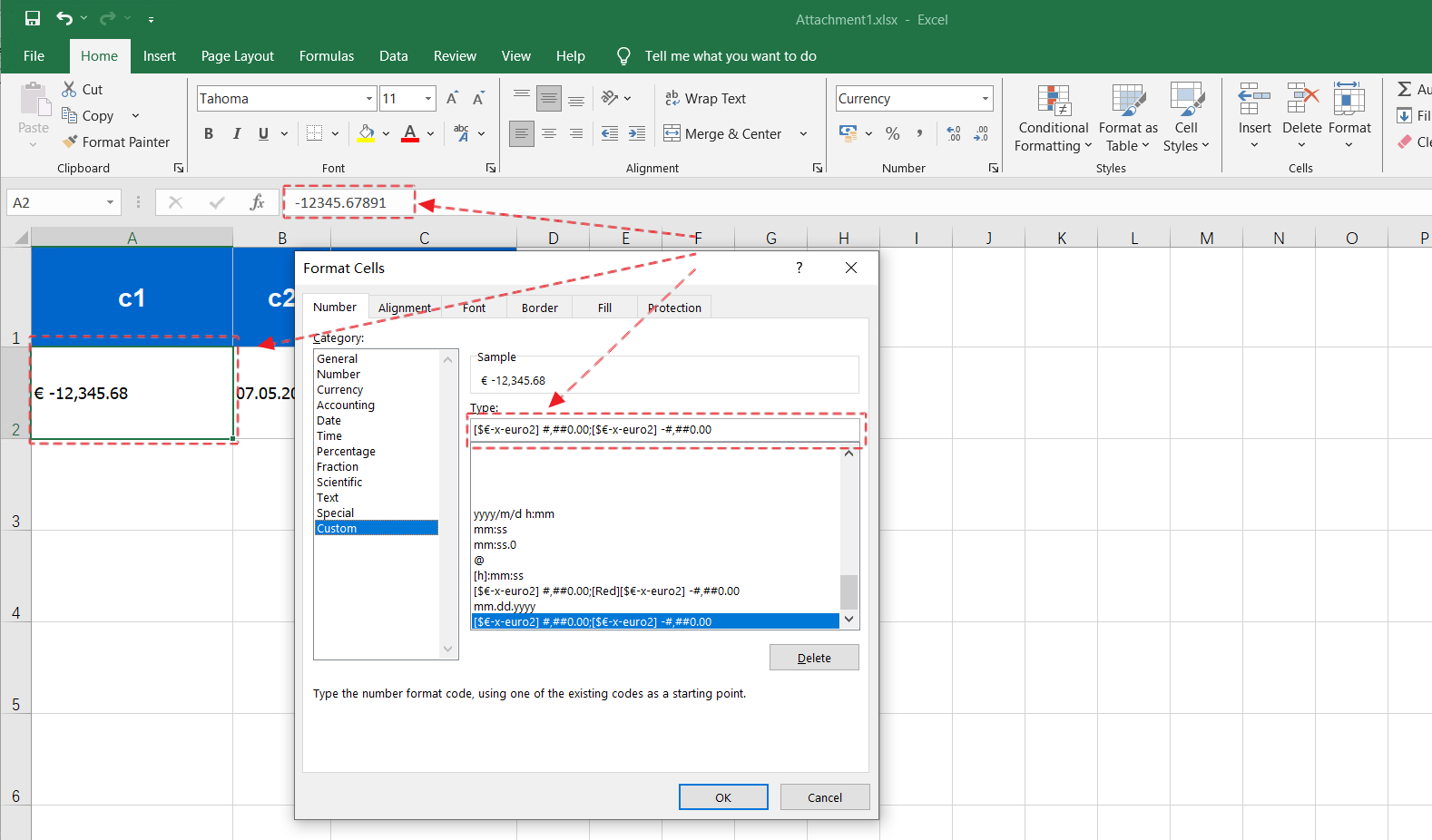
Excel displays numeric data in currency format based on Format String
SQLmessenger 2.4.0007 added the Format String option for Simple Table data columns. You can configure this option to specify the display format of data in Excel tables. This document introduces how to set up Format Strings.
2. Design Format String in Excel
First design the Format String code within Excel.
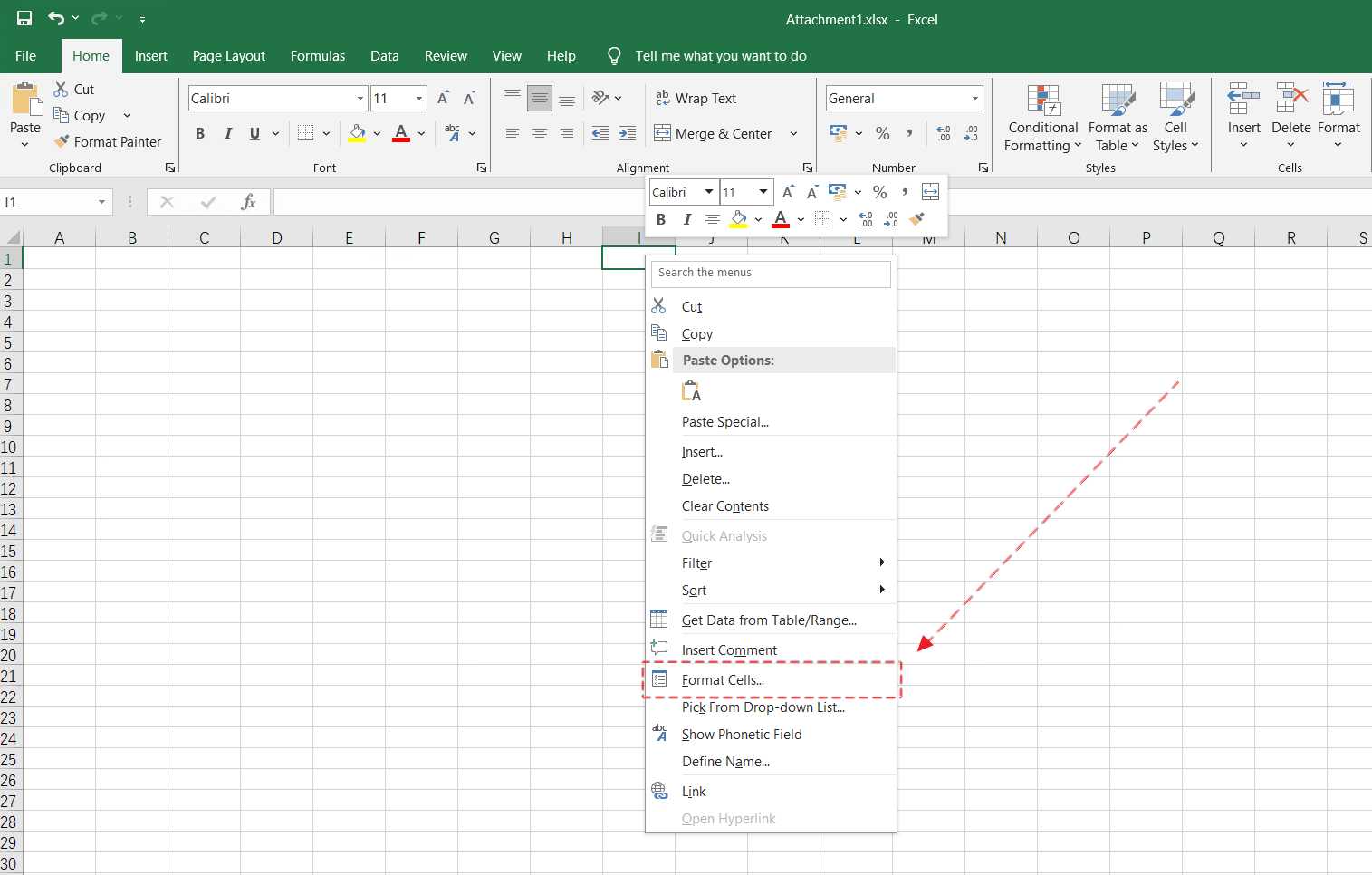
Step 1: Open Excel, right-click any cell, then select the Format Cells menu item.
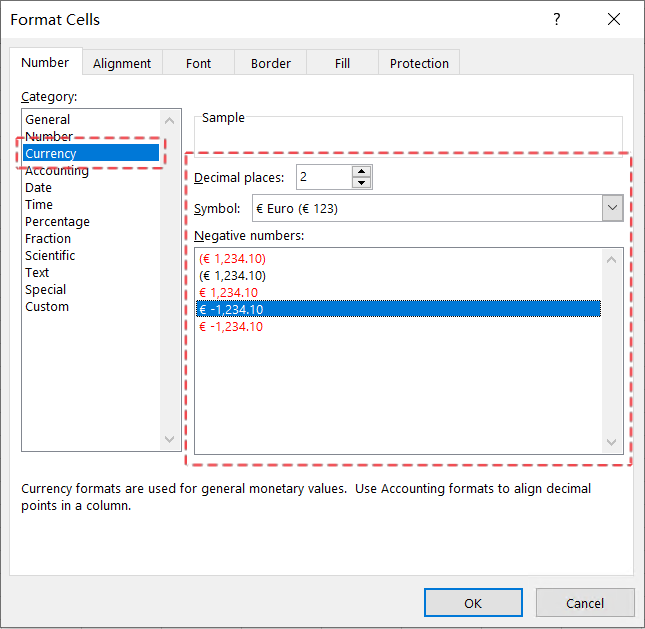
Step 2: In the Category section of the Format Cells dialog box, select a data type and configure the desired data format.
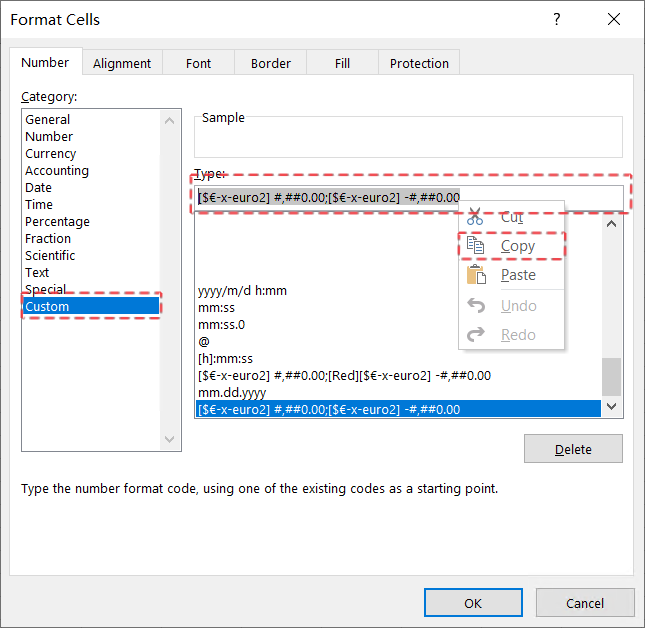
Step 3: After finishing format configuration, click Custom under Category. The corresponding format string will appear in the Type field on the right. Copy this string for later configuration use.
3. Configure Format String in SQLmessenger
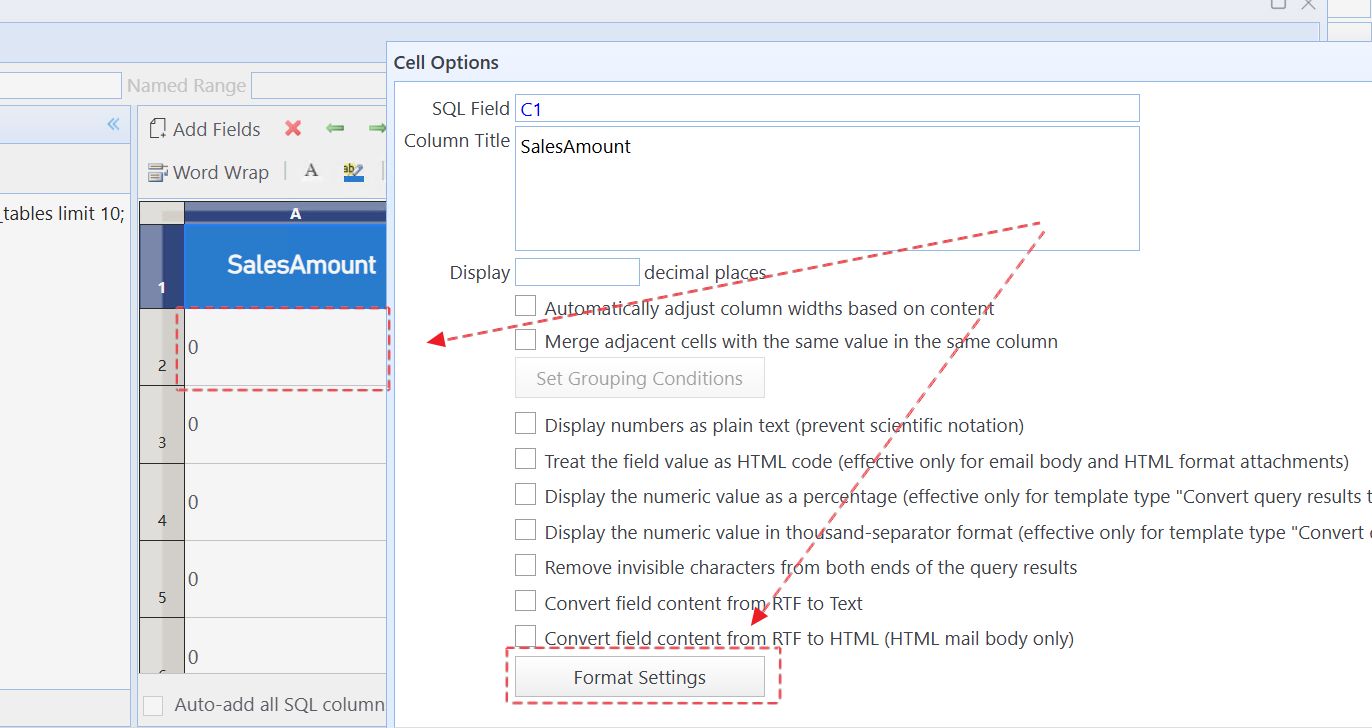
Step 1: In SQLMessenger’s table designer, double-click the column you want to configure, then click the Format Settings button.
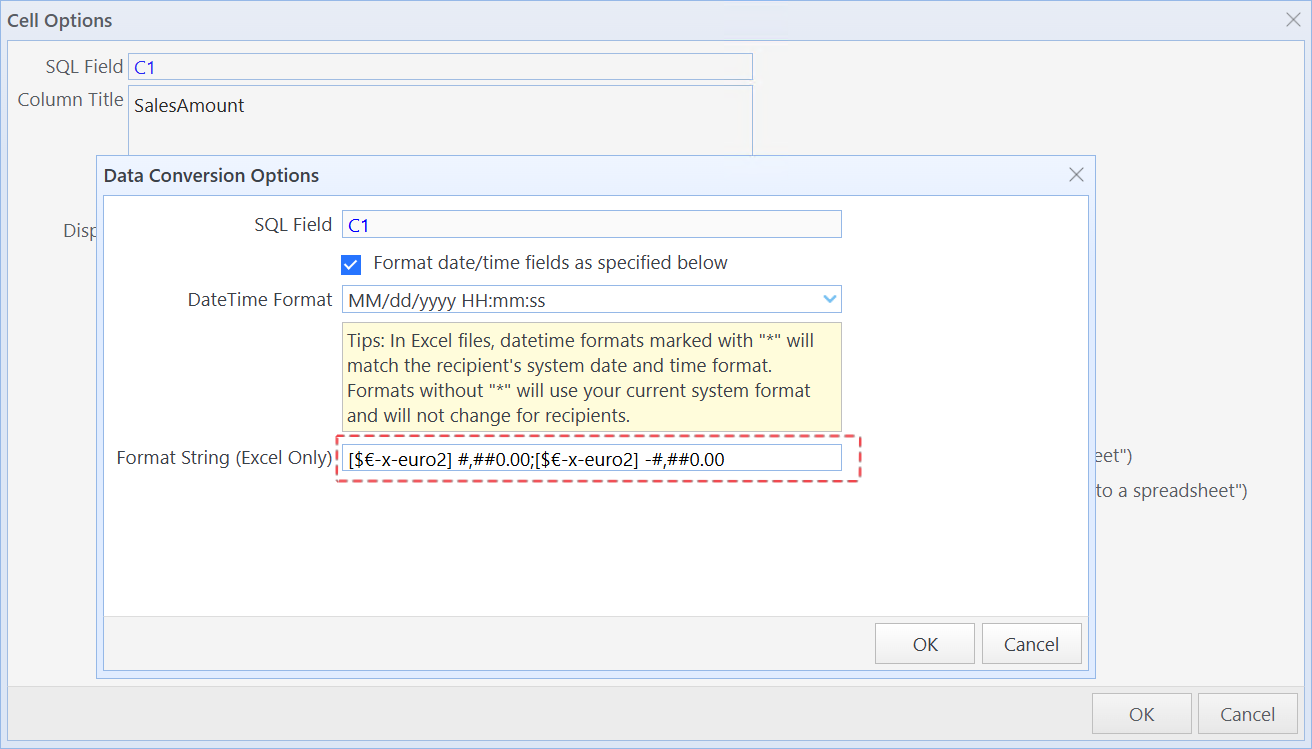
Step 2: Paste the format string copied from Excel into the Format String (Excel Only) input box, then click OK.
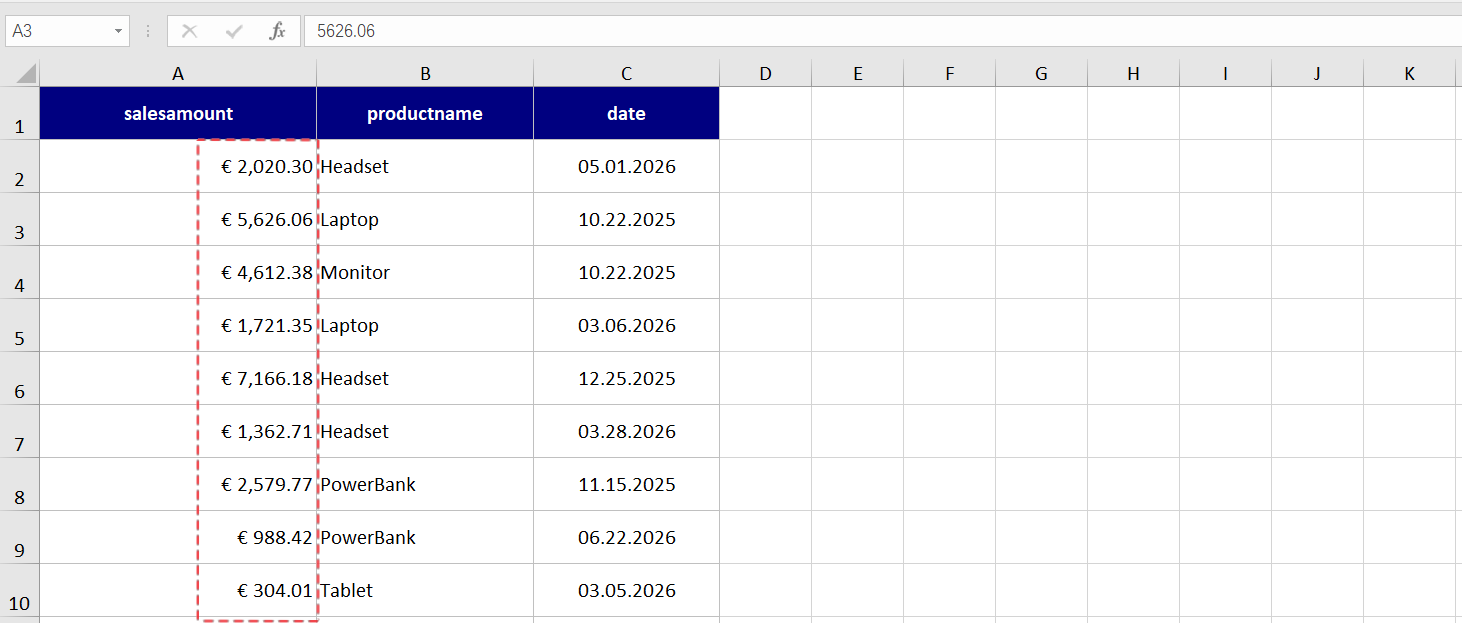
Once configured, the system will apply your custom format string to this column during subsequent task executions. When opening the table in Excel, cell values will be rendered following your defined format rules.
Tips:
(1) Format String only takes effect when the table is opened in Excel; it does not apply to Simple Tables displayed directly in HTML bodies.
(2) The Table Designer cannot preview the rendering effect of Format Strings.
(3) If the Attachment Delivery Method of the attachment template is set to Attachment and HTML Table in Email Body and Excel is installed, tables in the HTML email body will be displayed with the Format String applied.