- Introduction
- Set Default Font Style for Body Templates
- Configure Table Styles for Simple Tables
- Select Predefined Style for Tables
Introduction
Starting from version 2.4.0004, SQLMessenger provides the function to set default font and table styles. You can preset the default font style for the body text and table style in the system settings, and the system will apply the default styles you set to new templates when creating new email templates and tables.
Set Default Font Style for Body Templates
Step 1: Click "System Settings" in the MainMenu, then click the "Font & Table Styles" tab in the System Configuration dialog box, and click "Default Email Body Font".
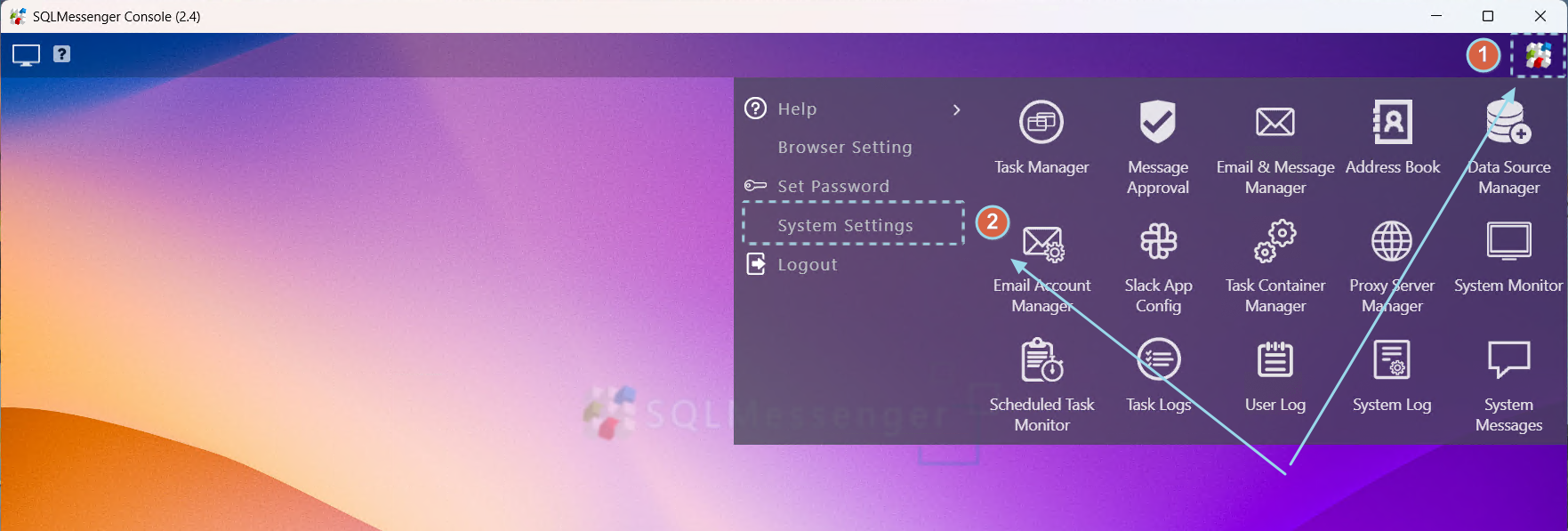
Click "System Settings" in the MainMenu
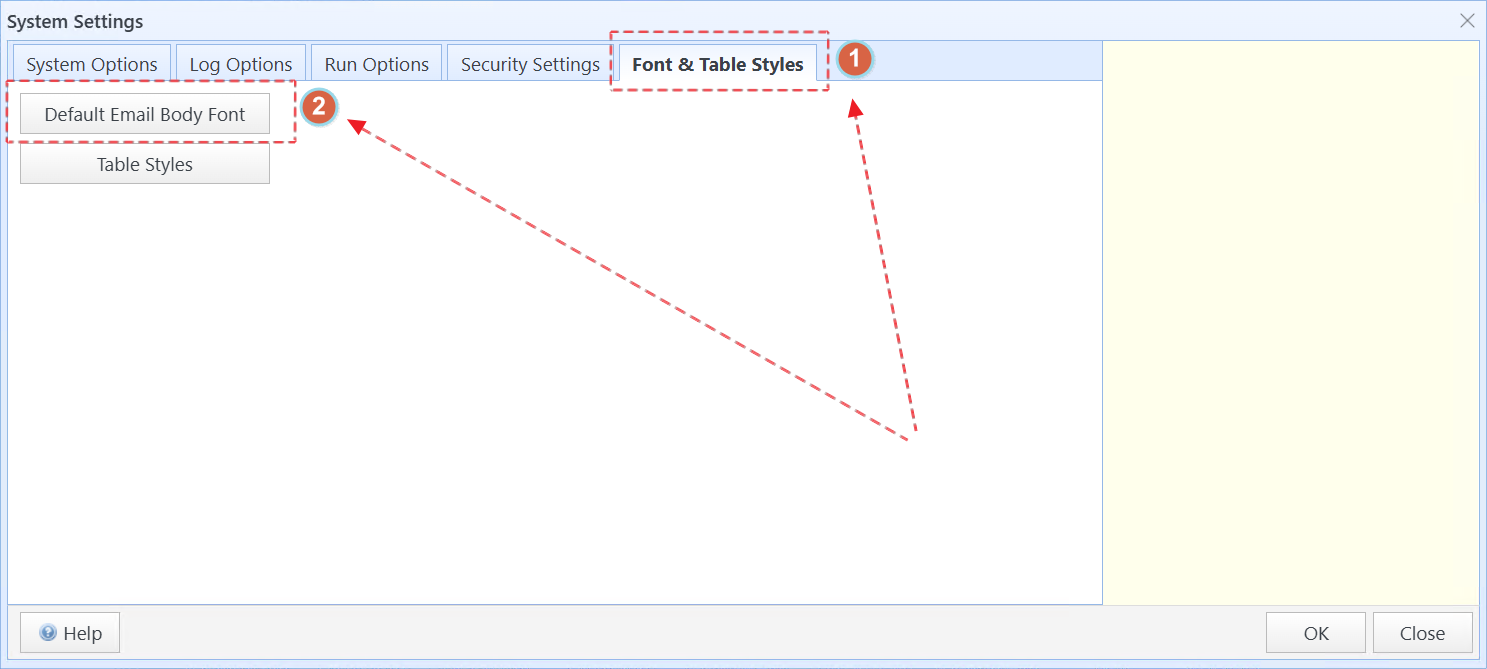
Click the "Font & Table Styles" tab in the System Configuration dialog box, and click "Default Email Body Font"
Step 2: Set the default email font in the Font Settings dialog box. Then click "OK" to save the settings.
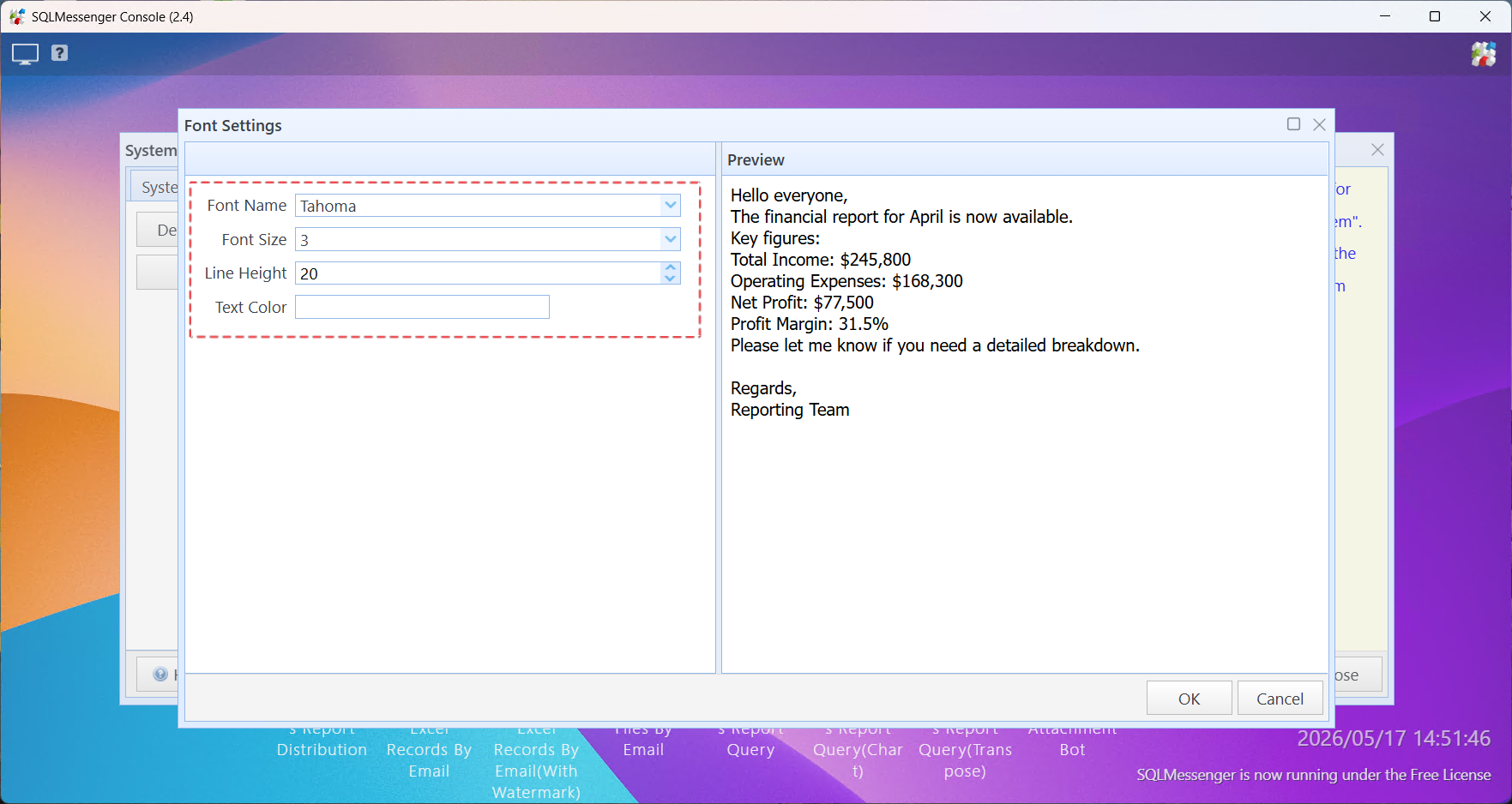
Set the default email font in the Font Settings dialog box, then click "OK" to save
After the settings are saved successfully, the next time you create a new email template, the system will use the default font you set as the font for the email body.
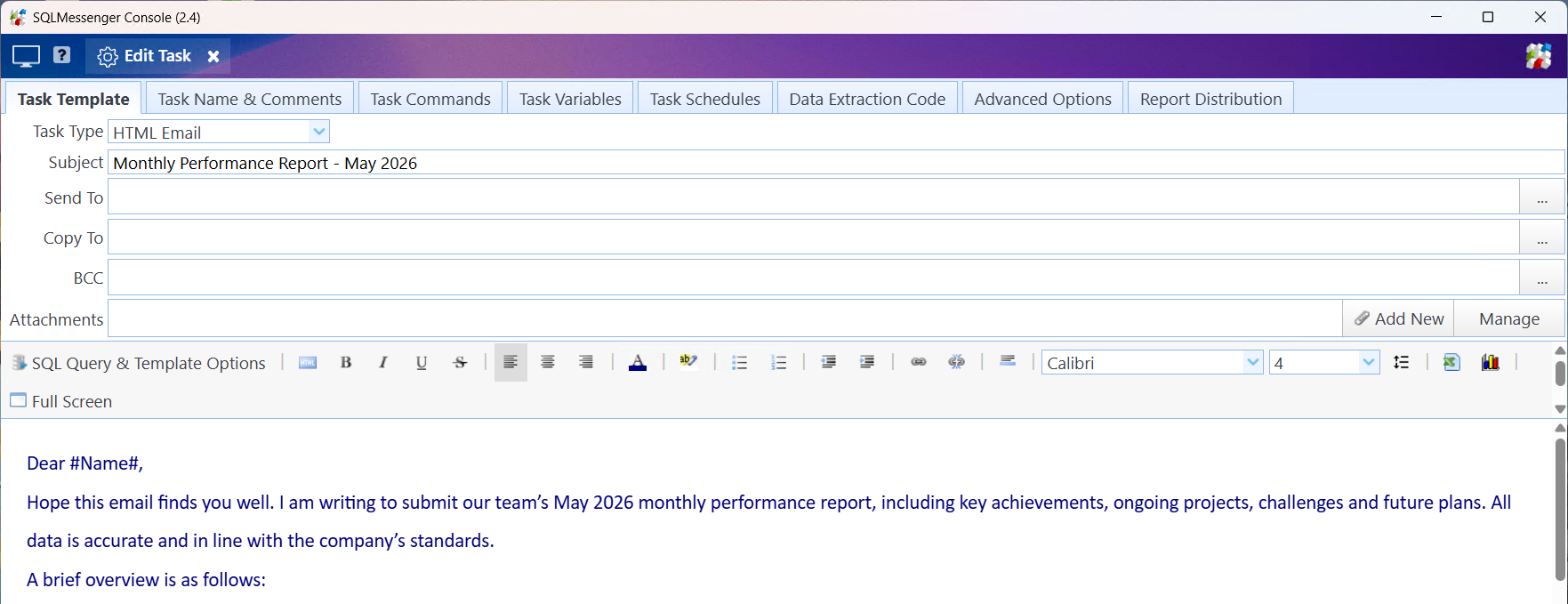
When creating a new email template, the system will use the default font you set as the font for the email body
Note: This setting only takes effect on newly created email templates and will not change the font style of existing email templates.
Configure Table Styles for Simple Tables
Step 1: Click "System Settings" in the MainMenu, then click the "Font & Table Styles" tab in the System Configuration dialog box, and click "Table Styles".
Click "System Settings" in the MainMenu
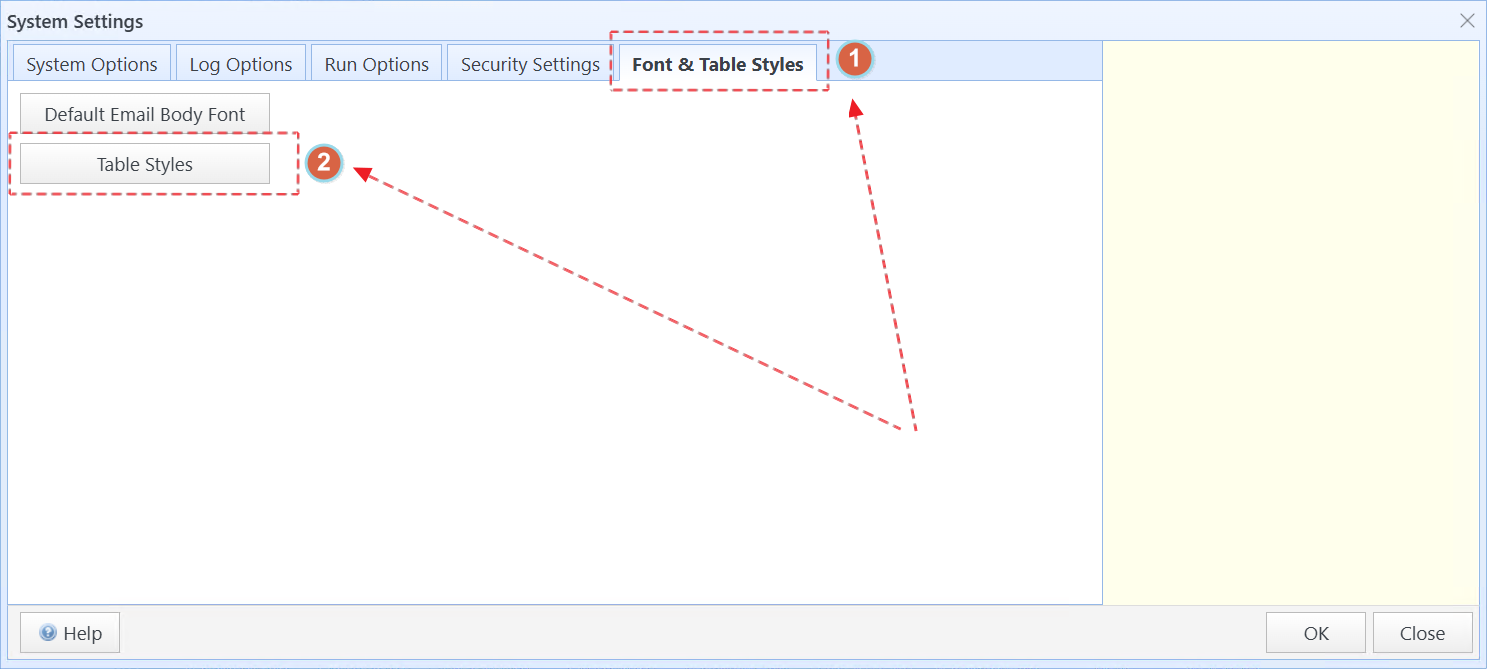
Click the "Font & Table Styles" tab in the System Configuration dialog box, and click "Table Styles"
Step 2: Click "Add New Style" in the Table Styles dialog box to open the "Table Style Editor" dialog box.
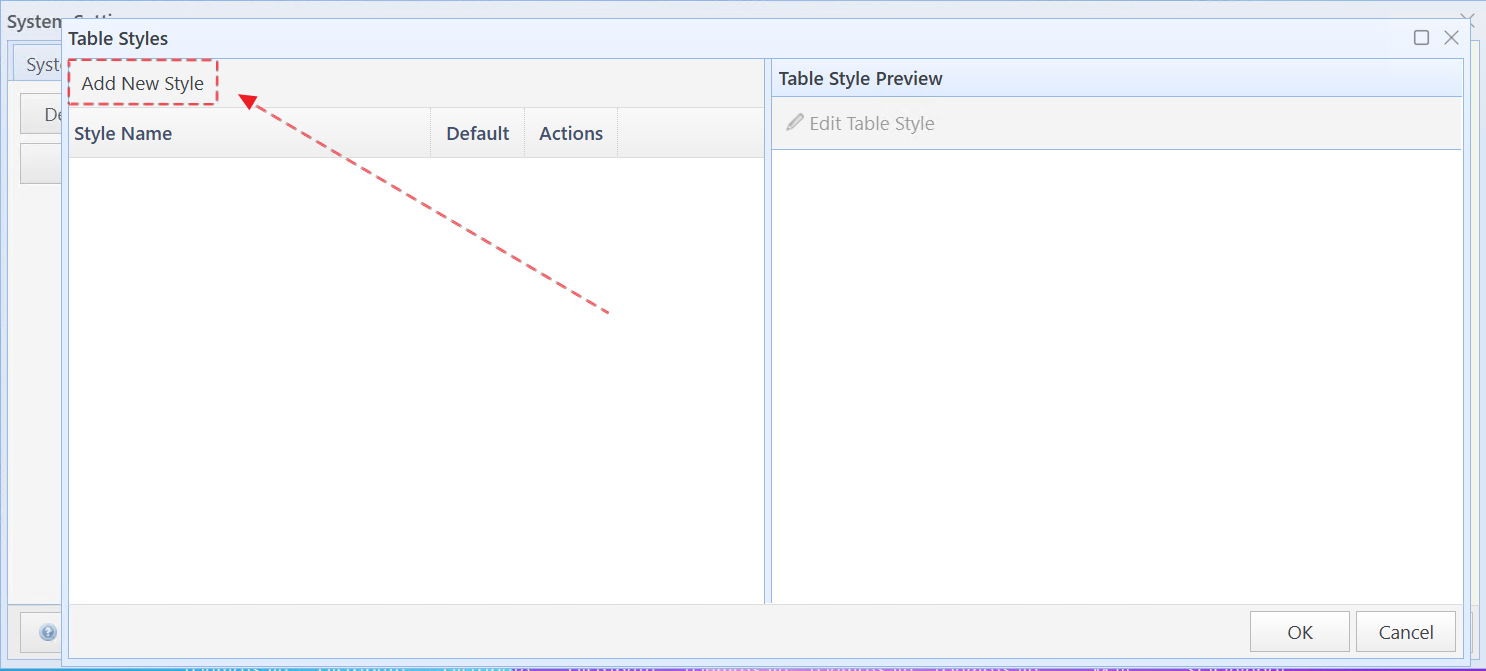
Click "Add New Style" in the dialog box to open the "Table Style Editor" dialog box
Step 3: Set the table style in the "Table Style Editor" dialog box, then click "OK".
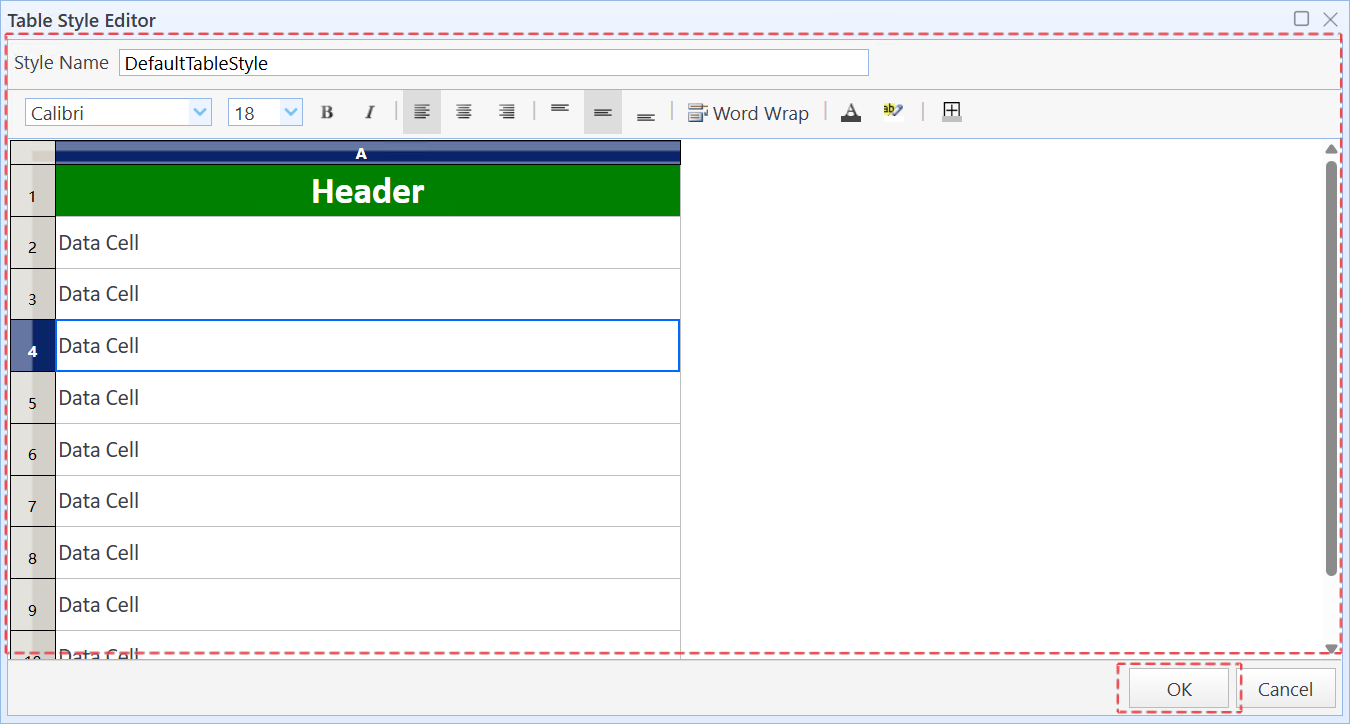
Set the table style in the "Table Style Editor" dialog box, then click "OK"
If you want to set a table style as the default table style, check the "Default" option corresponding to that style. In the future, when creating a new table, the system will automatically apply this style to the new table.
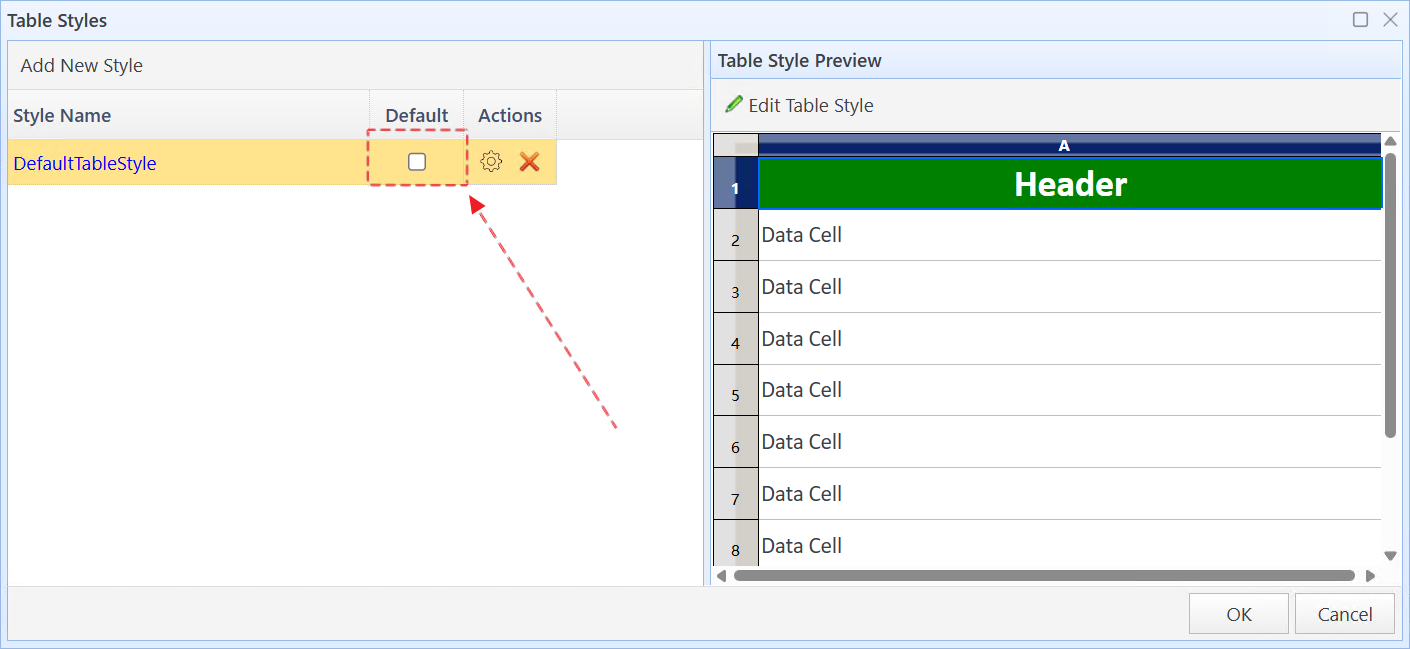
Check the "Default" option to set the table style as the default table style
After completing the configuration, click "OK" to save the table styles.
Select Predefined Style for Tables
When configuring a task, you can click the Table Styles button on the table designer to select a predefined style for the table.
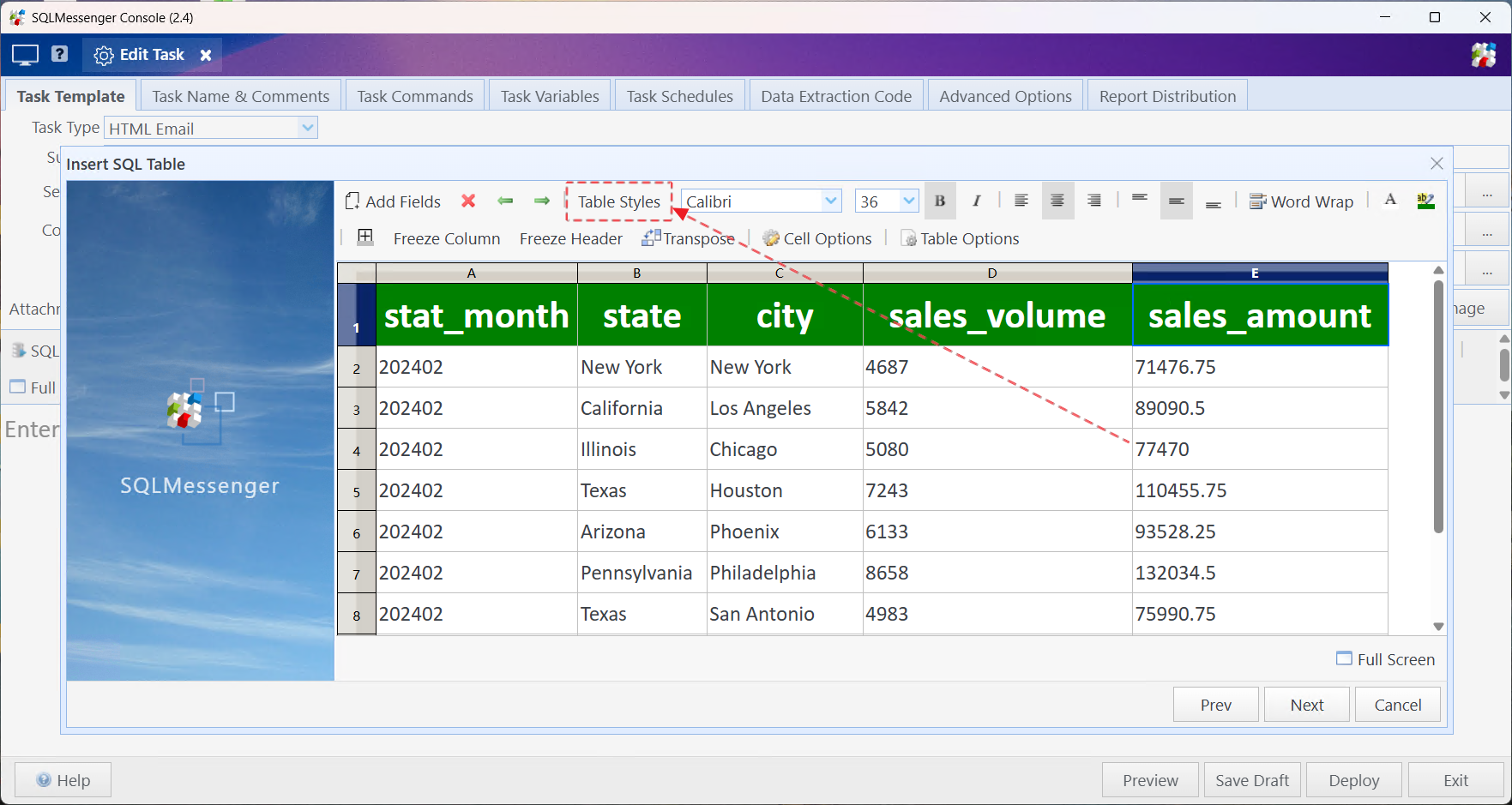
Click the Table Styles button on the table designer
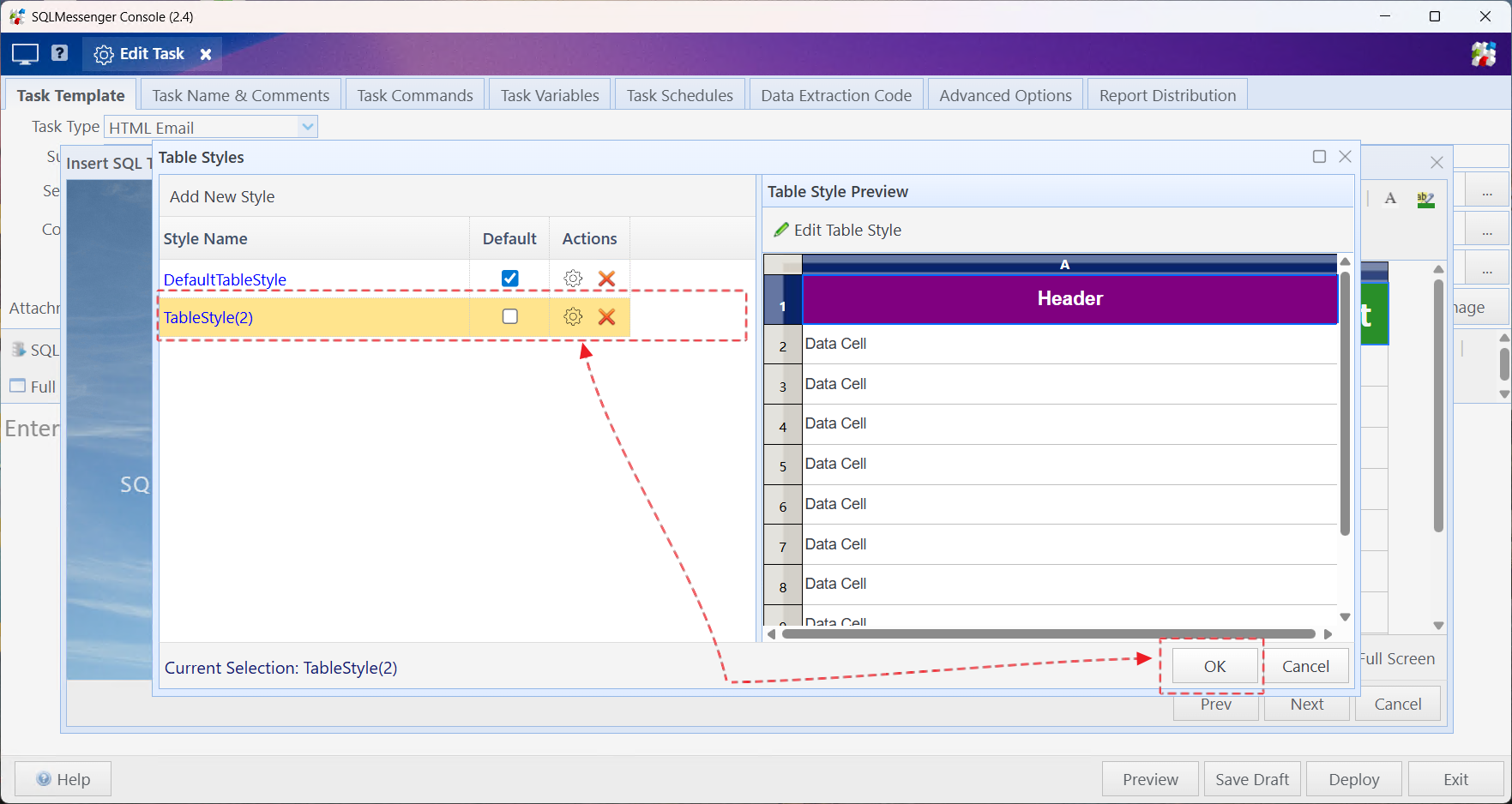
Select a table style to use, then click "OK"