1. Overview
"Every month, I need to individually distribute hundreds of payroll files to employees via email. The company now also requires me to protect each file with a unique password. Can SQLMessenger help me complete this work quickly?"
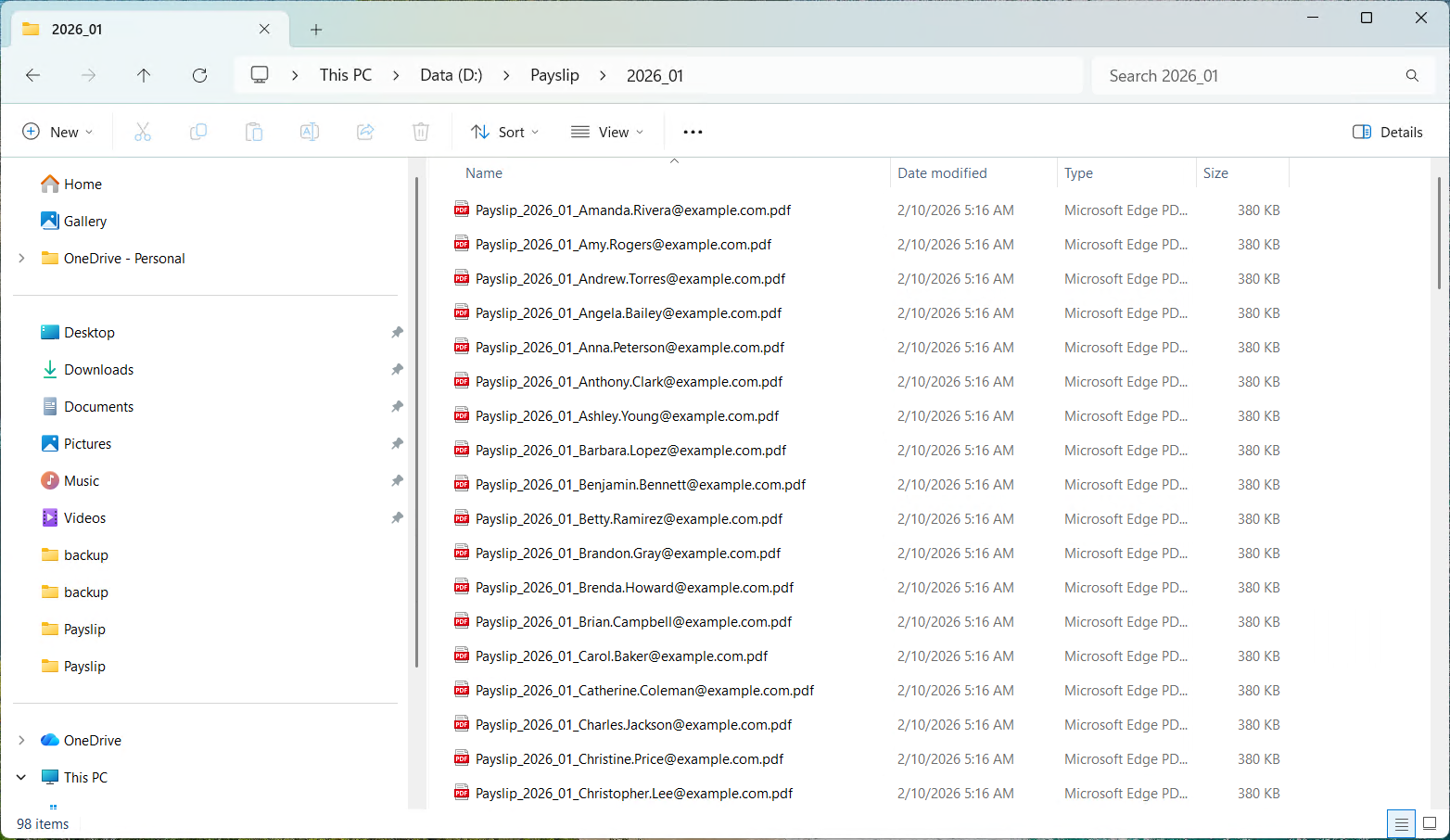
Files to be distributed
Yes. SQLMessenger provides the “Distribute PDF Files By Email” plugin. With this plugin, you can quickly send PDF files to each employee individually via email. To enhance security, you can also assign a unique password to every PDF file, ensuring employee privacy. This document uses email as an example to demonstrate the plugin’s functionality.
2. Install the “Distribute PDF Files By Email” Plugin
For the first use, you need to install the "Distribute PDF Files By Email" plugin in "Plugin Manager".
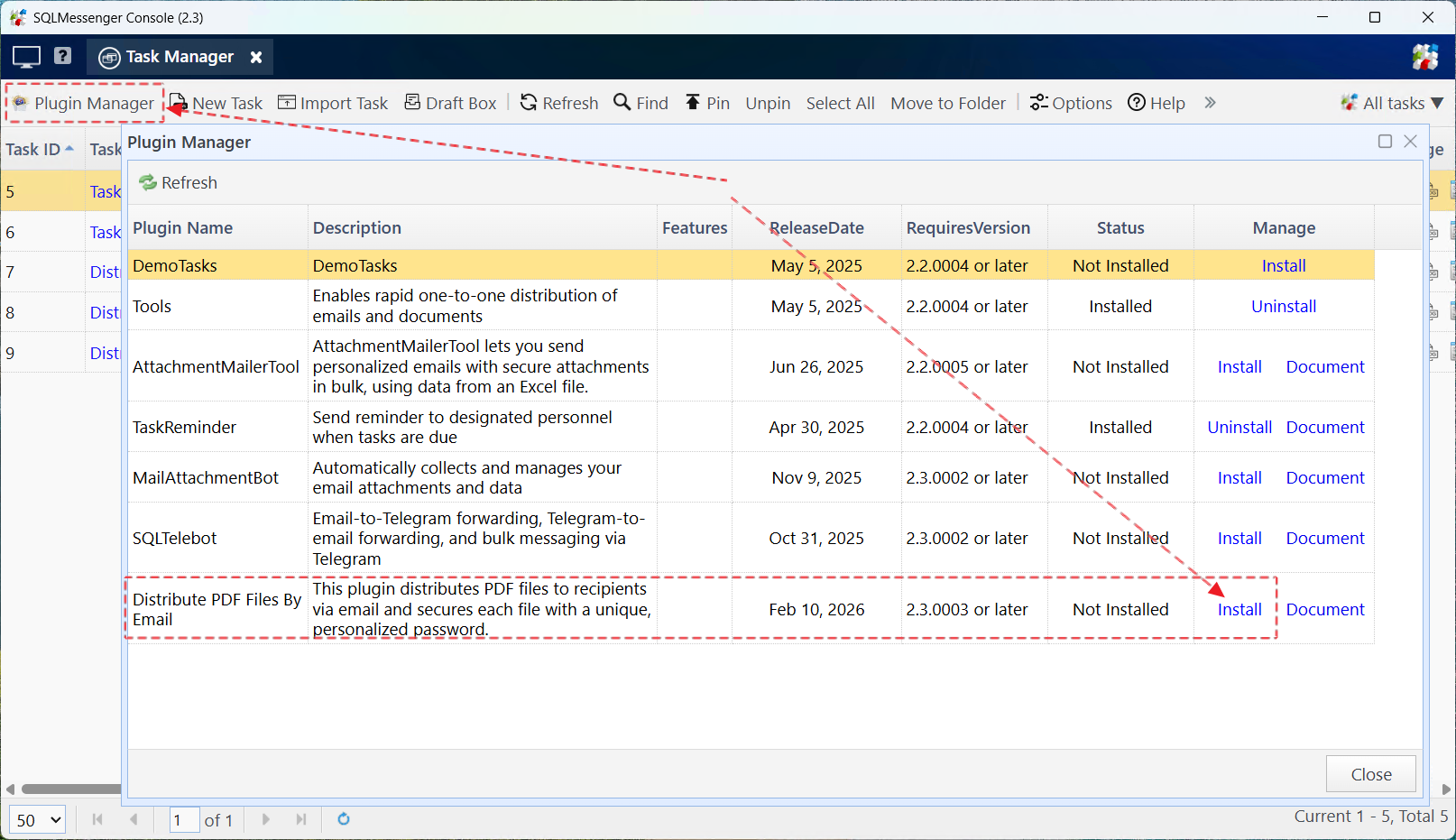
Install the "Distribute PDF Files By Email" Plugin
3. Run the Task and Send Emails
Step 1: Click the "Distribute PDF Files By Email" icon on the MainPage to open the task, then switch to "Information Distribute" page, click the "Download Template File" button to download the template table of the file list.
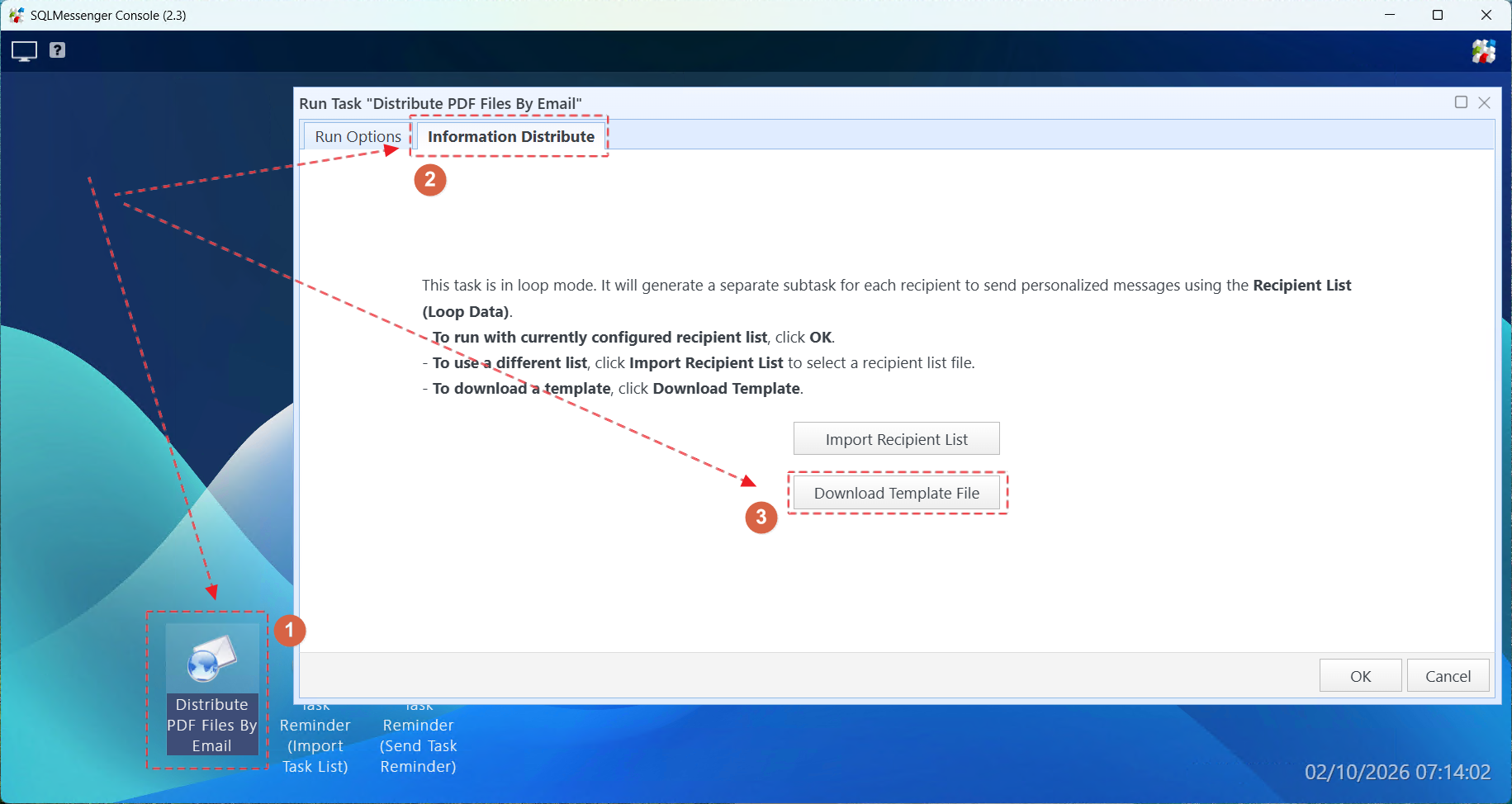
Open the task and download the template table
Step 2: Fill in the file names to be sent, recipient addresses, email subjects and email bodies in the template table. You can copy your prepared recipient list into the template table here. Ensure that the table contains the fields "Email", "Subject", "Body" and "FileName".
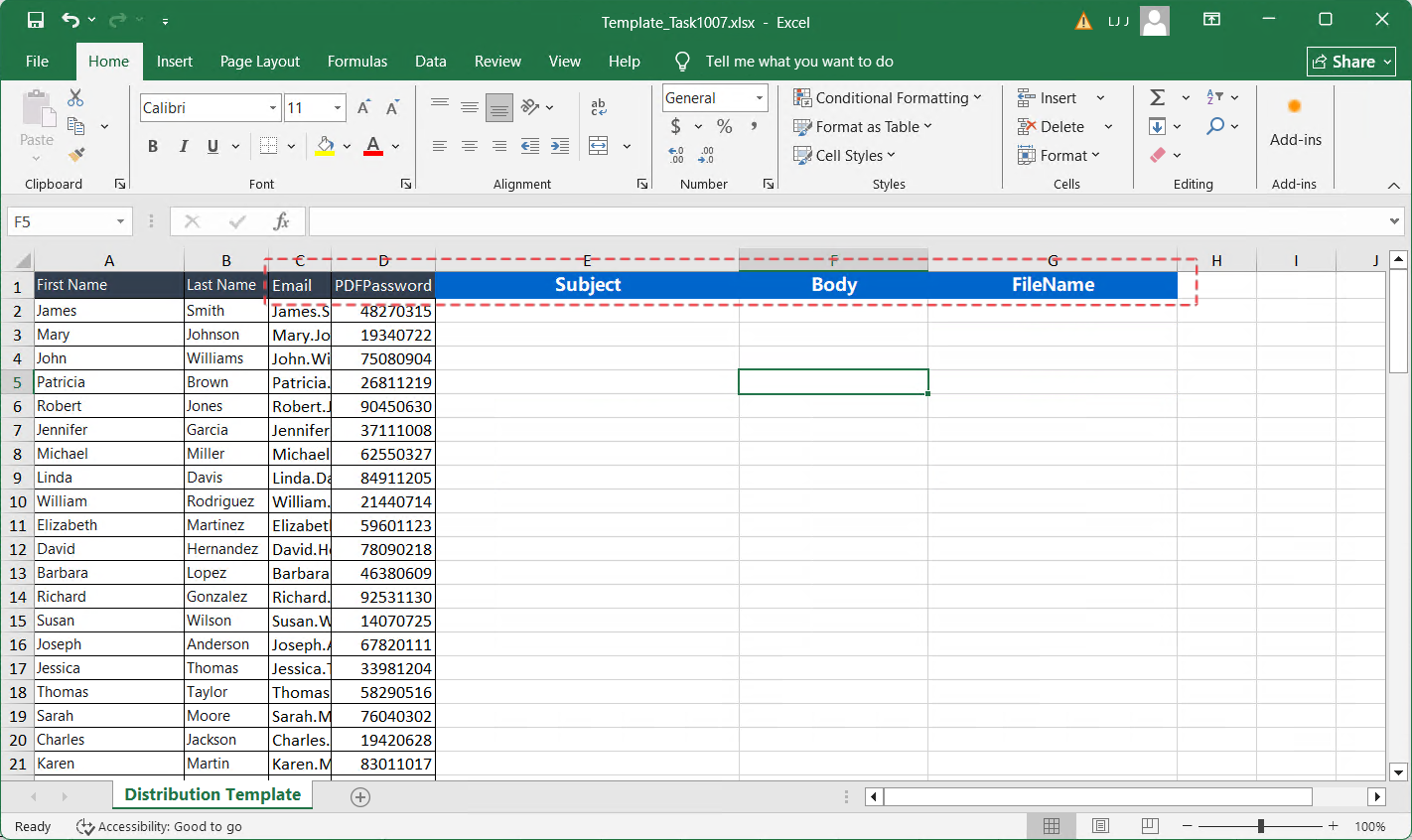
Copy recipient list to template table
Columns such as "Subject", "Body", and "FileName" can be quickly generated using Excel formulas. For example, in this case:
The Body can be generated with the formula
="Hello "&A2&",
Your January 2026 payslip is attached.
For security purposes, the PDF is protected with a password.
Please let us know if you have any questions.
Best regards,
Payroll Team".
In this example, Column C stores email addresses. Since the files to be distributed are also named using email addresses, the value for the "FileName" field can be quickly generated using the following formula:
="D:\Payslip\2026_01\Payslip_2026_01_"&C2&".pdf"
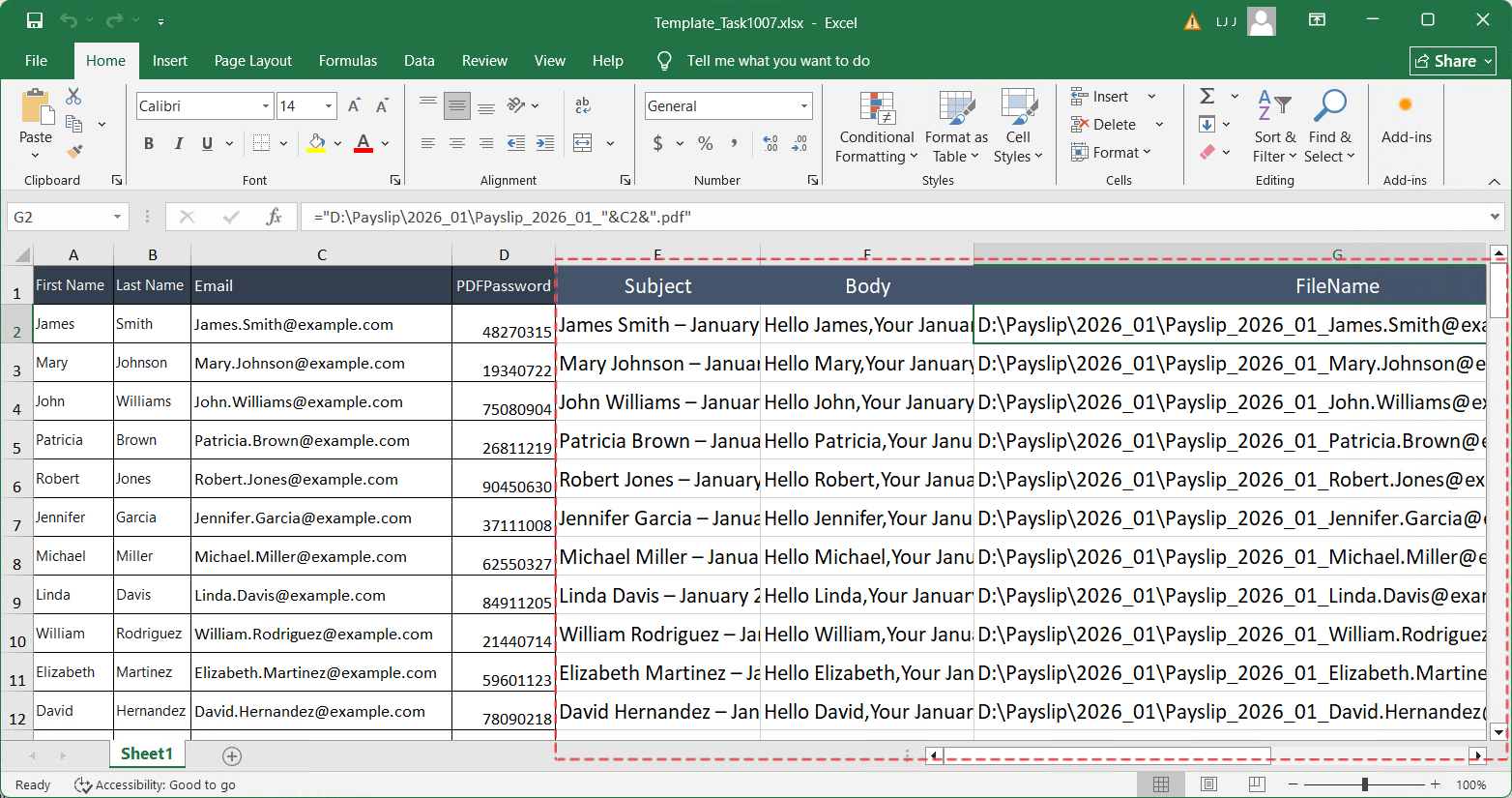
Edited file list
Step 3: After editing the file list, click the "Import Recipient List" button in SQLMessenger, then import the edited file list from the previous step into the system.
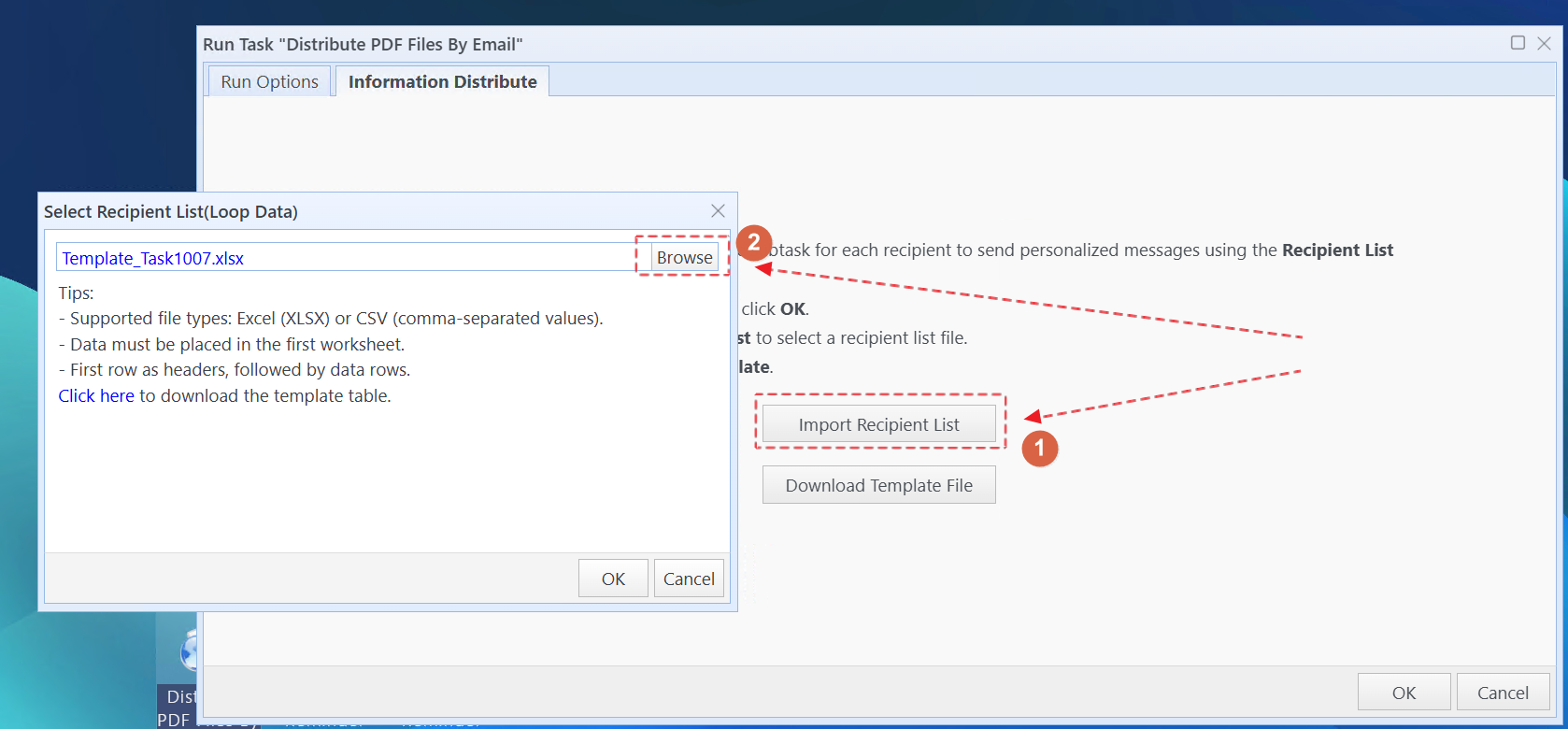
Import file list into system
Step 4: Check if the list content is correct, then click "OK". The system will run this task and generate an email for each file.
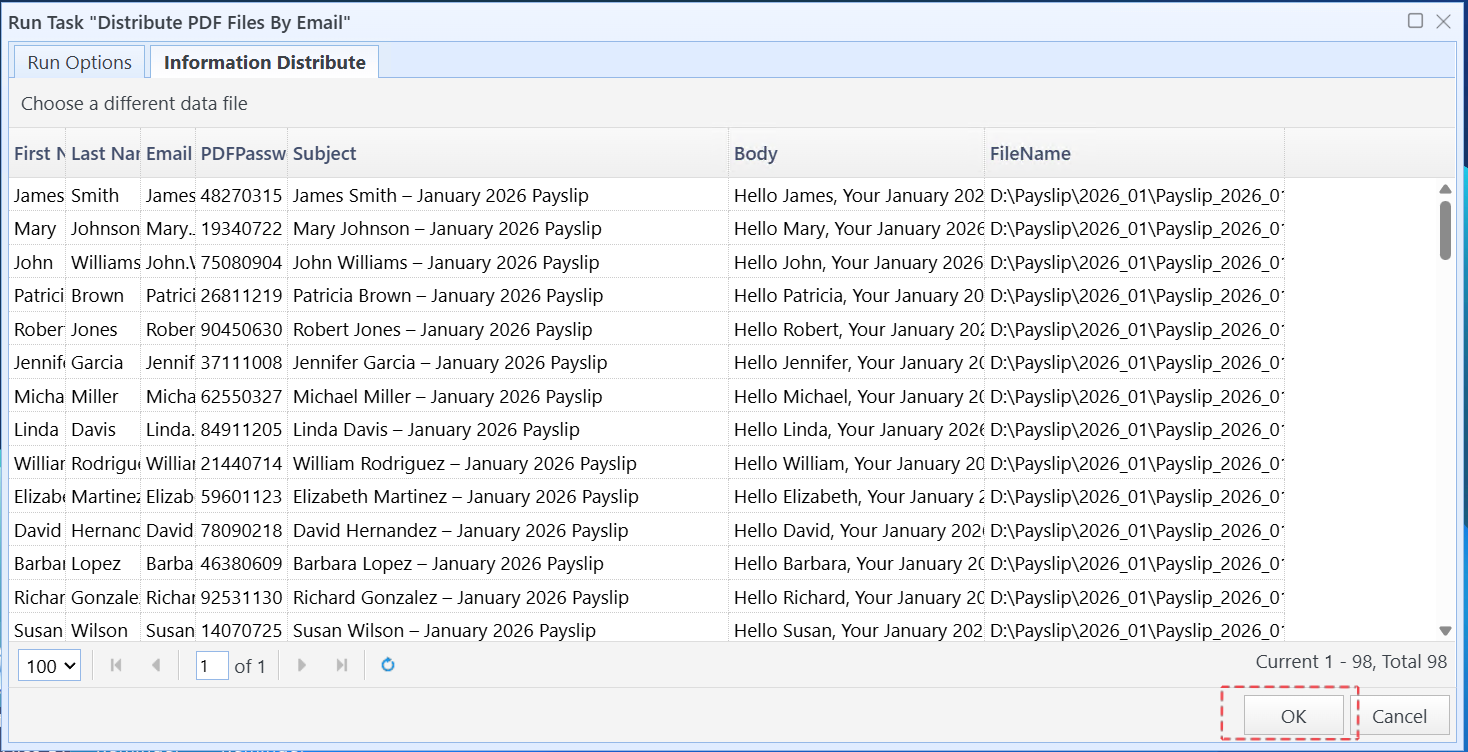
Run the task
Step 5: After the task is completed, you can spot-check whether the email content is correct on the interface.
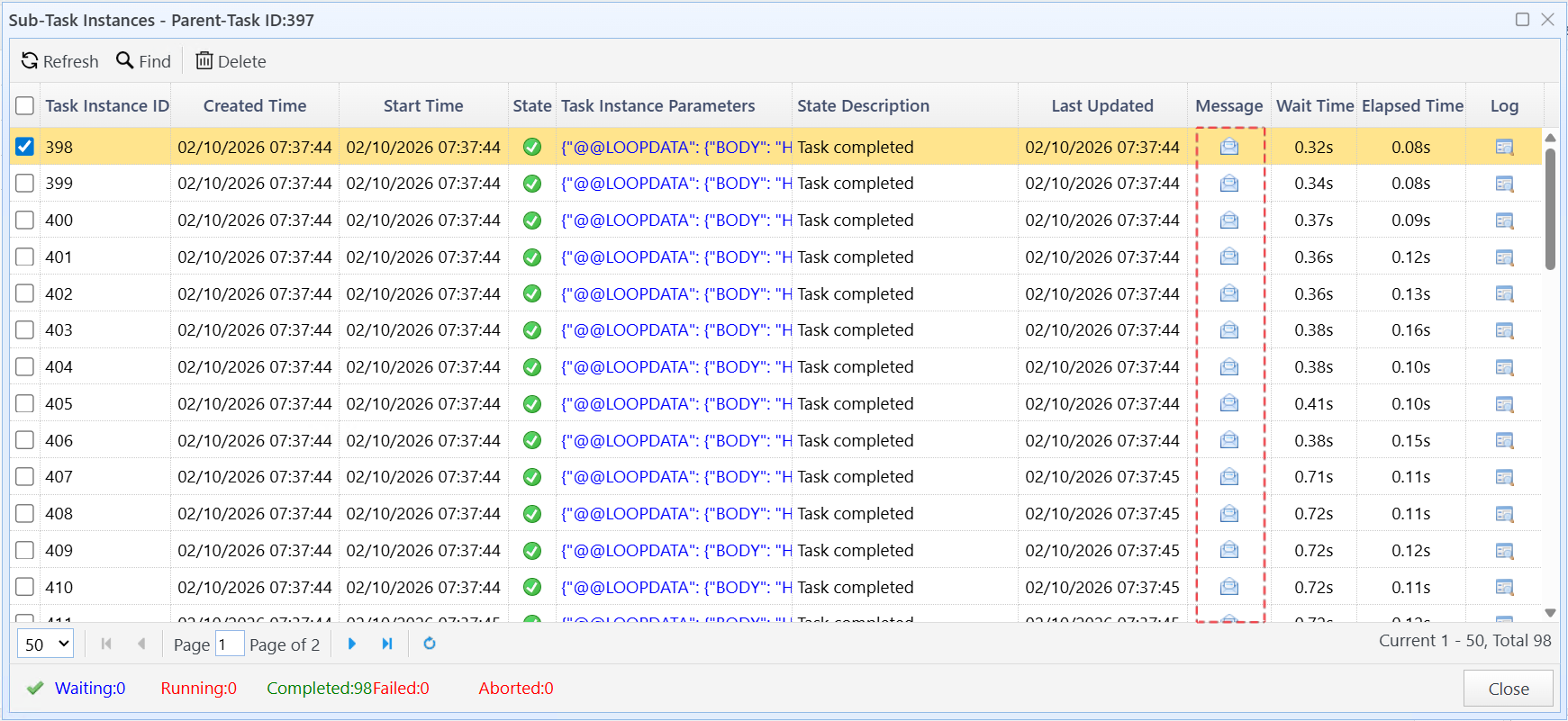
Spot-check email content
You can click the attachment icon to open the file.
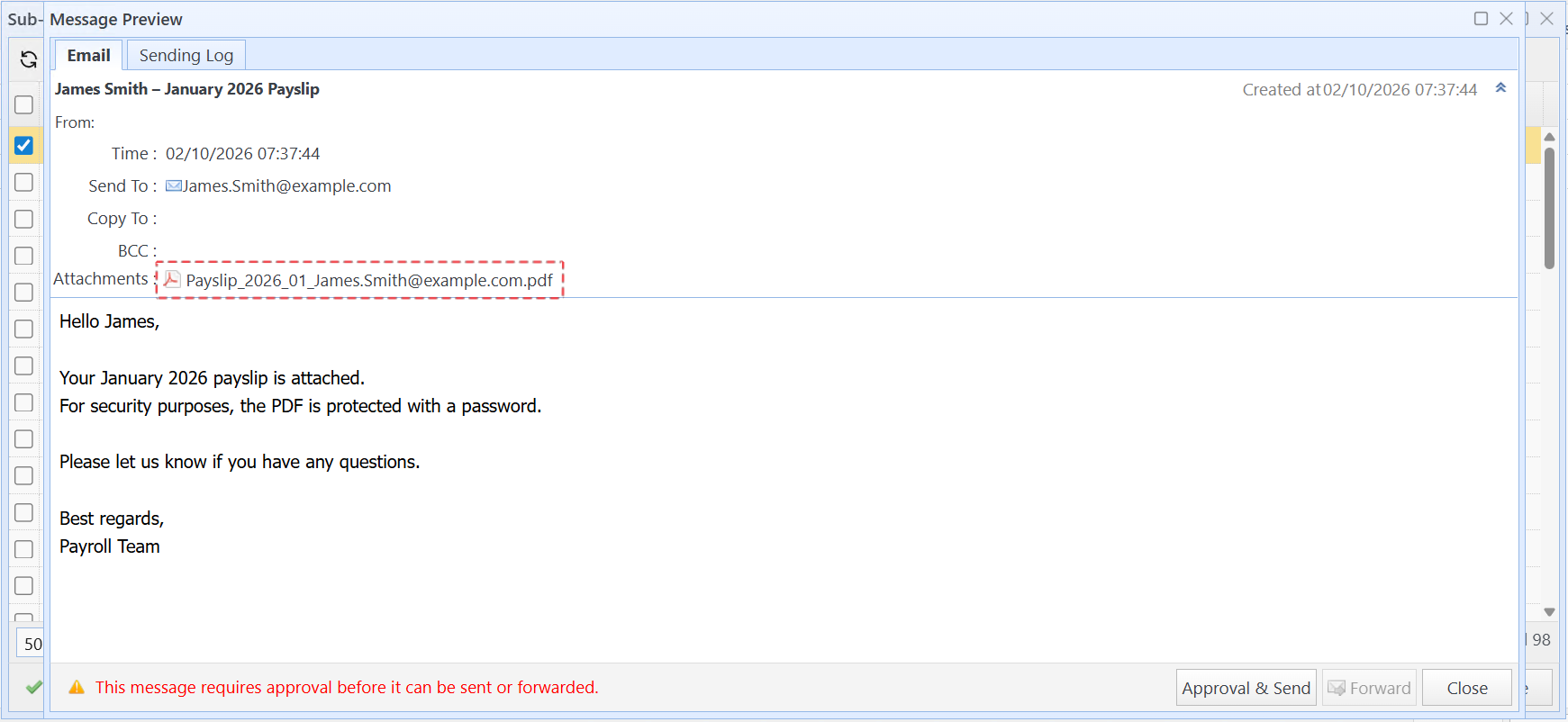
click the attachment icon to open the file
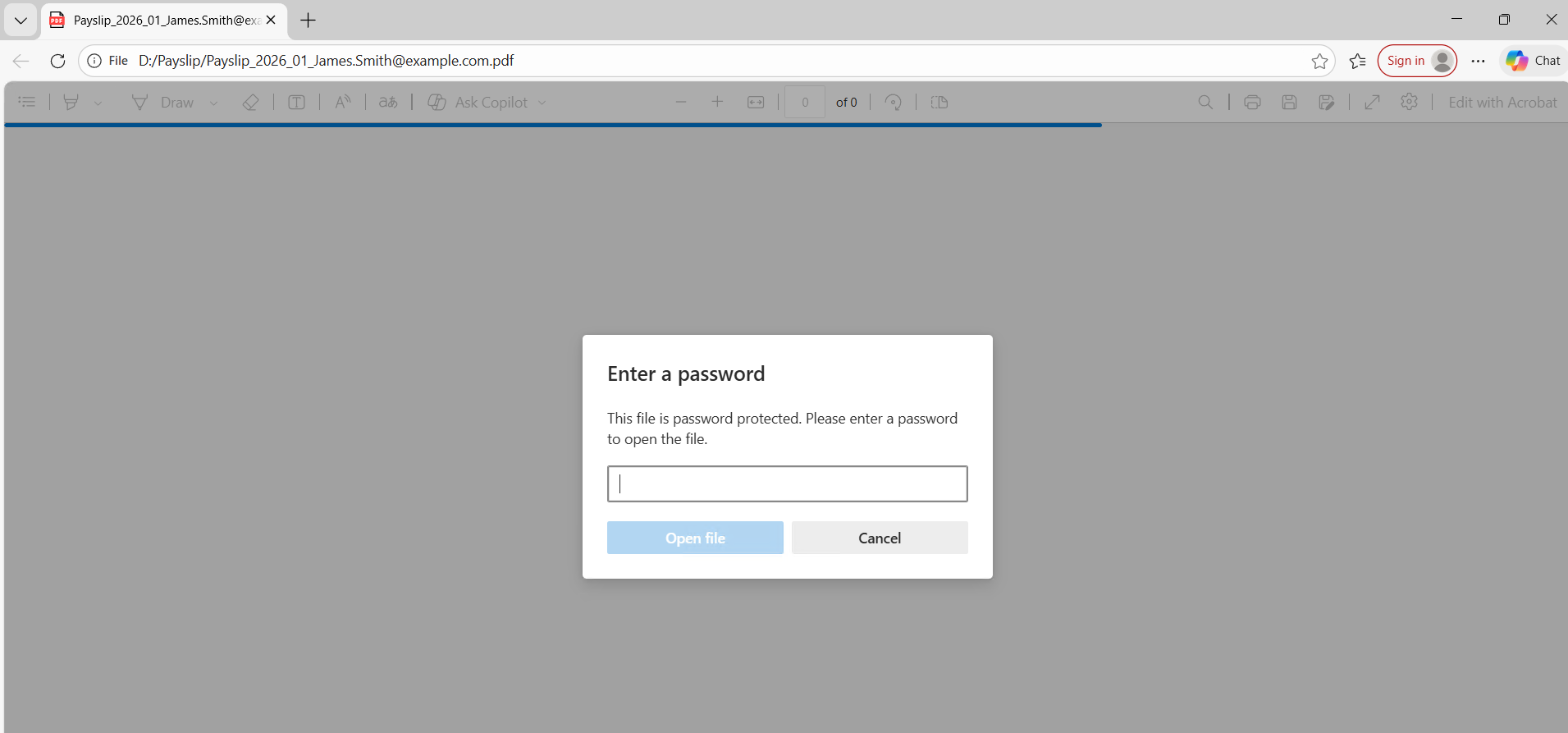
The file is now password-protected
Step 6: After confirming that the email content is correct, click the "Approval & Send" button, then click "Approval All", check "Approved", and click "OK". The system will start sending these emails.
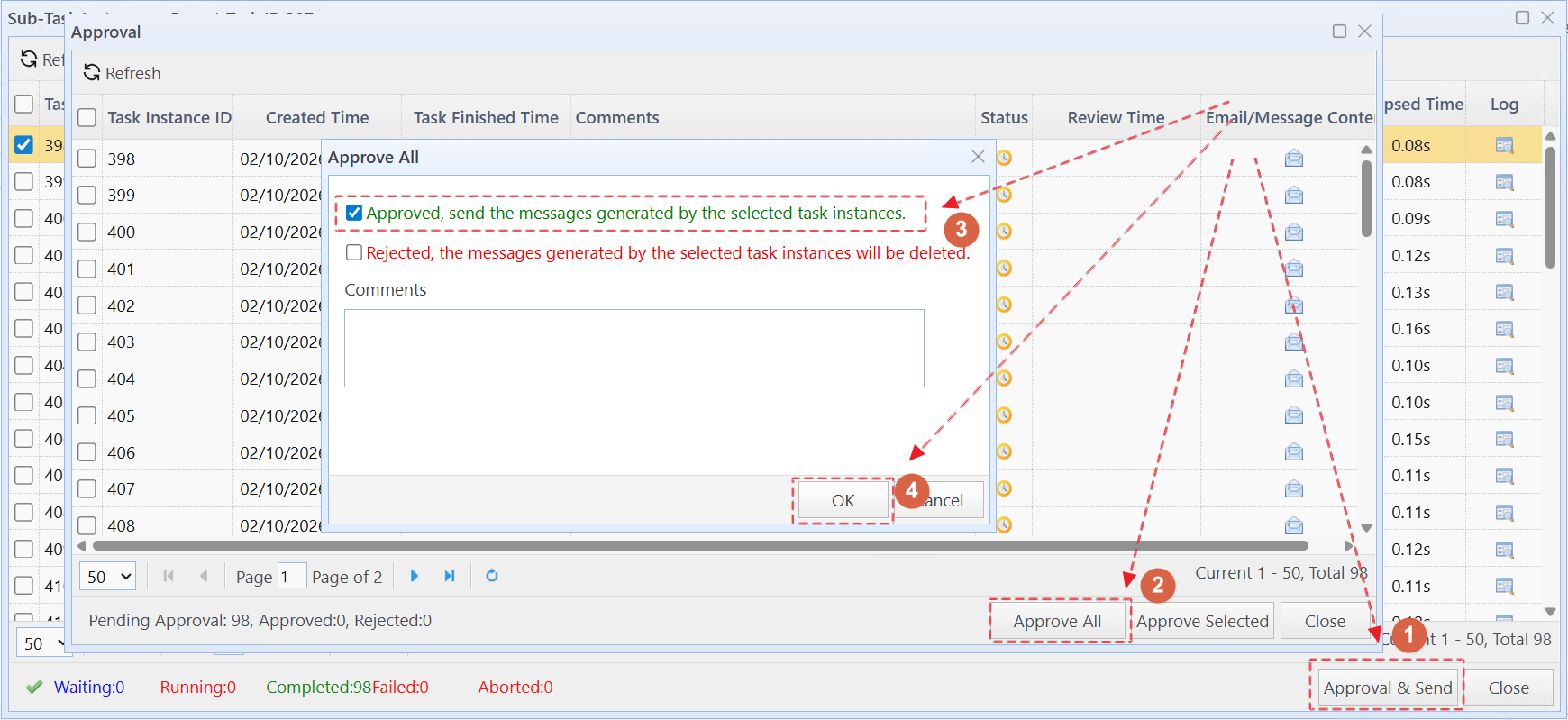
Approve and start sending emails
If the "Approval & Send" button is not visible, click the "Refresh" button first.
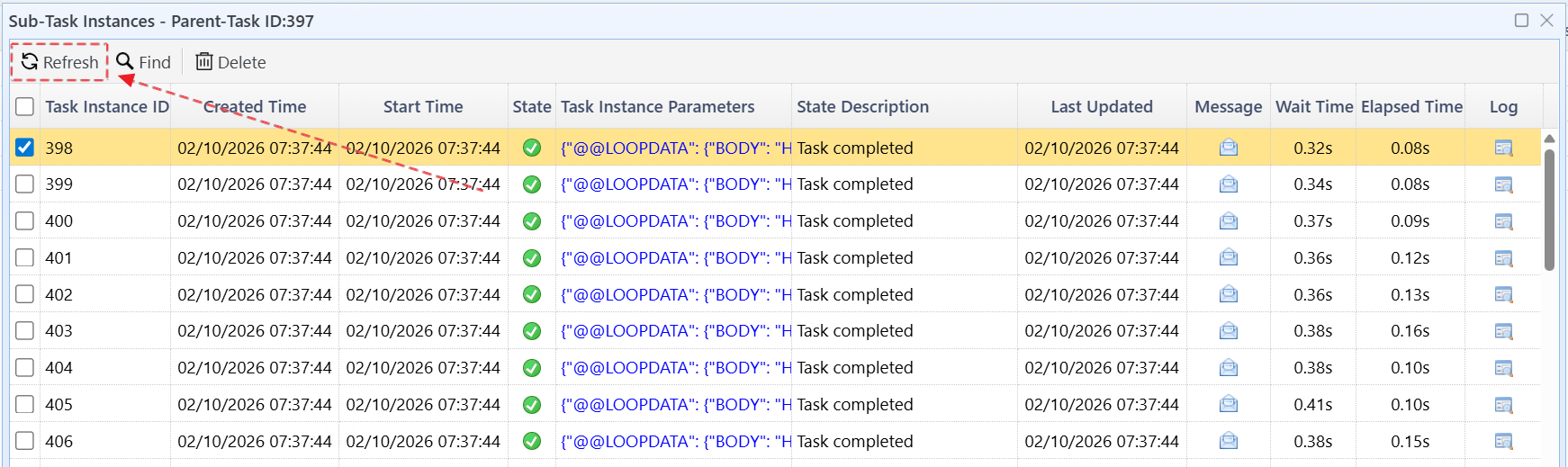
Click the "Refresh" button to show the "Approval & Send" button
You can check the email sending progress in "Email & Message Manager".
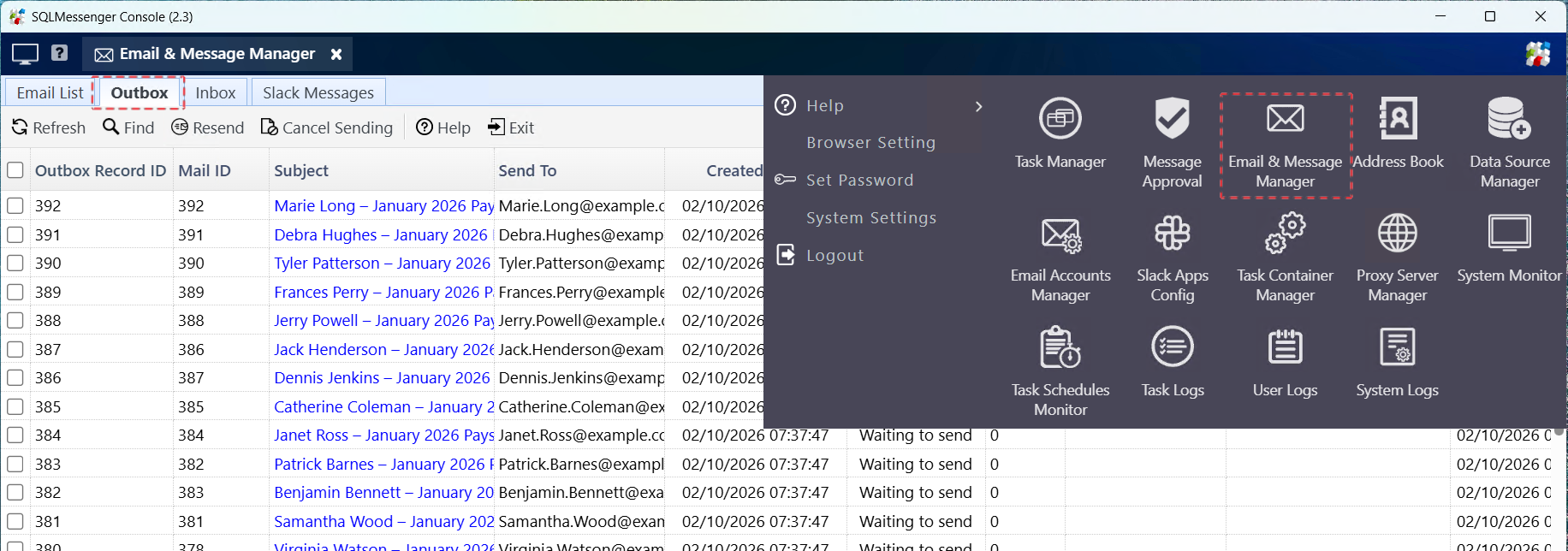
Check email sending progress in "Email & Message Manager"
Note: The above is the method for distributing files via email. If you need to distribute files via Slack, or Telegram, please contact SQLMessenger customer service to send you the corresponding task configuration file.