SQLMessenger User Manual - Attachment Template Management
- 1. What Is Attachment Template
- 2. Add an Attachment Template
- 2.1 Template Config
- 2.2 About the Template Type
- 2.3 Template Variables
- 2.4 Advanced Options
- 2.5 Save Attachment Files to a Specified Folder
- 3. Using Attachment Template Manager
1. What Is Attachment Template
In SQLMessenger, the system generates attachment files for emails based on the Attachment Template you have configured. The system supports two types of attachment file type:
Dynamic attachment generated from SQL queries at runtime: You can use SQL statements to dynamically generate file content while the task is running. The system can convert SQL query results into Excel tables (.xlsx) or CSV files. It can also fill the SQL query results into the specified positions in the Excel sheet according to your designed Excel template.
Fixed-Content attachment (Word, PDF, images, or other files): You can attach a Word document, PDF file, image file, or other file formats as an attachment to the email generated by the task.
You can click the Add New or Manage button on the right of the Attachments box to add or manage attachment templates for the task.
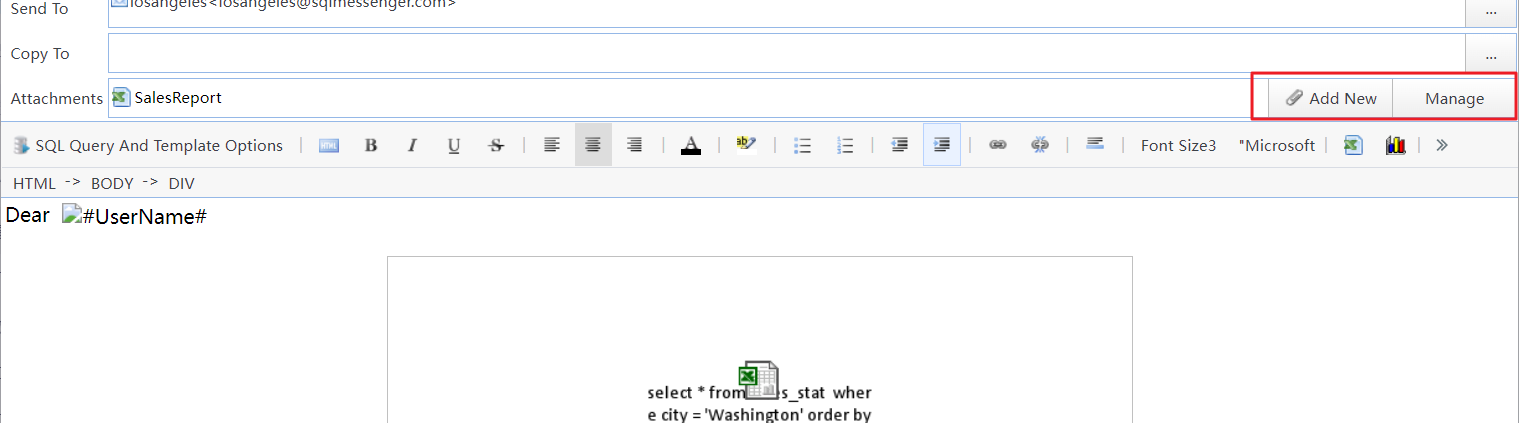
Click the Add New or Manage button to add or manage attachment templates
2. Add an Attachment Template
Click the Add New button on the right of the Attachments box to open the Select Attachment Type dialog box.
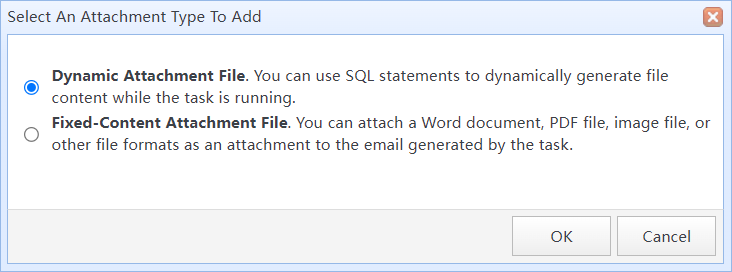
Add an attachment template
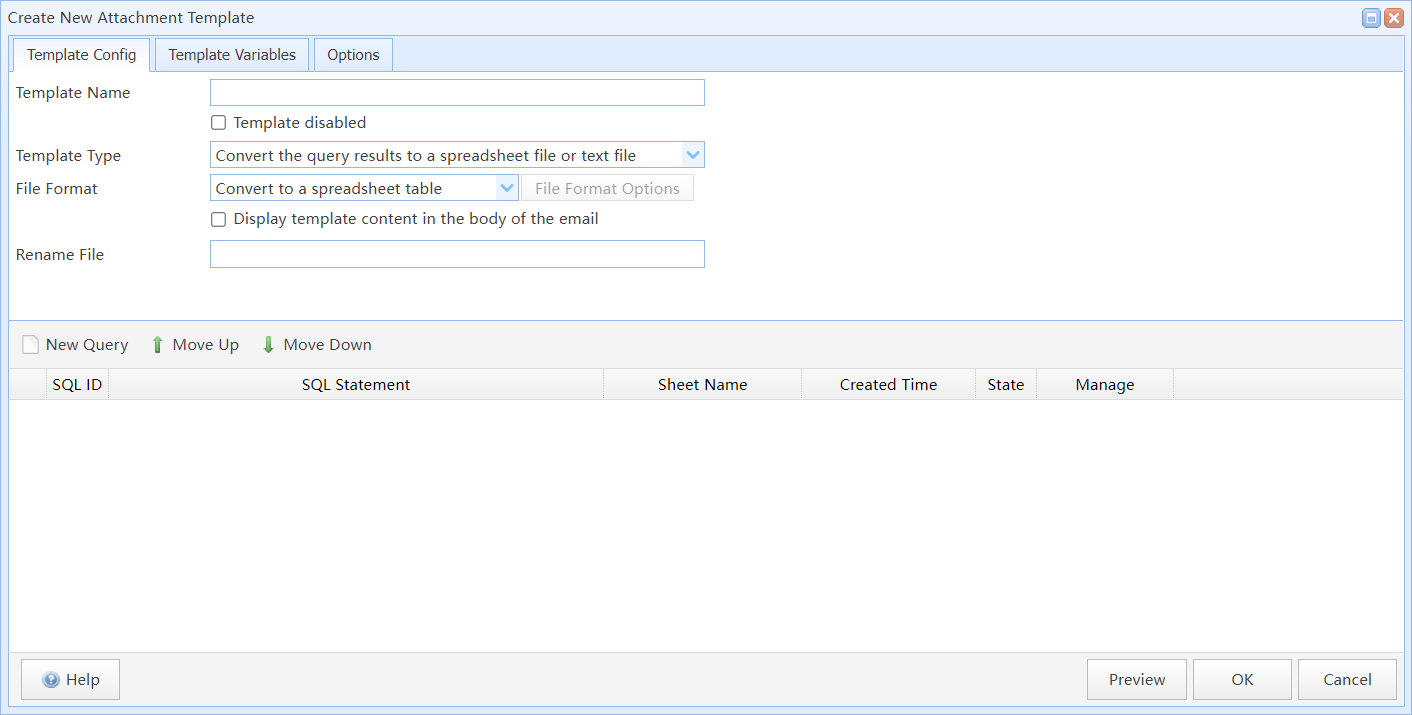
Create new attachment template (dynamic attachment)
2.1 Template Config
Template Name |
Set template name for the attachment template. |
Template disabled |
If you select this option, the attachment template will be disabled. Note: If the attachment template is disabled, it will not be processed during the next execution of this task, and the SQL statements within the attachment template will not be executed as well. |
Template Type |
Select the Template Type for the attachment template. |
Output Format |
Select a converted file format for the attachment template. |
Rename Attachment To |
Here you can set the name for the attachment file generated after the task execution. You can use variables in the file name to generate dynamic file names. For example, if the "Rename File" is "Report(#@@Date#)", the name of the file generated by the task will become "Report(22_05_2023)". |
SQL Query List |
Here you can add the SQL query statement to be used for this attachment template, and configure the conversion method for the SQL query results. You can add multiple SQL statements in one attachment template and convert the query result of each statement to different location. |
2.2 About the Template Type
SQLMessenger determines whether to convert the query results of SQL statements based on the Template Type. The system supports the following three Template Types:
Convert the query results into a spreadsheet file or a text file |
You can design the format of the spreadsheet yourself, and then the system will fill the data queried by SQL into the specified cells in the table.
Convert the results of an SQL query into a simple Excel table |
HTML Report |
A report in HTML format can either be added to the body for display or sent as an attachment. |
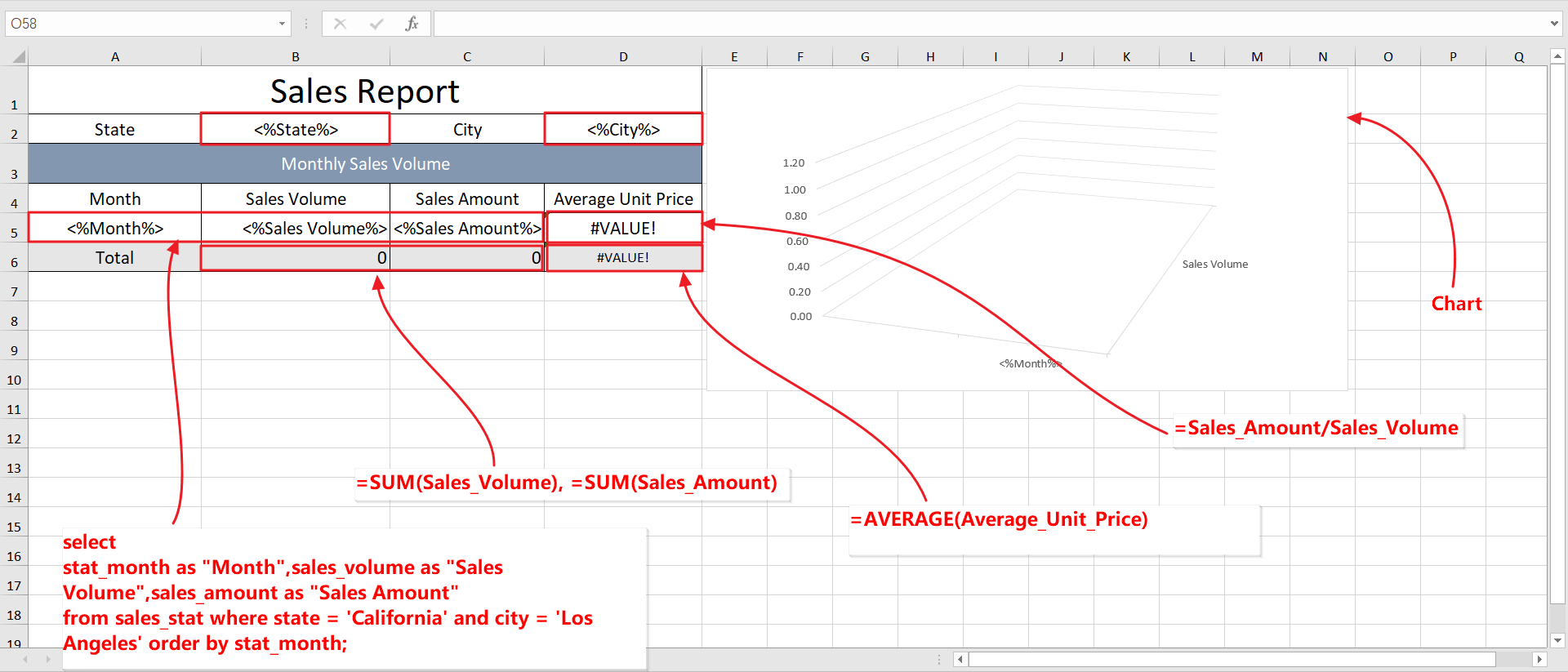
Customize Spreadsheet Template |
You can design the format of the spreadsheet by yourself, and then the system will fill the data queried by SQL into the specified cells in the table.
A custom excel template |
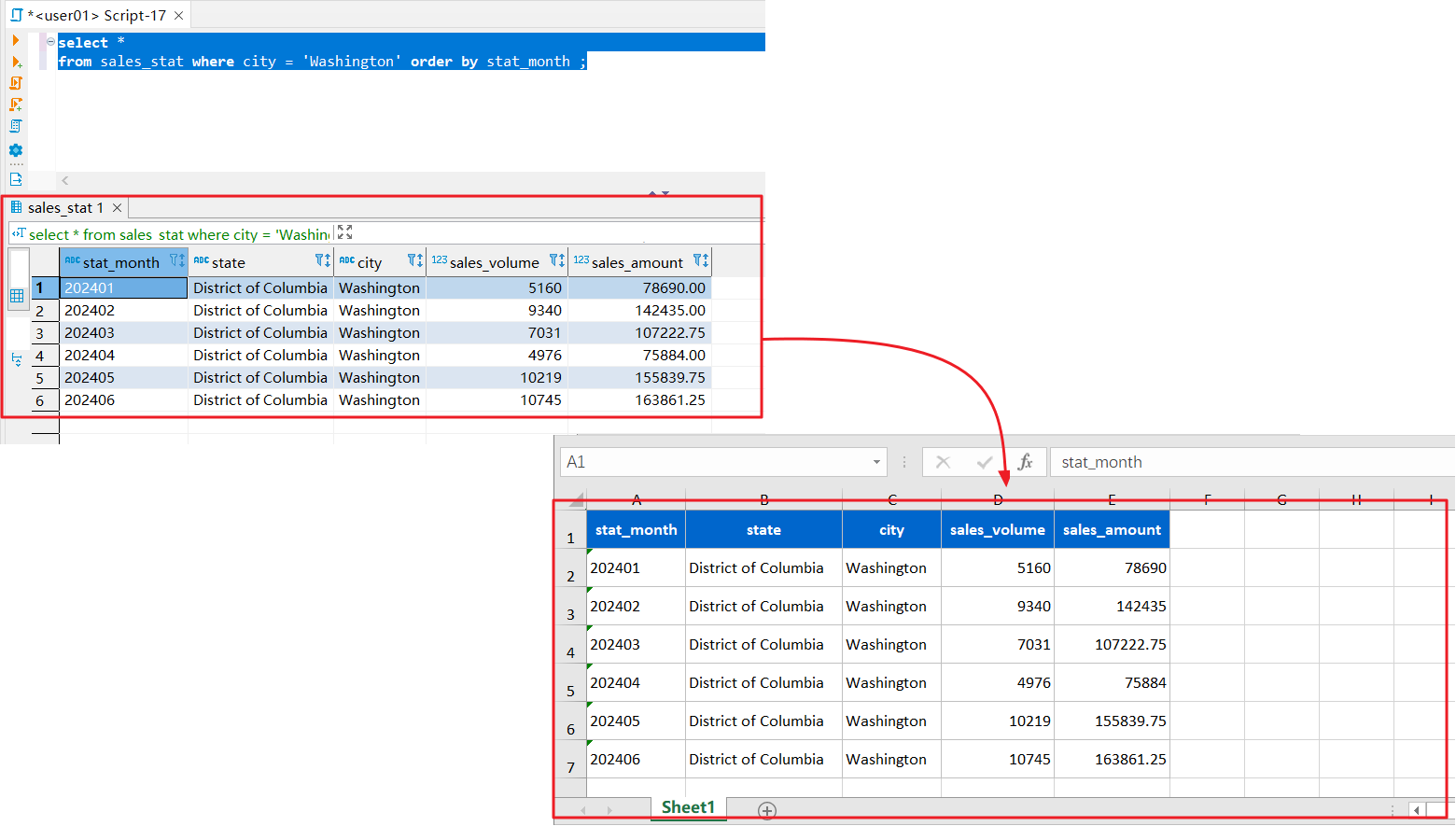
2.3 Template Variables
You can create and use variables in the template. Template variables are only visible within the scope of this template. Using Variables in Tasks
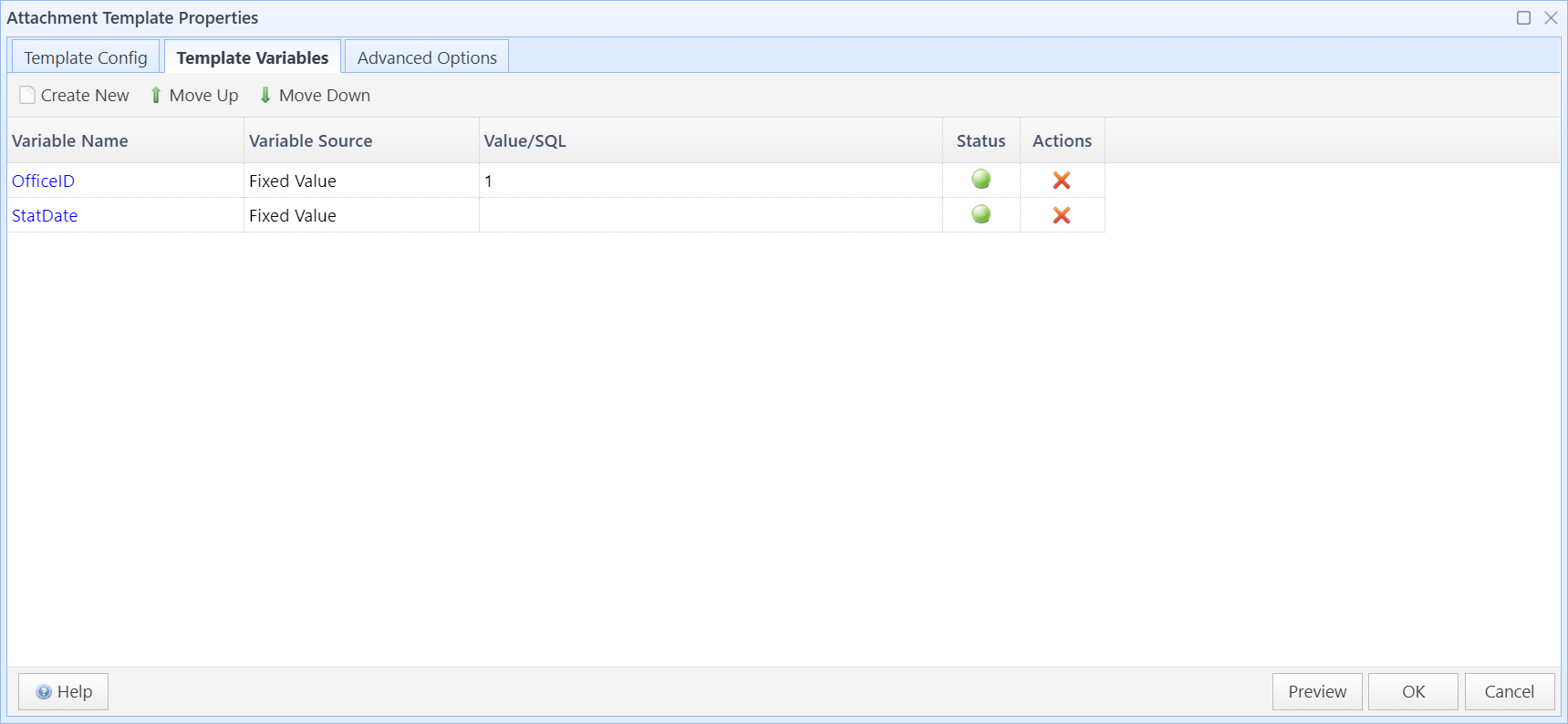
Template variables list
2.4 Advanced Options
You can set advanced options for the attachment template here, such as the delivery method and file format of the attachment template.
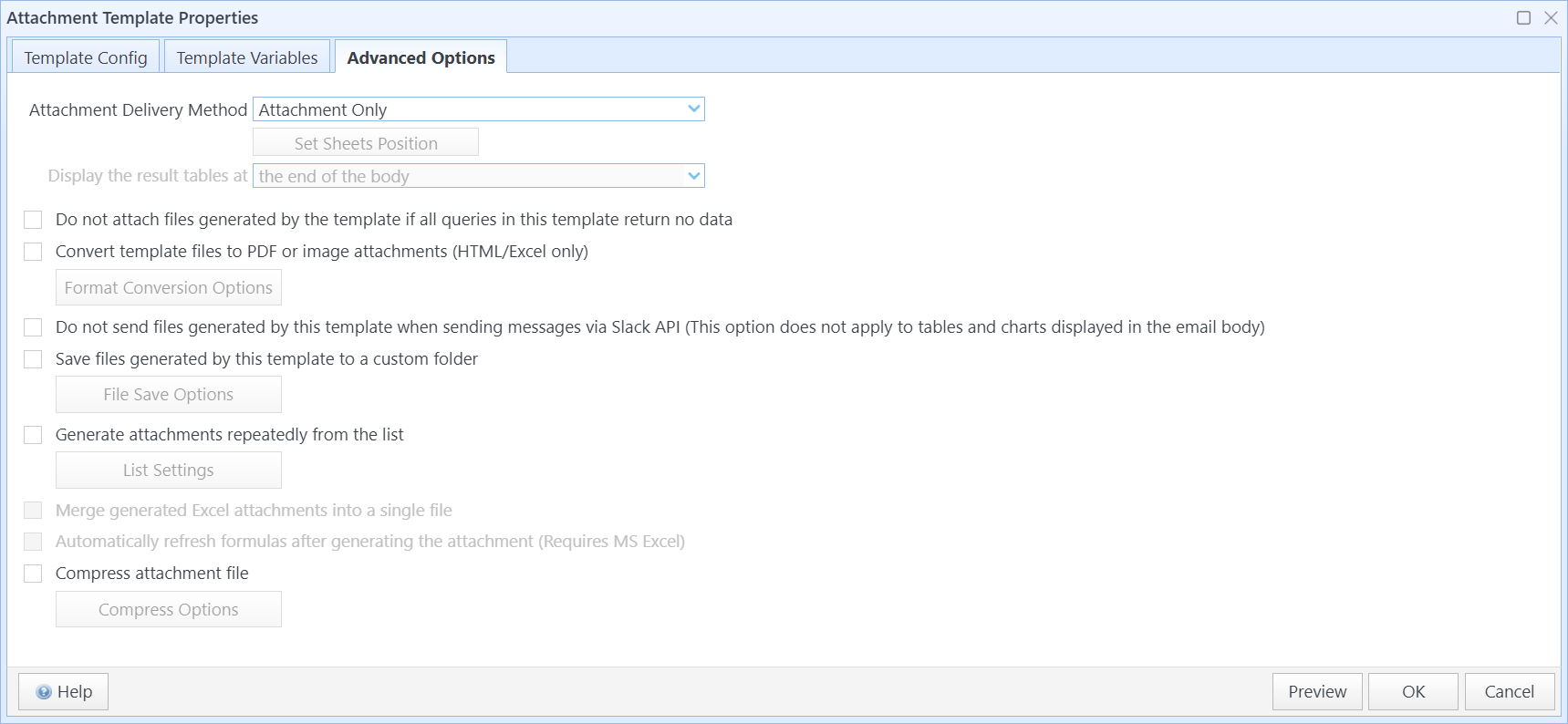
The advanced options of the attachment template
Attachment Delivery Method |
Select the delivery method for the attachment file. The following options are available: Do Not Send as Attachment: Do not send the attachment file generated by this template. Attachment Only: Send the file generated by this template as an email attachment. HTML Table in Email Body Only: Convert the file generated by this template into an HTML document and display it in the email body. Attachment and HTML Table in Email Body: Convert the file generated by this template into an HTML document for display in the email body, and also send the file as an email attachment. |
Set Sheets Position |
For attachment templates of the Customize Spreadsheet Template type, if Attachment Delivery Method is set to HTML Table in Email Body Only or Attachment and HTML Table in Email Body, you can click this button to set the display position of each Sheet in the email body. |
Display the result tables at |
For attachment templates of the Query Results to Spreadsheet/Text File or HTML Report type, if Attachment Delivery Method is set to HTML Table in Email Body Only or Attachment and HTML Table in Email Body, you can set the display position of this template in the email body here. |
Do not attach files generated by the template if all queries in this template return no data |
If this option is checked, the file generated by this attachment template will not be sent if the SQL queries of the attachment template return no data. |
Convert template files to PDF or image attachments (HTML/Excel only) |
If this option is checked, the attachment file can be converted to a PDF or PNG image format, and watermarks and passwords (for PDF) can be set for the file. |
Format Conversion Options |
If the "Convert template files to PDF or image attachments (HTML/Excel only)" option is checked, you can click this button to set format conversion options, such as PDF password, watermark text, etc. |
Do not send files generated by this template when sending messages via Slack API (This option does not apply to tables and charts displayed in the email body) |
If this option is checked, the files generated by this attachment template will not be sent when sending messages via the Slack API. Tip: If Attachment Delivery Method is set to HTML Table in Email Body Only or Attachment and HTML Table in Email Body, the content of the attachment will still be displayed in the message body, and the system will not send the attachment file. |
Save files generated by this template to a custom folder |
If this option is checked, the system will copy the files generated by this template to the directory you specify after the task is executed. Save Attachment Files to a Specified Folder |
File Save Options |
If the Save files generated by this template to a custom folder option is checked, you can click this button to set the target path, file name, etc. for saving the files. |
Generate attachments repeatedly from the list |
If this option is checked, you can set a list, and execute the query for each record in the list to generate a separate table file. |
Merge generated Excel attachments into a single file |
If the Generate attachments repeatedly from the list option is checked, you can merge the tables generated by the template into a single spreadsheet file. (Note: This function requires Excel software to be installed) |
Merge generated Excel attachments into a single file |
If the Generate attachments repeatedly from the list option is checked, you can merge the tables generated by the template into a single spreadsheet file. (Note: This function requires Excel software to be installed) |
Automatically refresh formulas after generating the attachment (Requires MS Excel) |
If the template type is Customize Spreadsheet Template, checking this option will make the system call Excel to refresh the formula cells in the table after generating the attachment table. |
Compress attachment file |
If this option is checked, the system can compress the file generated by this attachment template into ZIP format, and a password can be added to the file. |
2.5 Save Attachment Files to a Specified Folder
If you need to save the files generated by the attachment template to a specified folder after the task is executed, you can check Save files generated by this template to a custom folder in Advanced Options, then click File Save Options to set the file saving options.
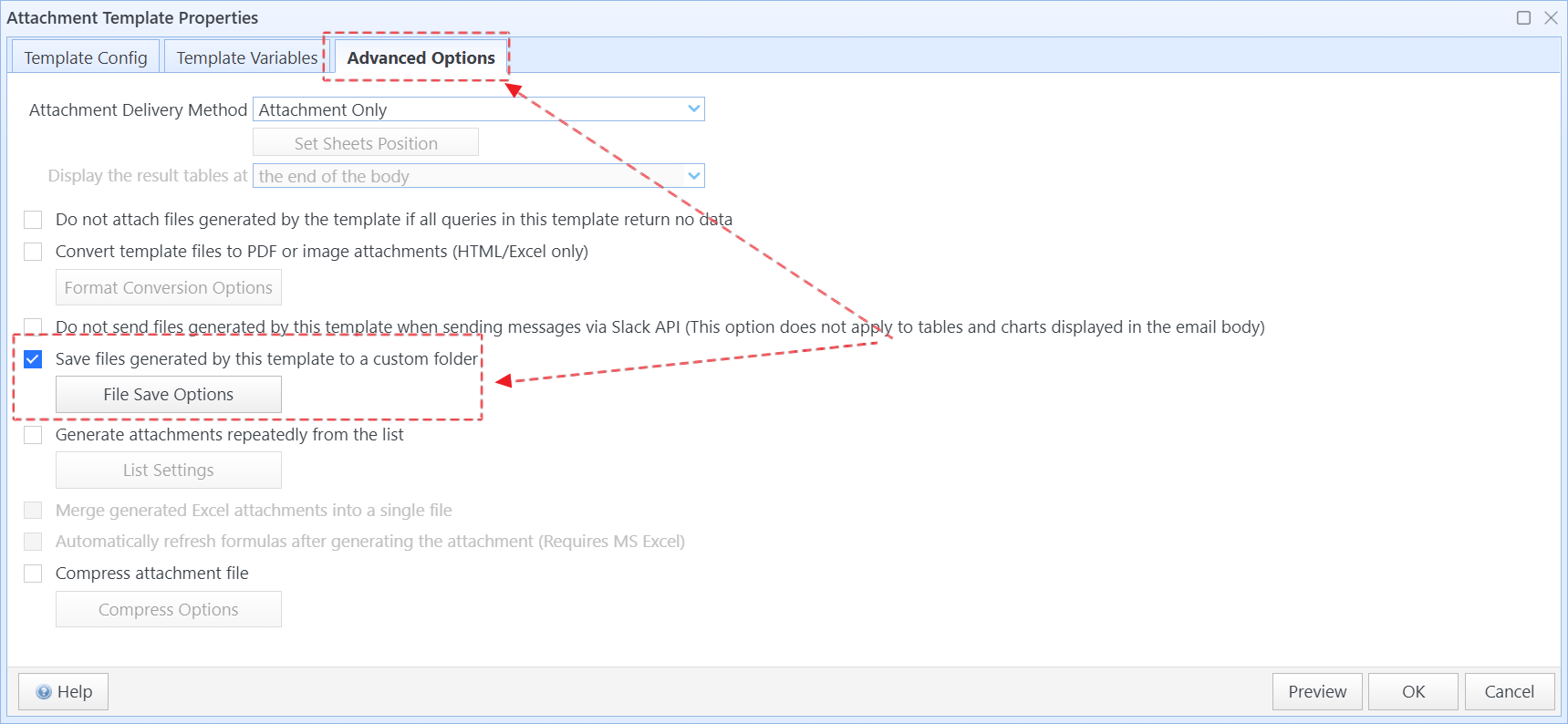
Check "Save files generated by this template to a custom folder"
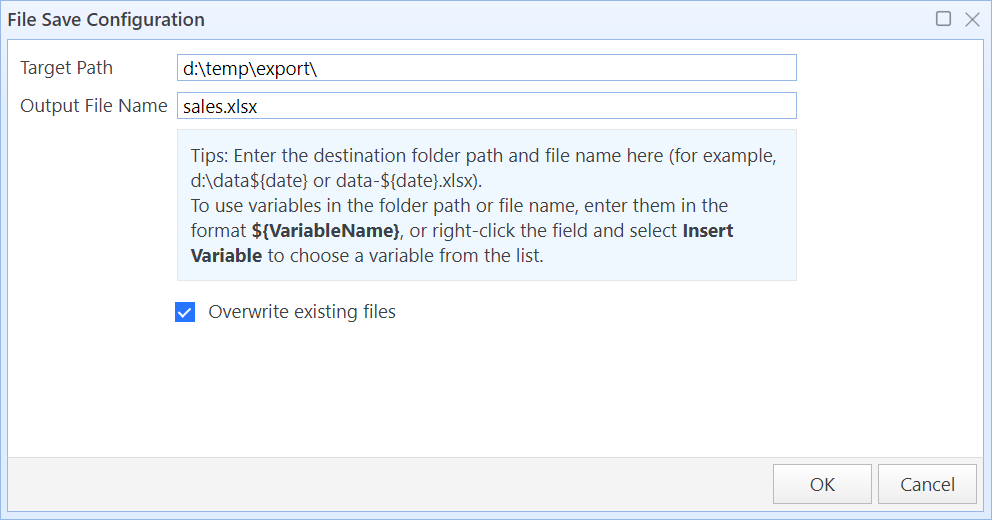
File Save Configuration dialog box
Target Path |
Set the target path for saving the file, for example, d:\export.
Custom variable reportdate When the task runs, the target path will become d:\export\20260629 Note: If the path contains the symbols \ / : * ? " < > |, the file copy will fail. The system will automatically create the target directory if it does not exist. |
Output File Name |
Set the output file name, for example, sales.xlsx. When the task runs, the file name will become sales_20260629.xlsx Note: If the file name contains the symbols \ / : * ? " < > |, the file copy will fail. |
Overwrite existing files |
If the target file already exists, selecting this option will make the system overwrite the existing file; otherwise, the file copy will fail. |
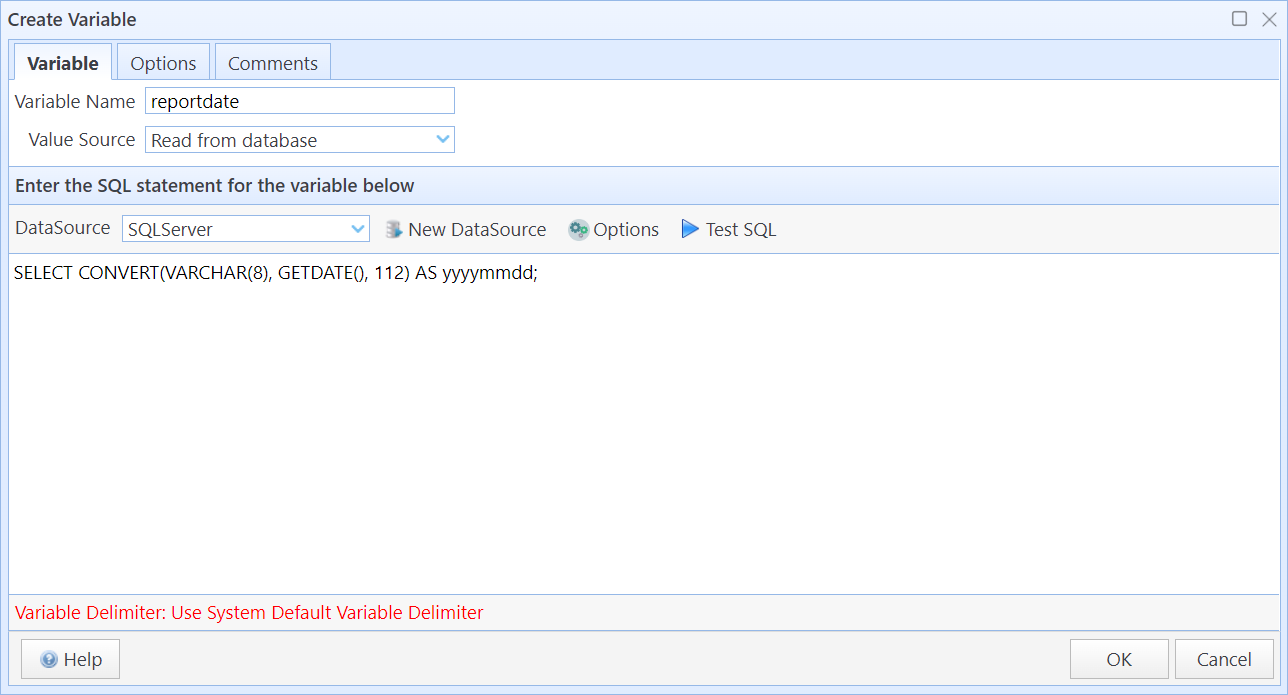
Note that the system will not copy files to the specified folder in the following cases:
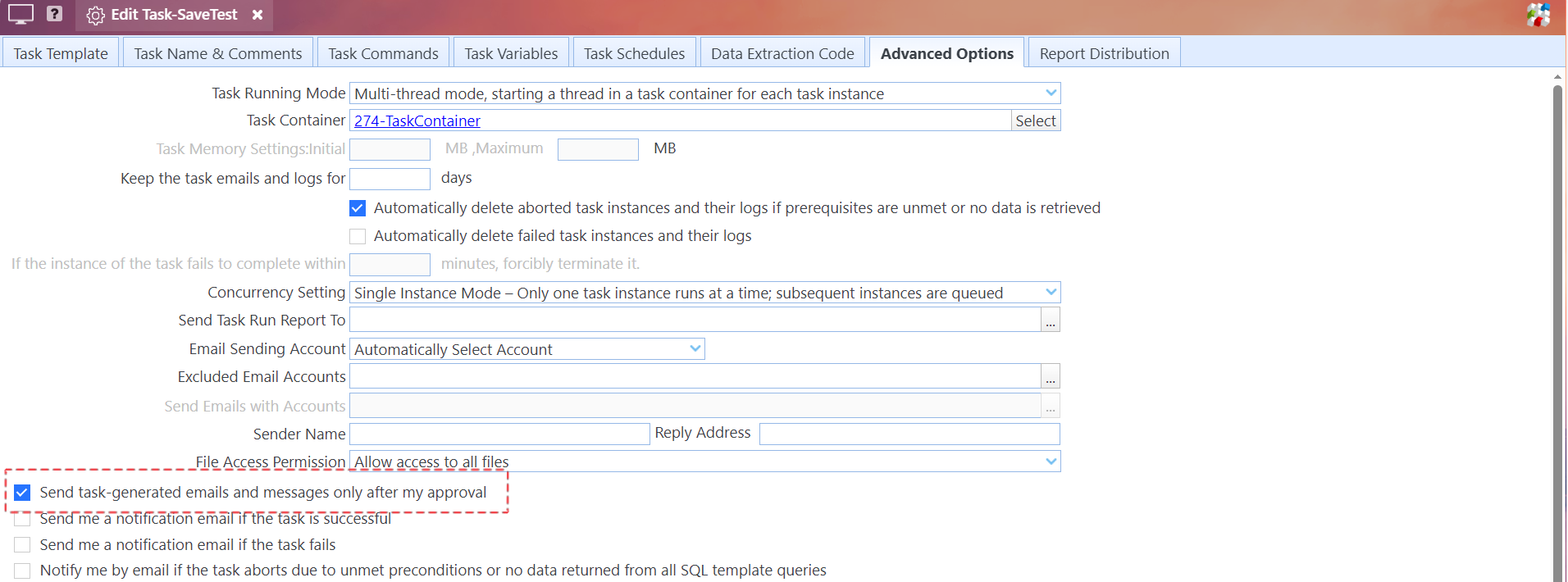
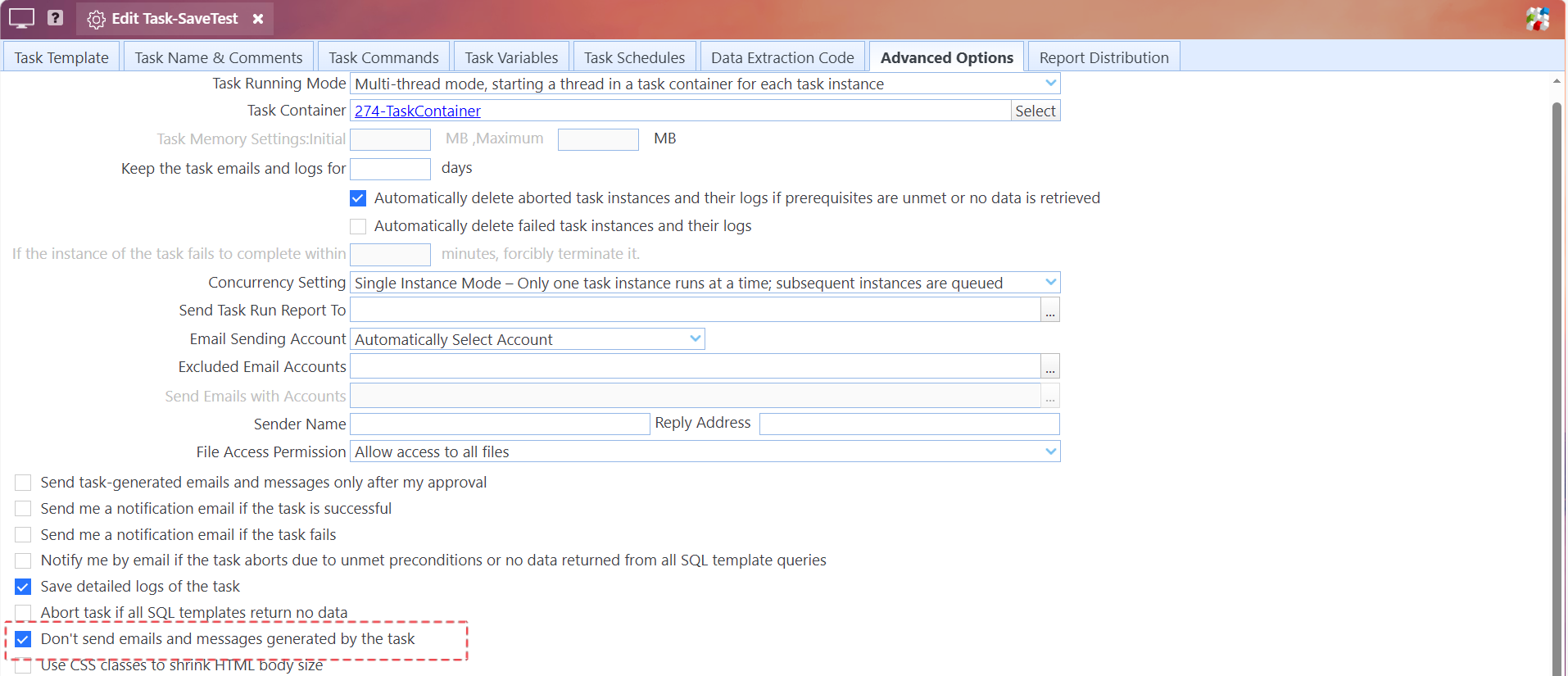
1. If the Send task-generated emails and messages only after my approval option in the task configuration is checked, the system will only copy the files after your approval. Related documentation: Message Review & Approval
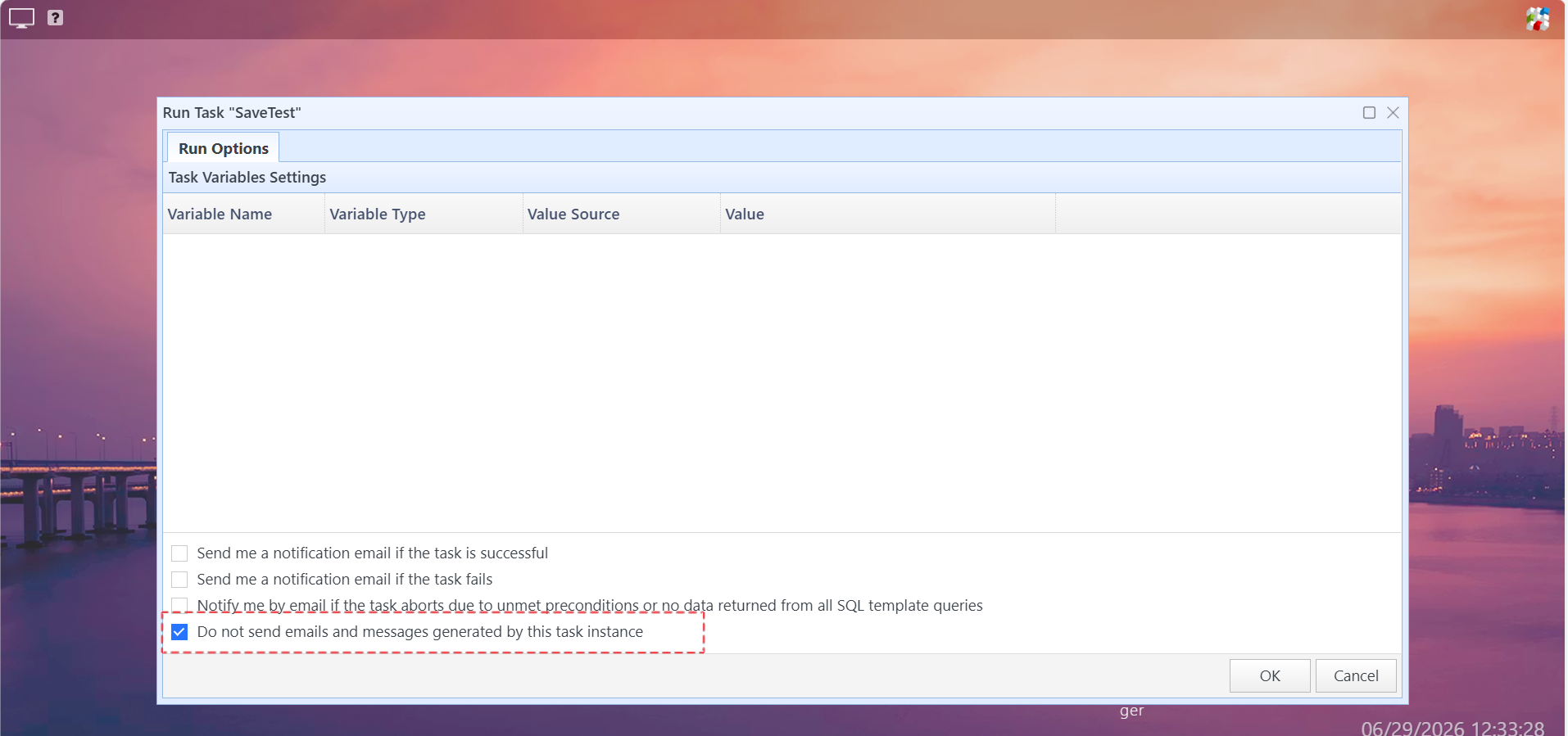
3. Using Attachment Template Manager
Within the task configuration dialog, you can use the Attachment Template Manager to manage the status of attachment templates, such as disabling or enabling them.
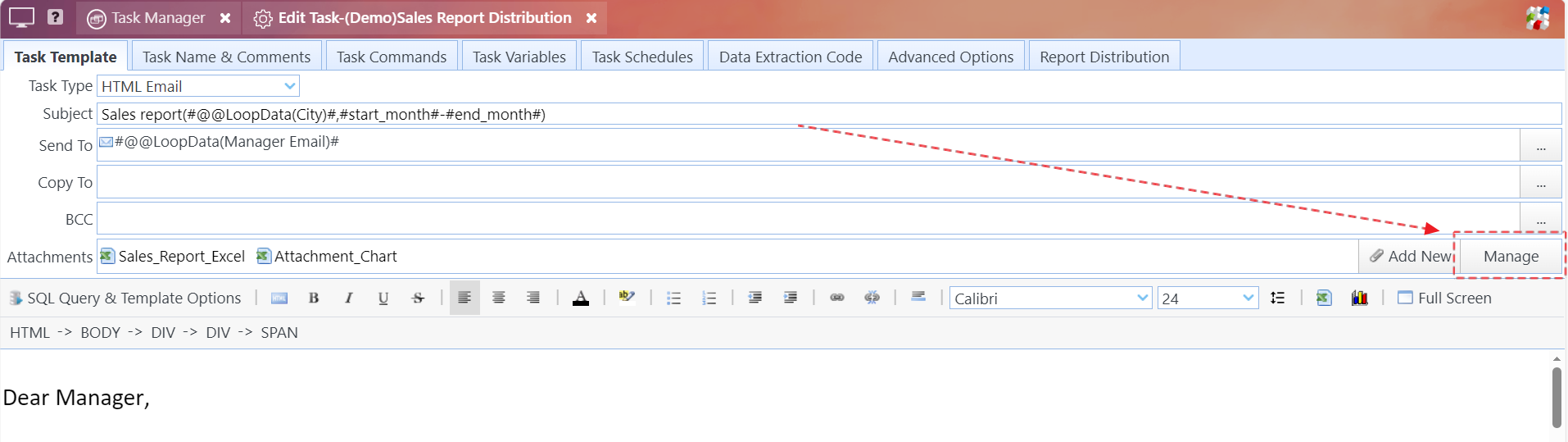
Click the Manage button to open the attachment template manager
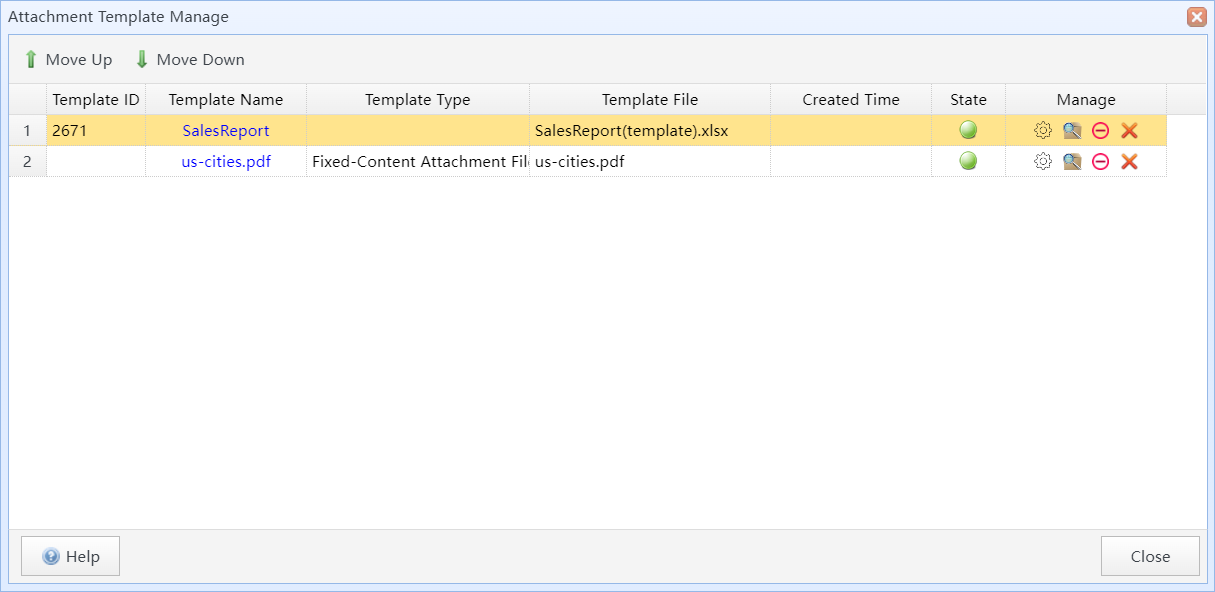
The attachment template manager
In this dialog box, you can click  to adjust the display order of attachment templates.
You can use the toolbar on the right side of the attachment template list item to manage the attachment templates.
|
Click to open Attachment Template Properties dialog box to edit the attachment config. |
|
Click to preview the attachment template. |
|
Click to disable or enable the attachment template. Note: If the attachment template is disabled, it will not be processed during the next execution of this task, and the SQL statements within the attachment template will not be executed as well. |
|
Click to delete the attachment template. |


 /
/
